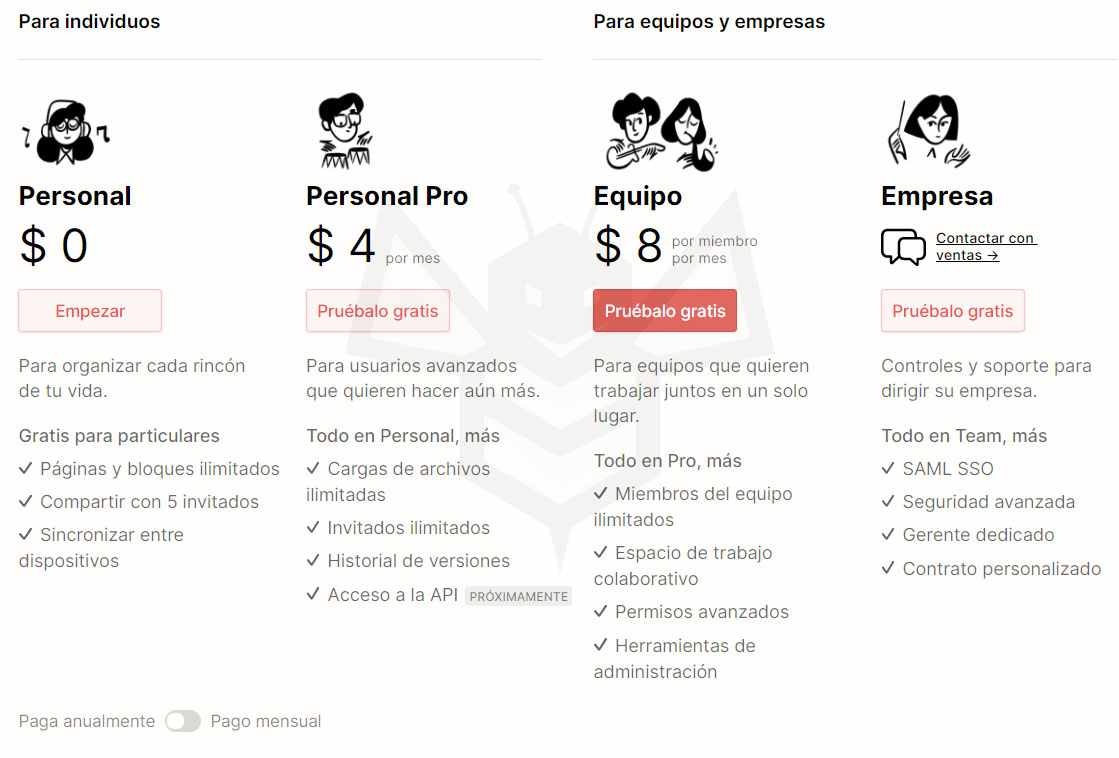
Notion is available for free on its Personal plan. This plan has limited features. You can view the pricing table here: https://www.notion.so/pricing. In the following video, we’ll look at the different account types and how to create one.
[mepr-show rules=”7898″ unauth=”message”]
[/mepr-show]
Notion Plans and Pricing
Glossary
Let’s define a few concepts that will help you better understand the features available in each of Notion’s plans.
[mepr-show rules=”7898″ unauth=”message”]
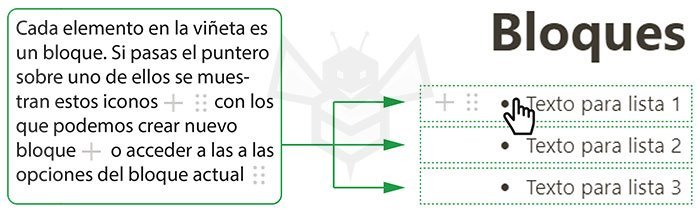
Blocks are content elements we add to a page, such as a paragraph, a to-do item, an image, an embedded file, etc. For example, if we add text, each paragraph is considered a block; if we add a bullet list, each bullet item is a block.
A page is also considered a block, and each element inside it is also considered a block.
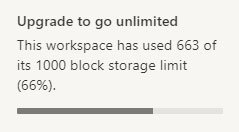
The Personal plan (free) includes unlimited blocks, but the Team and Enterprise trial plans have a limit of 1,000 blocks. Once you reach 1,000, you won’t be able to add more, but you can delete others to free up space and keep adding new blocks.
Blocks Available in Notion
The Notion blocks shown below are available on all plans.
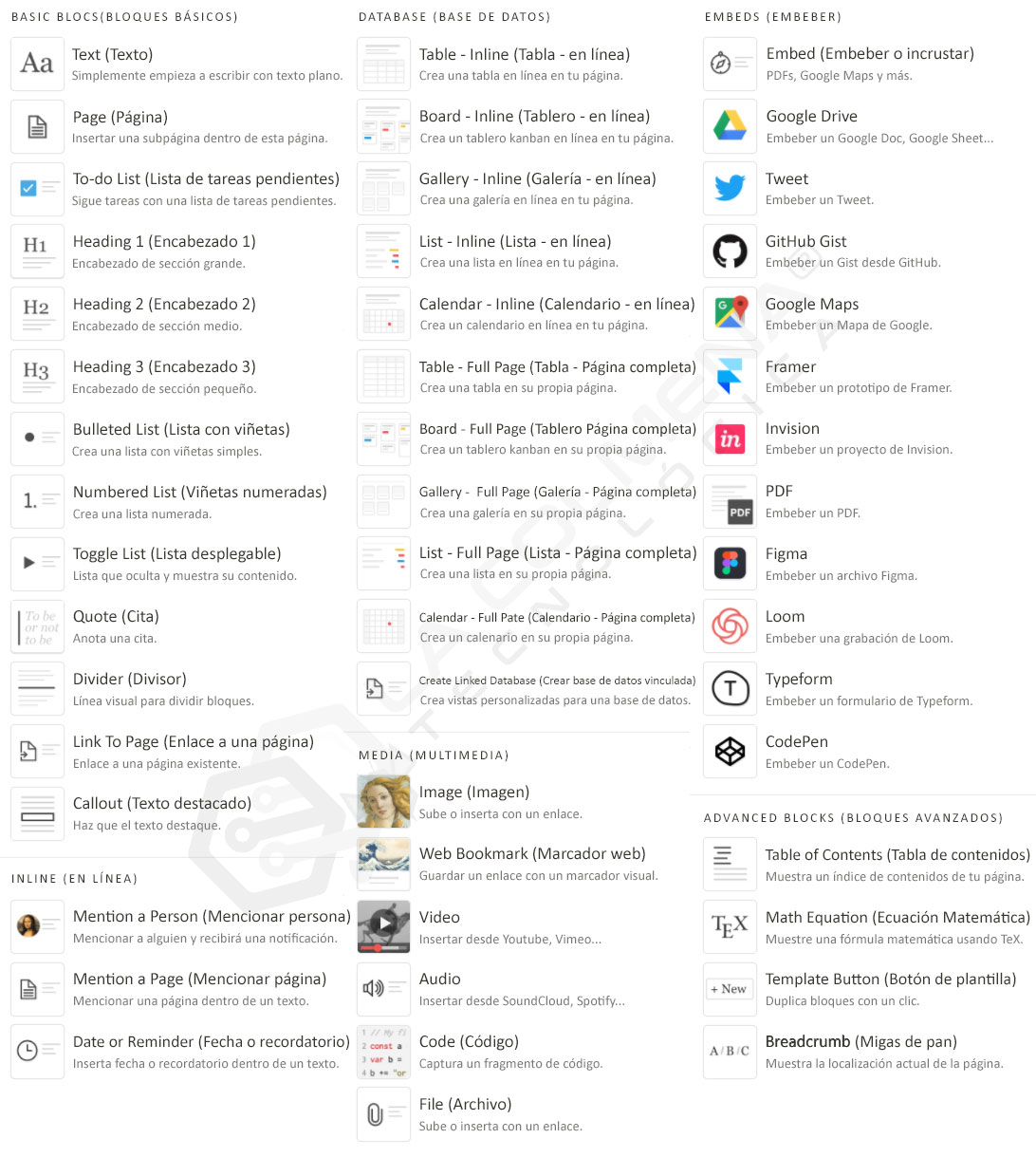
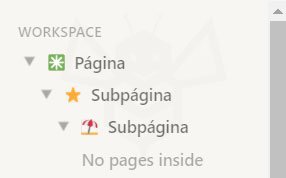
Pages are another type of block in Notion. They work similarly to folders in a file system: they’re containers where we can add our information in the form of blocks. They help us organize information in a hierarchical structure. Within a page, we can create as many subpages as we want, and the same applies to subpages—we can create as many levels as we want.
If we work in a collaborative environment (Team or Enterprise plan) or with guests (any plan), we can assign permissions to the top-level page and the subpages will inherit those permissions, so it’s not possible to assign different permissions to subpages. You can assign different access permissions to subpages using groups (this is what they call variable or granular permissions), but they’re only available on the paid Team or Enterprise plan (this option isn’t available in the trial plan).
Pages are the main element in Notion, and there are three types we’ll cover in lesson 3. They’re very versatile: we can create them, move them, rename them, delete them, restore them from the trash, or delete them permanently. When you delete a page, you also delete all the subpages and blocks it contains.
Members are teammates you invite to your workspace (Workspace) and are only available on the Team or Enterprise plans. In your workspace, you can add pages with different access levels:
- Full access (full access): Can edit, comment, and share with others.
- Can edit (can edit): Can edit and comment, but not share with others. (Not available in the Team/Enterprise trial plan)
- Can comment (can comment): Can view and comment, but not edit or share.
- Can View: Can view, but can’t edit, comment, or share with others.
- Disabled: Disables and moves the page to the private area where only the admin can access it.
If we work in a collaborative environment (Team or Enterprise plan) or with guests (any plan), we can assign permissions to the top-level page and all subpages will inherit those permissions, so it’s not possible to assign different permissions to subpages.
You can add as many pages as you want to your workspace (Workspace), each with different permissions (remember that all included subpages will have the same permissions as the top-level page). All members you add will have access to those pages.
You can create member groups and share pages individually with a group by assigning access levels higher than those already set for the workspace (Workspace).
Each New Member Is Billed
If you’re using a Team or Enterprise plan account, each member you add to your workspace (Workspace) is billed as an additional seat. For example, if you have a Team account and pay $10 per month, if you add a new member you’ll pay $20 per month—in other words, for each new member you pay a subscription equal to the main account.
If you chose annual billing for your account and add a new member, the remaining time until the next billing date will be prorated. That is, if you created the account on 01/01/[current_date format=”Y”] and add a new member on 30/06/[current_date format=”Y”], this new member will only pay half of the annual fee.
Differences Between Member and Guest
- Unlike members, guests don’t pay. They can even have a Personal plan (free) account and upload files larger than 5 MB on pages where they’re guests in a Team or Enterprise account.
- Guests don’t have access to the workspace (Workspace), but you can share individual workspace pages with them by assigning whatever permissions you think are appropriate for each page you share with them.
- You can’t add a guest to a work group.
- You can convert a guest into a member at any time, but that would require paying for a new subscription.
- Both members and guests can be assigned permissions to edit, comment, and share.
Guests are people outside your workspace, such as friends, family, or clients. You can collaborate by inviting people to individual pages. Guests are free, but they can only access the individual pages they’re invited to.
- Full access (full access): Can edit, comment, and share with others.
- Can edit (can edit): Can edit and comment, but not share with others. (Not available in the Team/Enterprise trial plan)
- Can comment (can comment): Can view and comment, but not edit or share.
- Can View: Can view, but can’t edit, comment, or share with others.
- Remove: disables the guest’s access to the page.
Differences Between Guest and Member
- Unlike members, guests don’t pay. They can even have a Personal plan (free) account and upload files larger than 5 MB on pages where they’re guests in a Team or Enterprise account.
- Guests don’t have access to the workspace (Workspace), but you can share individual workspace pages with them by assigning whatever permissions you think are appropriate for each page you share with them.
- You can’t add a guest to a work group.
- You can convert a guest into a member at any time, but that would require paying for a new subscription.
- Both members and guests can be assigned permissions to edit, comment, and share.

For the Personal (free) plan, and Team and Enterprise (free trial), there’s a 5 MB file upload size limit. You can upload as many files as you want as long as the file size doesn’t exceed 5 MB.
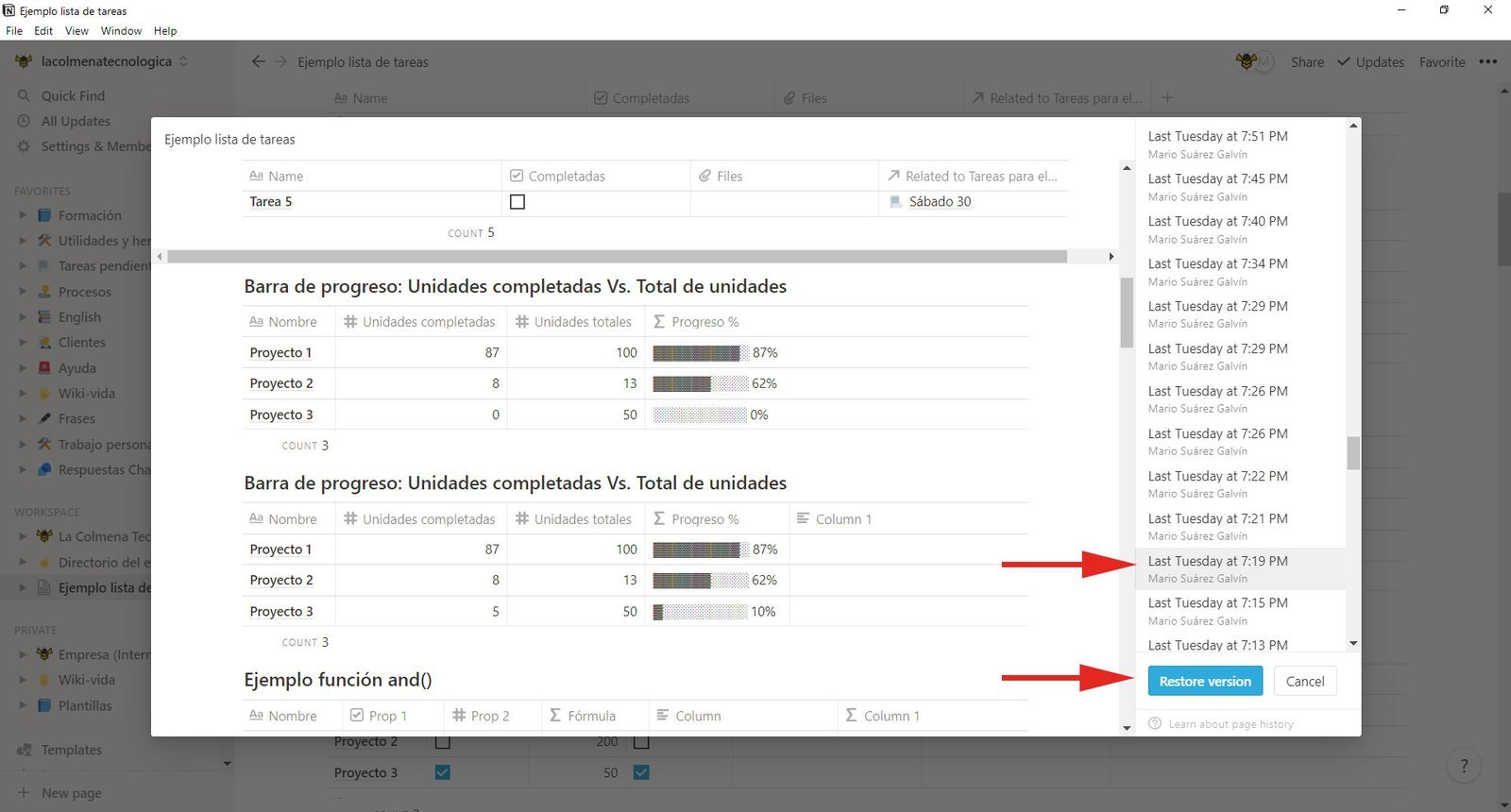
Allows you to view and restore previous versions of any Notion page. Only available on the Personal Pro (up to 30 days), Team (up to 30 days), and Enterprise (always) plans.
For example, you’ve been editing a page and making changes. With version history, you can restore that page to how it was 5 days ago. You can view how the page looked on a specific day and time and restore it to that exact state.
[/mepr-show]
Links of interest
- Notion website: https://www.notion.so/
- Notion pricing page: https://www.notion.so/pricing
- Notion downloads page (iOS and Android): https://www.notion.so/mobile
- Notion downloads page (Mac and Windows): https://www.notion.so/desktop
- Notion downloads page (Web Clipper): https://www.notion.so/web-clipper