
Visual progress bars offer a quick snapshot of a process’s status, improve aesthetics, and provide a subtle source of motivation. They’re not really a native Notion feature, but we can achieve them by combining special characters with a few Notion functions—and the result looks great.
Required functions
To create progress bars, we’ll use these three functions.
slice(text, number, number)
The slice() function returns a segment (or part) of the text we provide. This function needs at least two parameters, though we can optionally use three:
- Original text we’re going to extract a part from.
- Starting point, where the first character is
0. - End point (optional)
Example 1: slice("La Colmena Tecnológica.", 3, 10) → “Colmena”
Example 2: slice("La Colmena Tecnológica.", 11, 22) → “Tecnológica”

Whitespace also counts as a character. Unlike the start point, the end-point parameter does not include the character, so to include the final character you must set the position to the one right after it.
round(number)
The round() function rounds a given decimal number to the nearest integer.
Example 1: round( 3.2 ) → 3
Example 2: round( 3.5 ) → 4
format(value)
The format() function converts a given number or date into a text string.
Example: format( 20 ) → "20"
Percentage property
To visualize your progress, you first need to calculate it as a percentage in a separate property.
For each project in your database, you may have one property for the total units required to complete it, then another property for the units currently completed.
In a Progress % property, we divide the completed units by the total units:

prop("Unidades completadas") / prop("Unidades totales")
Here you can see how to remove unsightly decimals in a formula that returns a percentage.

round(100 * prop("Unidades completadas") / prop("Unidades totales")) / 100
Special characters to create our progress bar
The progress bar will include special characters to represent completed and incomplete segments. While you can choose whatever you like, here are a few suggestions:
- Shaded blocks → ▓░
- Stars → ★☆
- Circles → ●○
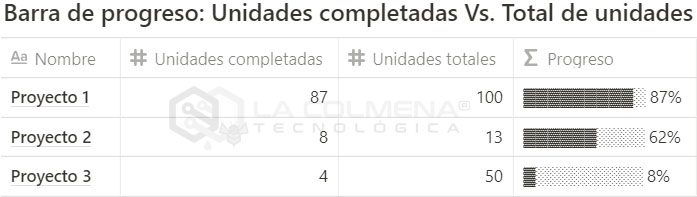
With the Progress % property created and the special characters chosen, we can now create the progress bar. Create a new Formula property, name it Progress, and then add this formula:
Code with shaded characters
slice("▓▓▓▓▓▓▓▓▓▓", 0, round(prop("Progreso %") * 10)) + slice("░░░░░░░░░░", 0, 10 - round(prop("Progreso %") * 10)) + " " + format(round(prop("Progreso %") * 100)) + "%"
Code with star characters
slice("★★★★★★★★★★", 0, round(prop("Progreso %") * 10)) + slice("☆☆☆☆☆☆☆☆☆☆", 0, 10 - round(prop("Progreso %") * 10)) + " " + format(round(prop("Progreso %") * 100)) + "%"
Code with circle characters
slice("●●●●●●●●●●", 0, round(prop("Progreso %") * 10)) + slice("○○○○○○○○○○", 0, 10 - round(prop("Progreso %") * 10)) + " " + format(round(prop("Progreso %") * 100)) + "%"
You just need to replace the symbols in the formula with the ones you like best.