Step-by-step video
How to change font size, color, family, and style in Elementor
Many Elementor widgets let you edit the text color and typography settings. These design options are found in the widgets’ Style tab.
Style
Text Color: choose your text color
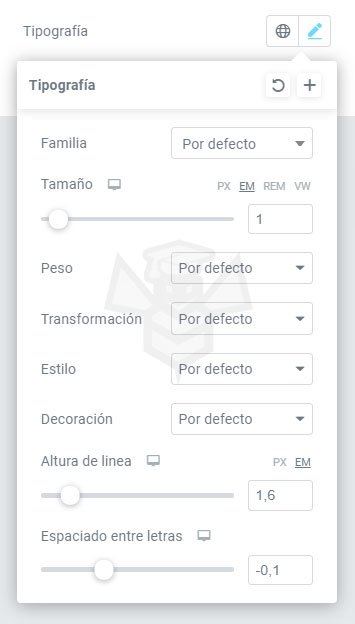
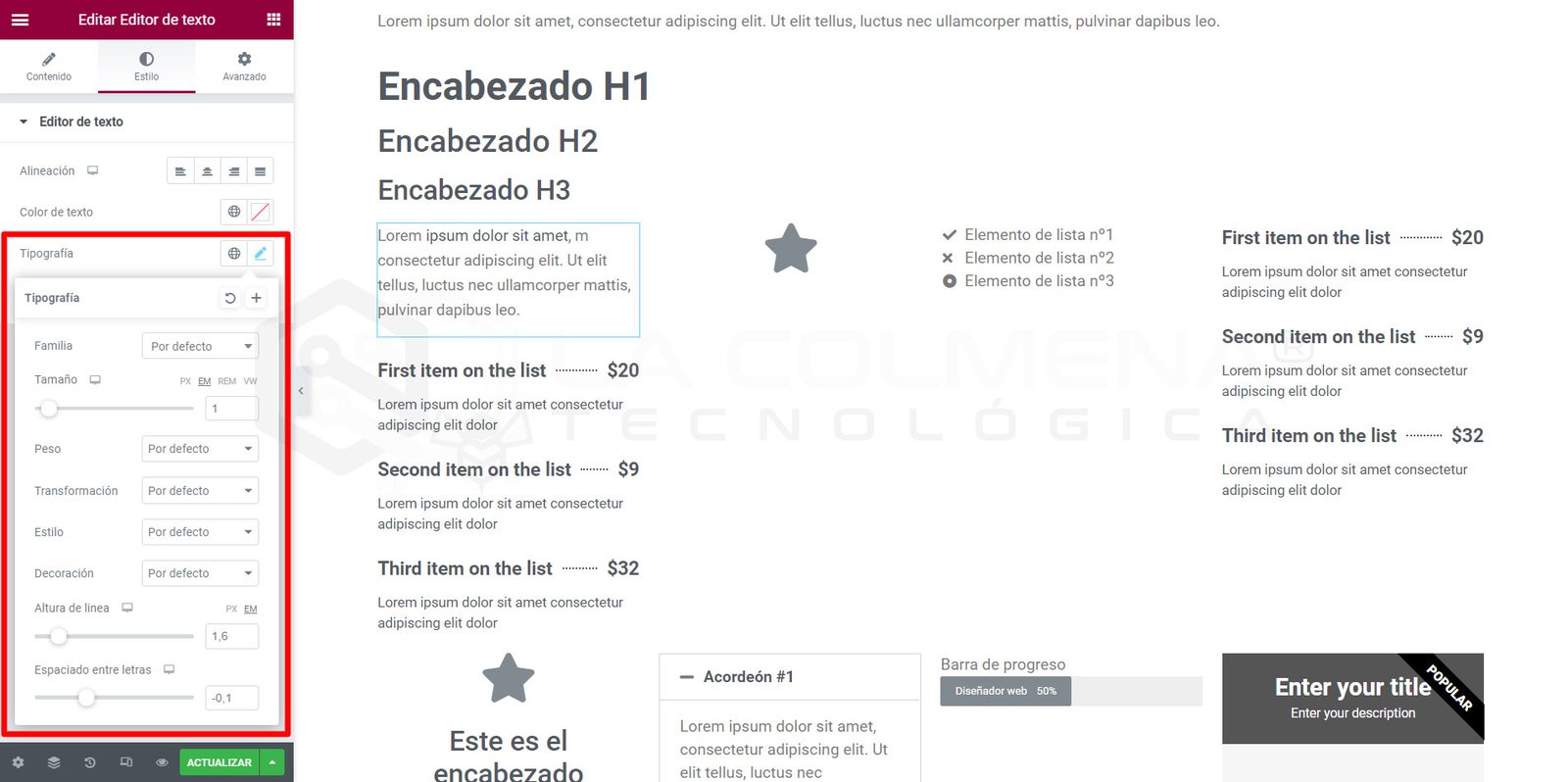
In Widget Settings > Style, click the  icon to access the typography settings.
Typography
- Family: choose a font family from over 800 Google Fonts families
- Size: choose a font size (more information about px, em, rem, etc.)
- Weight: choose the font weight between 100 and 900
- Transform: choose the font properties (Uppercase, Lowercase, …)
- Style: choose between Normal, Italic, and Oblique
- Decoration: choose the text decoration (Underline, Overline, Strikethrough, …)
- Line Height: use the slider to set the line height
- Letter Spacing: use the slider to set letter spacing