
What Is an Anchor in HTML?
An anchor is the destination link we specify when creating a hyperlink. These are links that take us to another web page, open an email, a phone number, download a file, or as we will see in this topic, take us to another point on the same page. Let’s look at an example:
<a href="https://lacolmenatecnologica.com/">La Colmena Tecnológica</a>Result: La Colmena Tecnológica
In this HTML code example we see how the text between the <a> (opening) and </a> (closing) tags will contain a hyperlink to the URL https://lacolmenatecnologica.com/. That is, when clicking on the text La Colmena Tecnológica the browser will send us to the destination we have specified in the href attribute.
Of course we don’t need to know HTML to create a hyperlink with Elementor, but it doesn’t hurt to know it.
Types of Anchors
In the following table you can see in green several types of anchors, some need a prefix such as email which must be preceded by mailto: or a phone number which must be preceded by tel:. To force the download of a file instead of viewing it, we must add the download attribute.
| Type | HTML Code |
|---|---|
| URL or Link | <a href=”https://lacolmenatecnologica.com/“>Web page</a> |
| <a href=”mailto:mario@lacolmenatecnologica.com“>Web page</a> | |
| Phone | <a href=”tel:+34665123123“>Web page</a> |
| Download File | <a href=”https://lacolmenatecnologica.com/AFI_grafico.pdf” download=”AFI Gráfico”>Web page</a> |
| Same Page | <a href=”#inicio“>Web page</a> |
| Anchor to Another Page | <a href=”https://lacolmenatecnologica.com/nombre-de-la-pagina/#inicio“>Web page</a> |
Adding a Link to the Same Page with Elementor
To add a link that goes to another point on the same page we will need to follow these steps.
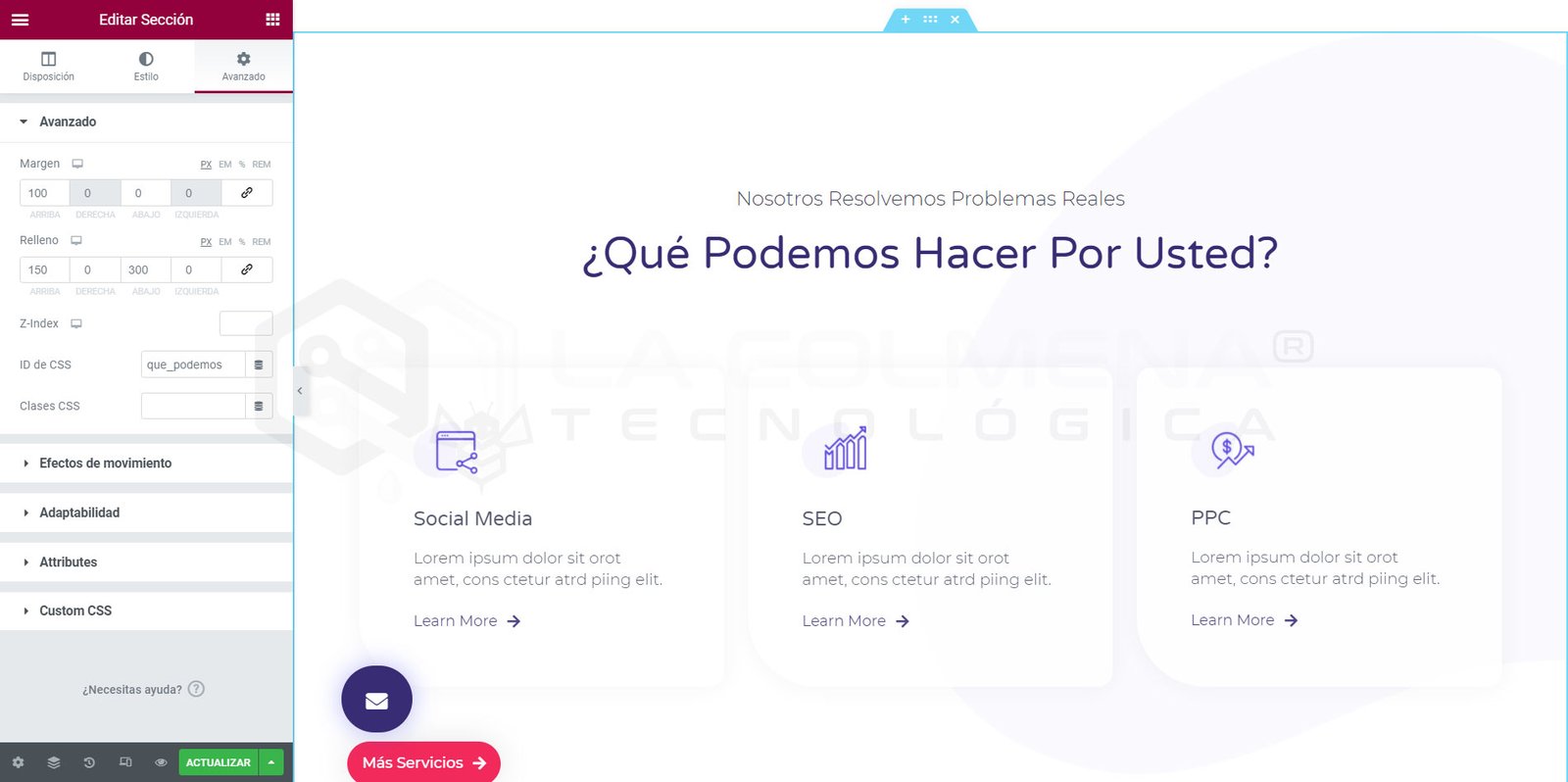
- Click on the widget you want to scroll to when clicking, it can be a section or any widget within the page we are editing. In this example we will use a section, so we click on its tab to select it

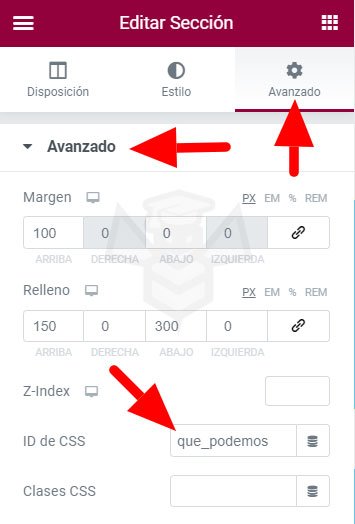
- Then in the left column we click on the Advanced tab.
- In the Advanced section of the Advanced tab we enter an identification name in the CSS ID field.
Recommendations for the CSS ID name:- Always write in lowercase.
- Replace spaces with hyphens or underscores, example: what_we_can
- Use only alphabetic characters and numbers.
- Don’t get confused, the # sign is not necessary to put here, we will put it later in the hyperlink.
- This name is unique throughout the page, we should not use it again for other elements. An ID defines a single element.
- Now we will click on the element of our page where we want to add the hyperlink, so that when we click it scrolls to the section to which we have assigned the ID what_we_can. We can put this link in any widget that supports links or in text through the text editor. In this case we will use an Icon widget to add this link to the page itself.
- In the left column we click on the Content tab and enter the ID name in the Link field, now yes, preceded by the hash sign #. In this case: #what_we_can
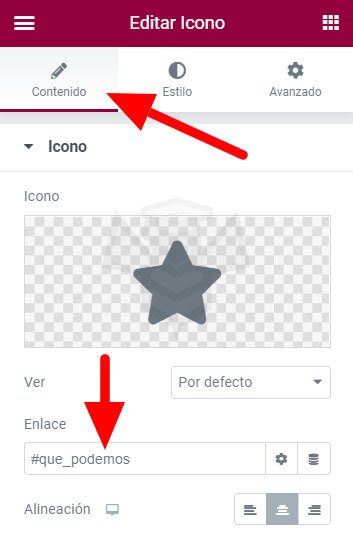
- Once this is done we save and our link to the same page is complete.
We can put this same link in other widgets or texts on our page to link to that section. This type of link is usually used on pages whose content is extensive to make it easier for the user to access the content they need. In addition, we can also use the complete hyperlink on another page, as we see below, to open a different page and scroll to the point we want:
https://lacolmenatecnologica.com/#que_podemosWe just need to add the ID preceded by the hash sign # at the end of the page URL. Now we can use this anchor on any other page to take the user not only to a page, but also to the specific point on that page that we want.