
[mepr-show rules=”7898″ unauth=”message”]
[/mepr-show]
Formulas and Functions in Notion
Below we will break down technical details and examples for each Notion function, operator, and constant, as well as the patterns used to format dates using the formatDate() function.
Formulas
Formulas are calculation expressions that we can use in Formula type properties, which can be composed of operators, functions, numeric and text values, and property references. Property references give us the ability to perform different and automatic calculations for each of the records in the table or database by entering a single formula.
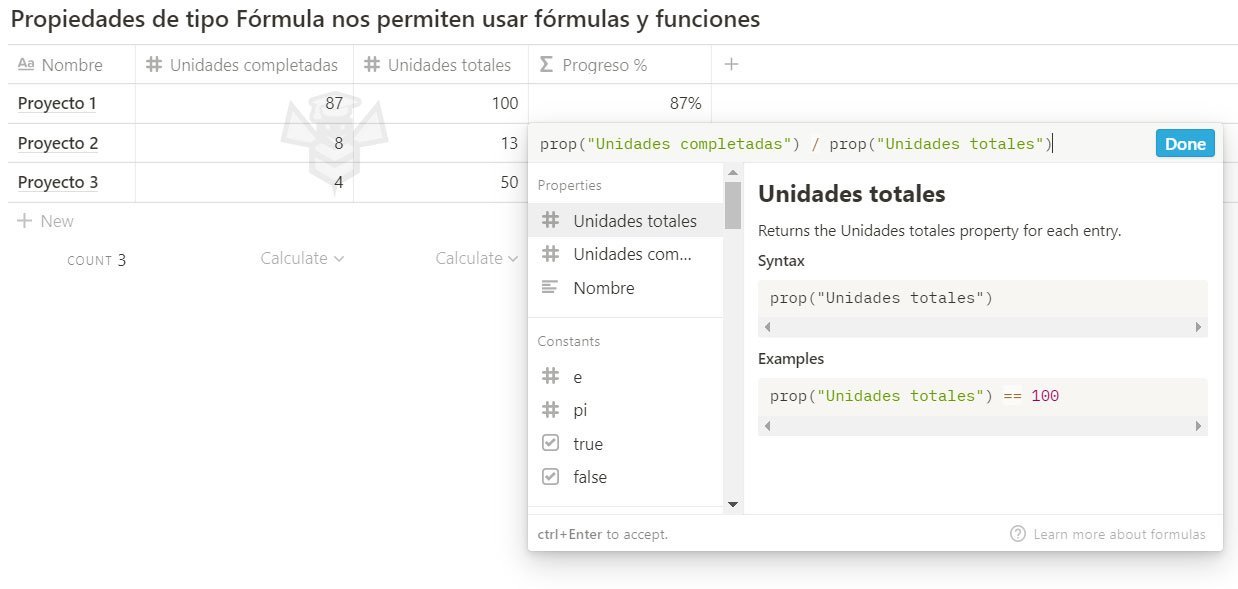
All these functions, operators, and constants can only be used within a Notion table environment and more specifically within a Formula type property.
Functions
Functions help us perform calculations and operations, returning a result. There are many functions and they can be classified by the type of data they return as a result. We can tell what type they are by looking at the icon that precedes the function in the list.
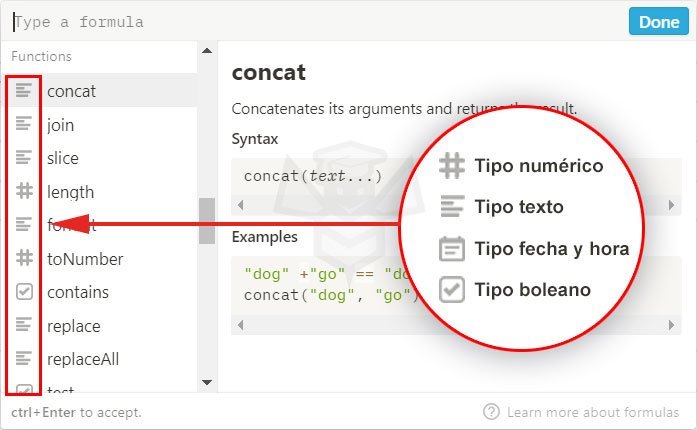
The boolean type returns a logical result, which can have two possible values: True or False. Notion represents this value as a checkbox—if it’s checked it’s true, and if not it’s false.
Function Characteristics
- All functions have this syntactic structure:
nombre(parámetro, parámetro). Immediately after the function name, a parenthesis always opens, without leaving any space between the function name and the parenthesis. Between the opening and closing parenthesis we place the parameters, separated by commas, example:equal(2, 4). - There are functions that don’t need parameters, example:
now(). - We can include the value of a property as a parameter within a function, example:
day(prop("fecha de alta")). As we see in the example,prop("fecha de alta")is how we invoke the property. - Text type parameters always go in quotes, example:
length("Hello world"). If the text value is within a property, we don’t need to add additional quotes, example:length(prop("nombre")). - All functions return a result that can be a number, text, date or time, or a boolean.
- Functions can be nested within each other, example:
formatDate(now(), "DD/MM/YYYY"). In the example we nestnow()insideformatDate(). - We can perform mathematical operations with the results returned by functions within the same formula, example:
round(prop("total")) + 10
Parameters and arguments: these concepts can create confusion because they seem to be the same but they’re not. For example, when we state the function
subtract(número, número), we can say this function needs two numeric parameters; however, when we’re passing data to the function, these are called arguments, example:subtract(5, 3). In this case, 5 and 3 are the arguments we pass to the function’s parameters. We could say that a parameter is the container and the argument is the content.
Notion Logical Functions
Logical functions evaluate boolean logical tests. Below you can see a table with the logical operators we can use to perform these comparisons.
| Operator | Description | Example |
|---|---|---|
== | Equal | 2 == 2 → "Coche" == "Casa" → |
!= | Not equal or unequal | 2 != 2 → falso | "Coche" != "Casa" → verdadero |
> | Greater than | 2 > 2 → falso |
< | Less than | 2 < 3 → verdadero |
<= | Less than or equal to | 2 >= 3 → falso |
>= | Greater than or equal to | 2 <= 2 → verdadero |
Things to Keep in Mind
- When comparing text strings, they must be in quotes, example:
"Coche" != "Casa". - You cannot compare a number with a text string in a logical test since they are different types, but we can use the
format()function (converts a number to a text string) ortoNumber()(converts a text string to a number) to convert them and be able to compare them. ThetoNumber()function can also convert a boolean to a number: if it’strue(true) it will convert it to1, and if it’sfalse(false) to0. - We can use table properties in the logical test, example:
prop("nombre")=="Antonio"orprop("total")>1000. Or we can use nested functions to convert the values to the type we need to compare them, example:toNumber(prop("valor1"))>prop("valor2").
and(logical test, logical test)
Checks whether the values returned from two logical tests are true or not. Returns a boolean result. Applied to a property, this shows us a checkbox that, if the result is true (true), displays this checkbox checked and otherwise unchecked. This function will return true if both comparison expressions are true and will return false if one or both are false.
Example 1: and( 2 == 2, 2 == 3 ) → false
Argument 1: The first comparison expression, must evaluate to a boolean value.
Argument 2: The second comparison expression, must evaluate to a boolean value.
This function allows the use of regular expressions; if you want to learn how to use them, click here.
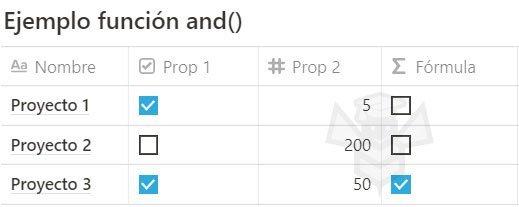
Example 2: and(prop("Prop 1"), prop("Prop 2") >= 10)
Argument 1: In the first argument, no comparison expression is needed since the argument itself is boolean because the “Prop 1” property is a Checkbox type, so the argument itself provides us with a true or a false.
Argument 2: The second argument evaluates whether the value of the “Prop 2” property in each row is greater than or equal to 10.
empty(value)
Checks whether the argument is empty; if it’s empty it returns true, if it’s full false. Returns a boolean.
Example 1: empty( "Mundo" ) → false
Example 2: empty( "" ) → true
Argument: The expression to check, which can evaluate any type of value, for example, a number, text string, or date.
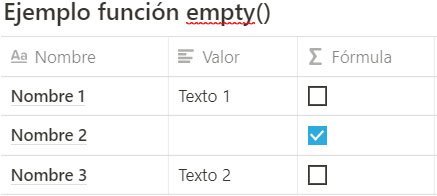
Example 3: empty(prop("Valor"))
Argument: Evaluates whether the value of the “Value” property in each row is empty or not. If the property is empty it provides us with a true, and when it’s not false.
equal(value, value)
Checks whether the values returned from two expressions are equal. Returns a boleano.
Example 1: equal( 2, 3 ) → false
Example 2: equal( "rojo", "azul" ) → false
Example 3: equal(3 * 5, 15 ) → true
Example 4: equal( false, not true ) → true
Equivalent operator: [expresión] == [expresión]
Argument 1: The expression to check, which can evaluate any type of value, for example, a number, text string, date, or boolean.
Argument 2: The expression to check, which can evaluate any type of value, for example, a number, text string, date, or boolean.
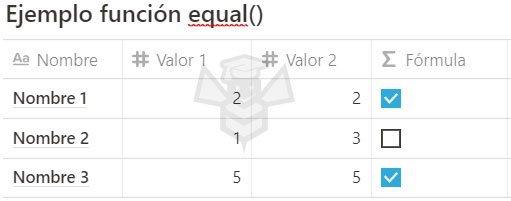
Example: equal(prop("Valor 1"), prop("Valor 2"))
Arguments: Evaluates whether the value of the “Value 1” and “Value 2” properties are equal. If both properties are equal it provides us with a true, and when they’re not false.
if(logical test, value, value)
The if() function allows you to perform one action if a condition is met, or another action if the condition is not met. By nesting if() functions (placing them inside each other), you can specify actions for numerous conditions. This function needs three parameters:
- Logical test, which evaluates to
verdaderoorfalso. - Value or operation to return if the operation is
verdadero. - Value or operation to return if the operation is
falso.
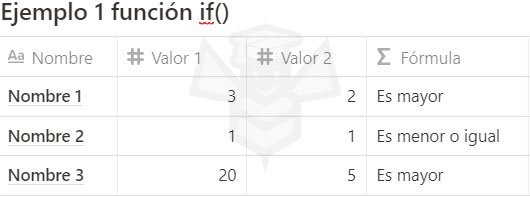
Example 1: if(prop("Valor 1") > prop("Valor 2"), "Es mayor", "Es menor o igual")
Argument 1: Evaluates whether the value of the “Value 1” property is greater than the “Value 2” property. Only if “Value 1” is greater than “Value 2” will the result of the logical test be true (True).
Argument 2: If the logical test results in true, the result to display will be “It is greater”.
Argument 3: If the logical test results in false, the result to display will be “It is less than or equal to”.
Since this nested formula is a bit more complex, let’s look at these examples in a new explanatory video.
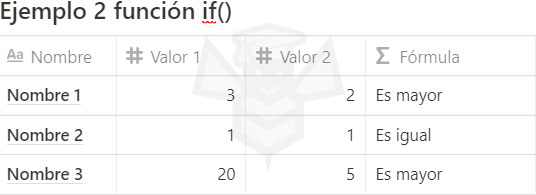
Example 2: if(prop("Valor 1") > prop("Valor 2"), "Es mayor", if(prop("Valor 1") < prop("Valor 2"), "Es menor", "Es igual"))
Argument 1: Evaluates whether the value of the “Value 1” property is greater than the “Value 2” property. Only if “Value 1” is greater than “Value 2” will the result of the logical test be true (True).
Argument 2: If the logical test results in true, the result to display will be “It is greater”.
Argument 3: If the logical test results in false, as the third argument we include a new nested if(prop("Valor 1") < prop("Valor 2"), "Es menor", "Es igual"); this if has three parameters in turn.
This function allows the use of regular expressions; if you want to learn how to use them, click here.
larger(value, value)
Returns true (true) if the first argument is larger than the second and false (false) otherwise. We can evaluate any type of value: text, numbers, dates, or booleans. If the values are equal it would return false. Both parameters must be of the same type (number, text, …). Returns a boolean.
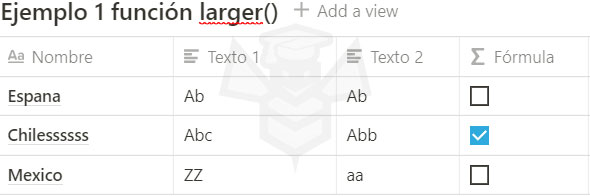
Example 1: larger("Ac","Ab") → true
Example 2: larger(2,3) → false
Example 3: larger(prop("Fecha 1"),prop("Fecha 2")) → true
Example 4: larger(true, false) → true
Argument 1: The first expression, which can evaluate any type of value, for example, a number, text, date, or boolean.
Argument 2: The expression against which to compare the first. Its value type must match the value type of the first expression.
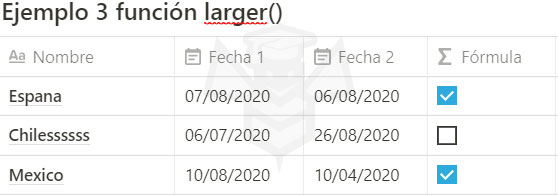
How are texts evaluated with larger()? first evaluates the leftmost letter of each argument; in example 1, since the first letter is “A” in both arguments, it moves on to evaluate the second letter—in this case the “c” of the first argument is greater than the “b” of the second argument because letters have the value of their order in the alphabet, and in this case “c” is in the third position and therefore is greater than the “b” of the second argument. Any lowercase letter is greater than any uppercase letter.
And dates? the most recent date is always the largest.
Booleans: if it’s true it has value 1, and if it’s false it has value 0. Therefore the value true is always greater than false.
largerEq(value, value)
It’s the same as the previous one with the difference that this function also returns true if the arguments are equal. Returns true (true) if the first argument is larger than or equal to the second and false (false) if it’s smaller. We can evaluate any type of value: text, numbers, dates, or booleans. Both parameters must be of the same type (number, text, …). Returns a boolean.
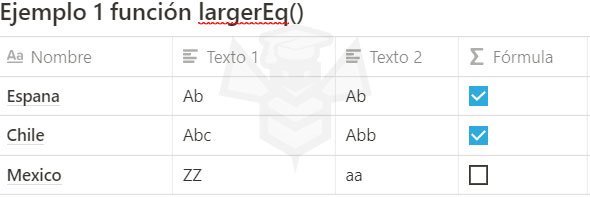
Example 1: largerEq("Ac","Ab") → true
Example 2: largerEq(2,2) → true
Example 3: largerEq(prop("fecha 1"),prop("fecha 2")) → true
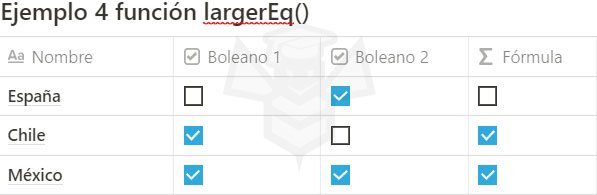
Example 4: largerEq(true, false) → true
Argument 1: The first expression, which can evaluate any type of value, for example, a number, text, date, or boolean.
Argument 2: The expression against which to compare the first. Its value type must match the value type of the first expression.
How are texts evaluated with larger()? first evaluates the leftmost letter of each argument; in example 1, since the first letter is “A” in both arguments, it moves on to evaluate the second letter—in this case the “c” of the first argument is greater than the “b” of the second argument because letters have the value of their order in the alphabet, and in this case “c” is in the third position and therefore is greater than the “b” of the second argument. Any lowercase letter is greater than any uppercase letter.
And dates? the most recent date is always the largest.
Booleans: if it’s true it has value 1, and if it’s false it has value 0. Therefore the value true is always greater than false.
not(logical test)
Checks whether the logical test returns false. If the logical test is false it returns true and vice versa. Returns a boolean.
Example 1: not(2 == 3) → true
Example 2: not(prop("País 1") == prop("País 2"))
Example 3: not prop("País 1") == prop("País 2")
Example 3 performs the same function as Example 2; when we enter the expression in Notion as we see in Example 2, once we press the Done button it changes it to how we see it in Example 3.
Argument 1: The logical test evaluates a boolean. In this case it evaluates whether 2 == 3; the result is false (false). The function returns the opposite boolean to the result of the logical test: true.

Example 4: if (not prop("Finalizado"), "No finalizado", "Finalizado")
In this example we’ve included not nested in an if() function; as we see, this function loses the parentheses and works as a negation operator.
This function allows the use of regular expressions; if you want to learn how to use them, click here.
or(logical test, logical test)
If one or both logical tests return true. If both are false, it returns false. Returns a boolean.
Example 1: or(2==2, 1==3) → true
Example 2: or(2==4, 1==3) → false
Argument 1: The first comparison expression, must evaluate a logical test resulting in a boolean value.
Argument 2: The second comparison expression, must evaluate a logical test resulting in a boolean value.
This function allows the use of regular expressions; if you want to learn how to use them, click here.
smaller(value, value)
Returns true (true) if the first argument is smaller than the second and false (false) otherwise. We can evaluate any type of value: text, numbers, dates, or booleans. If the values are equal it would return false. Both parameters must be of the same type (number, text, …). Returns a boolean.
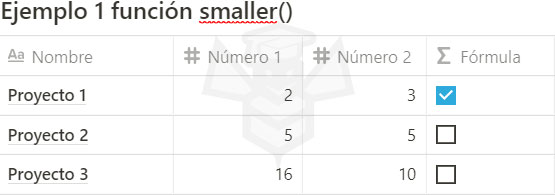
Example 1: smaller( "Ac","Ab") → false
Example 2: smaller( 2, 3 ) → true
Example 3: smaller(prop("Fecha 1"),prop("Fecha 2")) → false
Example 4: smaller( true, false ) → false
Argument 1: The first expression, which can evaluate any type of value, for example, a number, text, date, or boolean.
Argument 2: The expression against which to compare the first. Its value type must match the value type of the first expression.

How are texts evaluated with larger()? first evaluates the leftmost letter of each argument; in example 1, since the first letter is “A” in both arguments, it moves on to evaluate the second letter—in this case the “c” of the first argument is greater than the “b” of the second argument because letters have the value of their order in the alphabet, and in this case “c” is in the third position and therefore is greater than the “b” of the second argument. Any lowercase letter is greater than any uppercase letter.
And dates? the most recent date is always the largest.
Booleans: if it’s true it has value 1, and if it’s false it has value 0. Therefore the value true is always greater than false.
smallerEq(value, value)
Returns true (true) if the first argument is smaller than the second and false (false) otherwise. We can evaluate any type of value: text, numbers, dates, or booleans. If the values are equal it would return true. Both parameters must be of the same type (number, text, …). Returns a boolean.
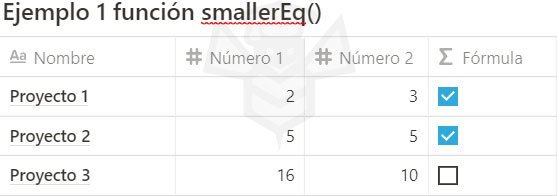
Example 1: smallerEq( "Ac","Ab") → false
Example 2: smallerEq( 2, 3 ) → true
Example 3: smallerEq(prop("Fecha 1"),prop("Fecha 2")) → false
Example 4: smallerEq( true, false ) → false
Argument 1: The first expression, which can evaluate any type of value, for example, a number, text, date, or boolean.
Argument 2: The expression against which to compare the first. Its value type must match the value type of the first expression.
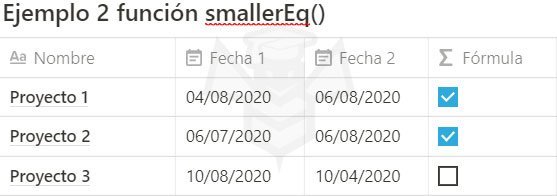
How are texts evaluated with larger()? first evaluates the leftmost letter of each argument; in example 1, since the first letter is “A” in both arguments, it moves on to evaluate the second letter—in this case the “c” of the first argument is greater than the “b” of the second argument because letters have the value of their order in the alphabet, and in this case “c” is in the third position and therefore is greater than the “b” of the second argument. Any lowercase letter is greater than any uppercase letter.
And dates? the most recent date is always the largest.
Booleans: if it’s true it has value 1, and if it’s false it has value 0. Therefore the value true is always greater than false.
unequal(value, value)
Checks whether the values returned from two expressions are unequal. Returns a boolean.
Example 1: unequal( 2, 3 ) → true
Example 2: unequal( "rojo", "rojo" ) → false
Example 3: unequal(6 * 9, 42 ) → false
Example 4: unequal( true, not false ) → false
Equivalent operator: [expresión] != [expresión]
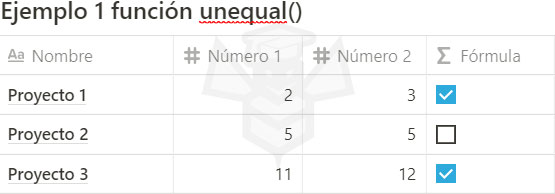
Argument 1: The expression to check, which can evaluate any type of value, for example, a number, text string, date, or boolean.
Argument 2: The expression to check, which can evaluate any type of value, for example, a number, text string, date, or boolean.
Notion Numeric Functions
Numeric functions perform mathematical operations with numbers and always return a number. Below you can see a table with the mathematical operators we can use to perform these operations.
| Operator | Description | Examples |
|---|---|---|
- | Subtracts the right operand from the left operand to return their difference. | 4 - 2 → 2 |
+ | Adds numeric operands to return their sum, or concatenates (combines) text operands (text strings). | 2 + 2 → 4 |
* | Multiplies its operands to return their product. | 3 * 6 → 18 |
/ | Divides the left operand by the right operand to return their quotient. | 21 / 7 → 3 |
% | The modulo operator returns the remainder after dividing the left operand by the right operand. | 23 % 7 → 2 |
^ | Returns the base value raised to the power. | 2 ^ 4 → 16 |
abs(number)
Returns the absolute value of a number. Returns a number.
Example 1: abs( -3 ) → 3
Argument 1: The number from which we want to obtain the absolute value.
add(value, value)
Adds two numbers and returns their sum. Also concatenates two character strings and returns the sum of both. Returns a number or text depending on the type of its arguments.
Example 1: add( 3 , 4 ) → 7
Example 2: add( "Hola " , "mundo" )Hola mundo
Argument 1: First number or text of the sum or concatenation.
Argument 2: Second number or text of the sum or concatenation.
cbrt(number)
Returns the cube root of a number. Returns a number.
Example 1: cbrt( 8 ) → 2
Argument 1: The number from which we want to obtain the cube root.
ceil(number)
Returns the smallest integer greater than or equal to a number. Returns a number.
Example 1: ceil( 4.2 ) → 5
Argument 1: The number from which we want to obtain the nearest greater or equal integer.
Notion uses a period as the decimal separator.
divide(number, number)
Divides two numbers and returns their quotient. Returns a number.
Example 1: divide( 21, 7 ) → 3
Argument 1: Dividend.
Argument 1: Divisor.
exp(number)
Returns E ^ x, where x is the argument and E is Euler’s constant (2.718…), the base of the natural logarithm. Returns a number.
Example 1: exp( 2 ) → 7.389056098931
Argument 1: The number that will serve as the exponent of E.
floor(number)
Returns the largest integer less than or equal to a number. Returns a number.
Example 1: floor( 4.2 ) → 4
Argument 1: The number from which we want to obtain the nearest smaller or equal integer.
Notion uses a period as the decimal separator.
ln(number)
Returns the natural logarithm, also known as the Napierian logarithm, of a number. Returns a number.
Example 1: ln( 3 ) → 1.098612288668
Argument 1: The number from which we want to obtain the Napierian logarithm.
log10(number)
Returns the base-10 logarithm of a number. Returns a number.
Example 1: log10( 100 ) → 2
Argument 1: The number from which we want to obtain the base-10 logarithm.
log2(number)
Returns the base-2 logarithm of a number. Returns a number.
Example 1: log2( 8 ) → 3
Argument 1: The number from which we want to obtain the base-2 logarithm.
max(number, number, number, …)
Returns the largest number from a list; we can add as many numbers as we want, separated by commas. Returns a number.
Example 1: max( 2, 5, 7, 21, 3 ) → 21
Arguments 1, 2, 3, …: List of numbers separated by commas.
min(number, number, number, …)
Returns the smallest number from a list; we can add as many numbers as we want, separated by commas. Returns a number.
Example 1: min( 2, 5, 7, 21, 3 ) → 2
Arguments 1, 2, 3, …: List of numbers separated by commas.
mod(number, number)
Divides two numbers and returns the remainder. Returns a number.
Example 1: mod( 7, 3 ) → 1
Argument 1: Dividend.
Argument 1: Divisor.
multiply(number, number)
Multiplies two numbers and returns their product. Returns a number.
Example 1: multiply( 2 , 3 ) → 6
Argument 1: First number or factor of the multiplication.
Argument 2: Second number or factor of the multiplication.
pow(number, number)
Returns the base raised to the power of the exponent. Returns a number.
Example 1: pow( 2 , 5 ) → 32
Argument 1: Base.
Argument 2: Exponent.
round(number)
Returns the value of a number rounded to the nearest integer. Returns a number.
Example 1: round( 4.4 ) → 4
Example 1: round( 4.5 ) → 5
Argument 1: Number to round.
sign(number)
Returns the sign of a number: if it’s positive it returns 1, if it’s negative it returns -1, and if it’s zero it returns 0. Returns a number.
Example 1: sign( -9 ) → -1
Example 1: sign( 5 ) → 1
Example 1: sign( 0 ) → 0
Argument 1: Number from which we want to return the sign.
sqrt(number)
Returns the square root of a number. Returns a number.
Example 1: sqrt( 16 ) → 4
Argument 1: Number from which we want to return the square root.
subtract(number, number)
Subtracts two numbers and returns their difference. Returns a number.
Example 1: subtract( 4 , 3 ) → 1
Argument 1: First number or minuend of the subtraction.
Argument 2: Second number or subtrahend of the subtraction.
toNumber(text)
Converts text to a number. If the text string begins with a number followed by text, it takes that number and returns it as a result. Returns a number.
Example 1: toNumber( "7" ) → 7
Example 1: toNumber( "51 productos" ) → 51
Argument 1: The number to convert.
unaryMinus(number)
Converts a negative number to positive or a positive number to negative. Returns a number.
Example 1: unaryMinus( -2 ) → 2
Example 2: unaryMinus( 3 ) → -3
Argument 1: The number to convert.
Equivalent operator: [número] * -1
unaryPlus(text)
Converts text to a number. If the text string begins with a number followed by text, unlike toNumber(), it does not take that number and returns an empty field. Returns a number.
Example 1: unaryPlus( "7" ) → 7
Example 1: unaryPlus( "51 productos" ) →
Argument 1: The text to convert.
Notion Text Functions
Functions with which you can make changes and perform processes related to text or properties that contain text.
concat(text, text, …)
Concatenates or combines text; there’s no limit to the number of arguments—you can include as many as you want. Returns text.
Example 1: concat( "La ","Colmena ", "Tecnológica" ) → "La Colmena Tecnológica"
Arguments: The texts to concatenate.
contains(text, text)
Returns true (true) if the second argument is found within the first. Returns a boolean.
Example 1: contains( "notion","ion" ) → true
Example 1: contains( "La Colmena","Tec" ) → false
Argument 1: The text where we want to search.
Argument 1: The text to search for.
format(value)
Converts a number, date, or boolean into text. Returns a string.
Example 1: format( 3 ) → "3"
Argument 1: The number, date, or boolean to convert.
join(text, text, …)
Concatenates or combines text strings with a specified delimiter. Returns a string.
Example 1: join( ", ","Olga", "María", "Fernando", "Luisa" ) → "Olga, María, Fernando, Luisa"
Arguments: The first argument is the delimiter, a text string. The remaining arguments are the texts to be combined, separated by the delimiter. You can include as many arguments as you like.
length(text, expression, text)
Returns the number of characters in a text string. Returns a number.
Example 1: length( "La Colmena Tecnológica" ) → 22
Argument 1: The text for which to return the length.
replace(text, expression, text)
Replaces the first match of a regular expression within a text string with a specified new text. Returns a text string.
Example 1: replace( "La verdad", "La", "Es" ) → "Es verdad"
Example 2: replace("1-2-3", "-", "!") → "1!2-3"
Example 3: replace("Mi nombre es Isabel", "(?<=es ).+(?=.)", "María") → "Mi nombre es María"
Argument 1: The original text.
Argument 2: Text or Regular Expression (in quotes).
Argument 3: The replacement text.
Example 3 uses regular expressions; if you want to learn how to use them, click here
replaceAll(text, expression, text)
Replaces the first match of a regular expression within a text string with a specified new text. Returns a text string.
Example 1: replaceAll( "Me gusta el verano. Me gusta nadar", "Me gusta", "Me encanta" ) → "Me encanta el verano. Me encanta nadar."
Example 2: replaceAll(prop("Nombre"), "Dra?. ", "") → Sustituye "Dr. " o "Dra. " que hubiera cualquier registro de la tabla por nada "", es decir los elimina.
Argument 1: The original text.
Argument 2: Text or Regular Expression (in quotes).
Argument 3: The replacement text.
Example 3 uses regular expressions; if you want to learn how to use them, click here
slice(text, number, number)
The slice() function returns a segment or part of the text provided. This function requires at least two parameters, although you can optionally use three:
- Original text from which we will obtain a part.
- Start point, where the first character is
0. - End point (optional)
Example 1: slice("La Colmena Tecnológica.", 3, 10) → “Colmena”
Example 2: slice("La Colmena Tecnológica.", 11, 22) → “Tecnológica”

Blank spaces also count as a character. Unlike the start point, the end point parameter does not include the character at that position; therefore, to include the final character, you must set the position immediately after it.
test(test)
Checks if a text string matches a regular expression. Returns a boolean.
Example 1: test( "Rojo, Verde, Azul", "Verde" ) → true
Example 2: test(prop("Nombre"), "^A|^C") → Devuelve true para cualquier nombre que empiece por A o por C.
Argument 1: The original text.
Argument 2: Text or Regular Expression (in quotes).
Argument 3: The replacement text.
Example 3 uses regular expressions; if you want to learn how to use them, click here
Notion Date and Time Functions
These functions help perform operations with date and time properties. For example, to calculate how many days have passed between two dates, extract a single piece of data from a date (day, month, year), and much more. Let’s explore each of these functions.
date(date)
Returns the day of the month, an integer between 1 and 31, for a given date. Returns a number.
Example 1: date(now()) → [current_date format="d"]
Example 2: date(prop("Fecha")) → Devuelve día que tenga la fecha de la propiedad Fecha.
Argument 1: The date from which to identify the day of the month.
Notion only allows you to get a date through a Date property or through the now() function, which returns the current date and time.
dateAdd(date, number, text)
Add time to a date. The last argument can be one of the following: "years" (years), "quarters" (quarters), "months" (months), "weeks" (weeks), "days" (days), "hours" (hours), "minutes" (minutes), "seconds" (seconds), or "miliseconds" (milliseconds). Returns a date.
Example 1: dateAdd(now(), 1, "months") → Assuming today is 08/15/2021, the result is Sep 15, 2020 10:46 AM (this result can be formatted with the formatDate() function).
Argument 1: The initial date.
Argument 2: The amount to add.
Argument 3: The time unit, which can be years, quarters, months, weeks, days, hours, minutes, seconds, milliseconds, in quotes.
Notion only allows you to get a date through a Date property or through the now() function, which returns the current date and time.
dateBetween(date, date, text)
Returns the amount of time between two dates. The last argument can be one of the following: "years" (years), "quarters" (quarters), "months" (months), "weeks" (weeks), "days" (days), "hours" (hours), "minutes" (minutes), "seconds" (seconds), or "miliseconds" (milliseconds). Returns a number.
Example 1: dateBetween(now(), prop("Created time"), "minutes") → 43
Argument 1: The later date.
Argument 2: The earlier date.
Argument 3: The time unit, which can be years, quarters, months, weeks, days, hours, minutes, seconds, milliseconds, in quotes.
Notion only allows you to get a date through a Date property or through the now() function, which returns the current date and time.
dateSubtract(date, number, text)
Subtract time from a date. The last argument can be one of these: "years" (years), "quarters" (quarters), "months" (months), "weeks" (weeks), "days" (days), "hours" (hours), "minutes" (minutes), "seconds" (seconds), or "miliseconds" (milliseconds). Returns a date.
Example 1: dateSubtract(now(), 1, "years") → Assuming today is 08/15/2021, the result is Aug 15, 2020 11:45 AM (this result can be formatted with the formatDate() function).
Argument 1: The initial date.
Argument 2: The amount to subtract.
Argument 3: The time unit, which can be years, quarters, months, weeks, days, hours, minutes, seconds, milliseconds, in quotes.
Notion only allows you to get a date through a Date property or through the now() function, which returns the current date and time.
day(date)
Returns the index (number) of the day of the week for a date, where Sunday is 0, Monday is 1, and so on. Returns a number.
Example 1: day(now()) → [current_date format="w"]
Argument 1: The date for which to identify the day of the week.
Notion only allows you to get a date through a Date property or through the now() function, which returns the current date and time.
end(date)
Returns the end date of a date property that contains a date range. Returns a date.
Example 1: end(prop("Duración")) → Jun 27, 2020 21:15 AMformatDate() function).
Argument 1: A reference to a Date property that contains an end date.
formatDate(date, text)
Formats a date with the standard Moment time format string.
Example 1: formatDate(now(),"DD/MM/YYYY") → [current_date format="d/m/Y"]
Argument 1: The date property or now() that we want to format.
Argument 2: Standard Moment time format in quotes.
Date Formats
Combine these patterns to build the second argument of the function.
| Category | Pattern | Representation |
|---|---|---|
| Year | YYYYYY | [current_date format=”y”] [current_date format=”Y”] |
| Quarter | QQo | 1 … 4 1st … 4th |
| Month | MMoMMMMMMMMM | 1 … 12 1st … 12th 01 … 12 Jun January |
| Week of year | wwoww | 1 … 53 1st … 53rd 01 … 53 |
| Day of year | DDDDDDoDDDD | 1 … 365 1st … 365th 001 … 365 |
| Day | DDoDD | 1 … 31 1st … 31st 01 … 31 |
| Day of week | dddddddddd | 0 … 6 Su Sun Sunday |
| 24 hours | HHH | 0 … 23 00 … 23 |
| 12 hours | hhh | 1 … 12 01 … 12 |
| Minutes | m | 0 … 59 00 … 59 |
| Seconds | sss | 0 … 59 00 … 59 |
| AM / PM | aA | a.m. A.M. |
| Time zone offset | ZZZ | +02:00 +0200 |
| Fractional seconds | SSS | 0 … 9 00 … 99 |
| Milliseconds | SSS | 000 … 999 |
| Unix timestamp | X | 1597491300 |
| Unix millisecond timestamp | x | 1597491300000 |
fromTimestamp(number)
Returns a date value from a Unix millisecond timestamp, or number of milliseconds since January 1, 1970. Returns a date.
Example 1: fromTimestamp(159749388000) → Aug 15, 2020 14:19 AMformatDate() function).
Argument 1: Number of a Unix millisecond timestamp, or number of milliseconds that have passed since January 1, 1970.
hour(date)
Returns the hour of the day, an integer between 0 and 23 from a date. Returns a number.
Example 1: hour(now()) → [current_date format="G"]
Argument 1: The date/time value from which we want to get the hour of the day.
minute(date)
Returns the minute of the hour, an integer between 0 and 59 from a date. Returns a number.
Example 1: minute(now()) → [current_date format="i"]
Argument 1: The date/time value from which we want to get the minute.
month(date)
Returns the numeric index of the month of the year, an integer between 0 and 11 from a date, where January is 0, February is 1, … Returns a number.
Example 1: month(now()) → 7
Argument 1: The date from which we want to get the numeric index of the month of the year.
now()
Returns the current date. Returns a date.
Example 1: now() → Aug 15, 2021 14:34 PM
Arguments: This function takes no arguments.
start(date)
Returns the start date of a date property that contains a date range. Returns a date.
Example 1: start(prop("Duración")) → Jun 01, 2020 21:15 AMformatDate() function).
Argument 1: A reference to a Date property that contains a start date.
timestamp(date)
Returns the Unix millisecond timestamp, or number of milliseconds since January 1, 1970 from the given date. Returns a date.
Example 1: timestamp(now()) → 159749388000
Argument 1: The date from which we want to get the timestamp.
year(date)
Returns the year of a date. Returns a number.
Example 1: year(now()) → [current_date format="Y"]
Argument 1: The date from which we want to get the year.
Constants
These are fixed values that cannot be altered or modified, only read. We can use them in formulas:
| Constant | Description | Value |
|---|---|---|
e | The base of the natural or Napierian logarithm. | 2.718281828459 |
false | False or 0 | false |
true | True or 1 | true |
pi | The ratio between the circumference of a circle and its diameter | 3.14159265359 |