
Step-by-Step Video
Introduction
This tutorial introduces the Unfold widget from the JetTricks plugin, included in the Crocoblock suite. You’ll have the opportunity to hide part of a text or template and display the rest when the user clicks a button.
This widget can help you save space and better organize the page’s appearance by hiding additional content. Unlike the Read More widget, it cannot hide one or more sections. However, the Unfold widget can be opened and then closed again. Additionally, it includes many customization options that can help you make the most of it. For example, you can design it differently in folded and unfolded modes. By the way, if you want more information about the Read More widget, I will add it to Elementor Academy soon.
Another feature of this widget is that it can not only be used to show/hide text, but you can also use a template you have previously created.
Let’s see how the Unfold widget works.
1. Add the Unfold Widget
Open the page or post where you need to add an Unfold widget in the Elementor builder. Find the Unfold widget in the Elements panel and drag it to the section where you want to place it.
2. Define the Settings
In the left sidebar, you will see the Settings block. Here you can define the fold and unfold settings.
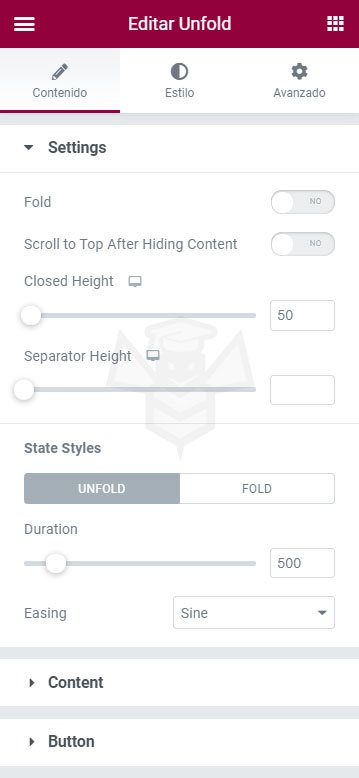
- Fold: If you do not activate this option, the content block will be displayed open by default. Otherwise, it will be displayed closed.
- Scroll to Top After Hiding Content: If you activate this option, the screen will scroll up when you hide the content of a block. This can be very useful when the content is long so that the user does not lose their point of reference.
- Closed Height: This option allows you to define the height of the content block when it is closed. You can do this by moving the slider or simply typing the required value into the bar.
- Separator height: Defines the height of the colored separator strip that starts from the bottom of the unfolded block and goes towards the top. You can lighten the color with transparency in the Style tab. It is even possible to turn it into a gradient.
- Duration: Here you can choose how quickly the content block will fold and unfold. The higher the value, the slower the movement.
- Easing: Here are 9 types of fold and unfold animation you can choose from.
3. Choose the Content
In the Content block, you can add static content (such as text, images, video, or other media) or dynamically pull it from the meta field. In addition to that, you can add any of the available templates to the hidden content block.
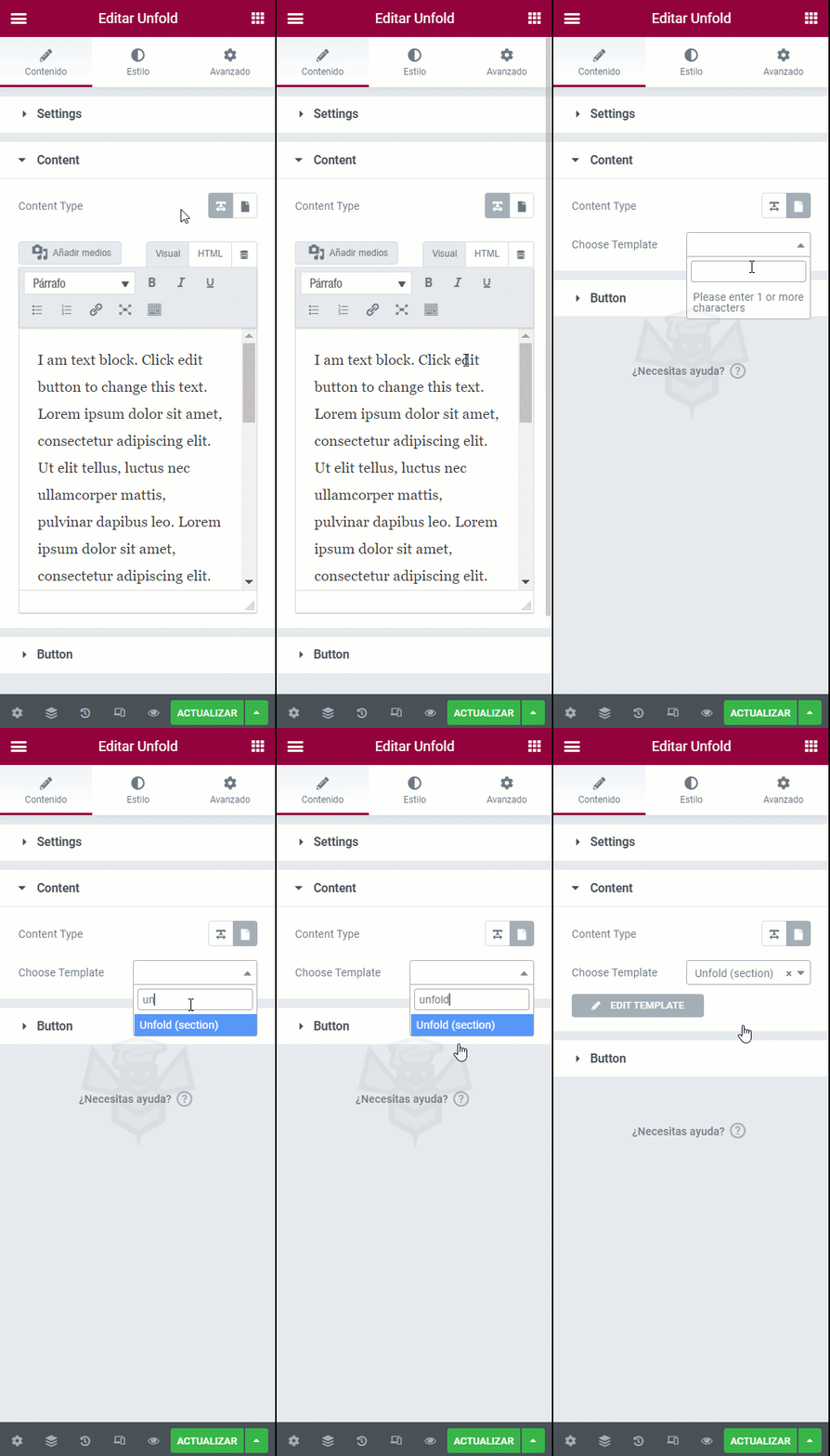
To add the pre-made template to the hidden block, you must press the Template button in the Content Type row, which is the button with the leaf-shaped icon. Choose the template from the dropdown menu, and it will be automatically added to the hidden content block.
4. Customize the Button
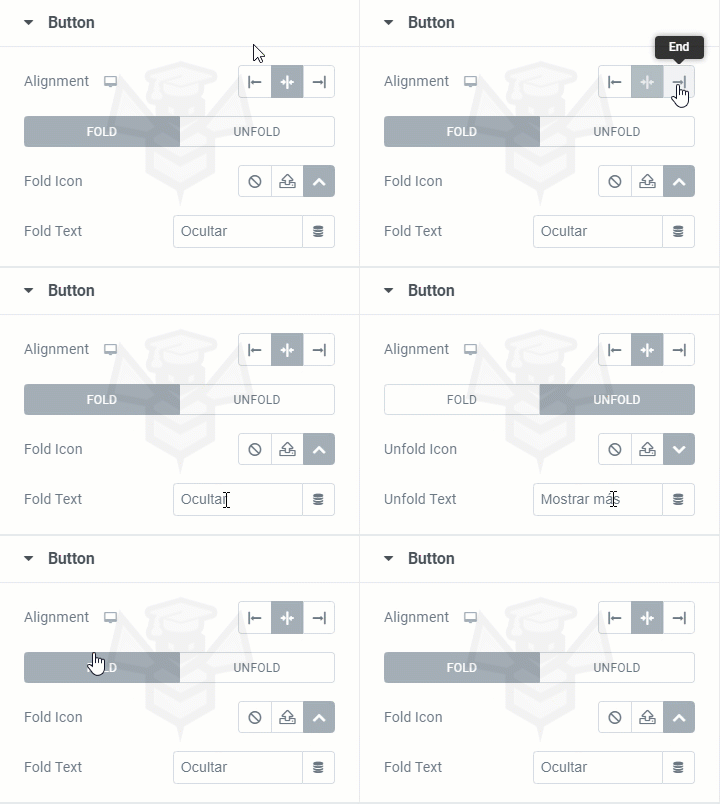
You can customize the button that folds and unfolds the hidden content block in the Button section.
- Alignment: Allows you to choose where the button will be placed.
- Fold Icon: You can choose the icon for the fold and unfold buttons from the icon library or upload your own SVG file.
- Fold Text: Type the titles for the fold and unfold buttons here.
5. Customize to Your Liking
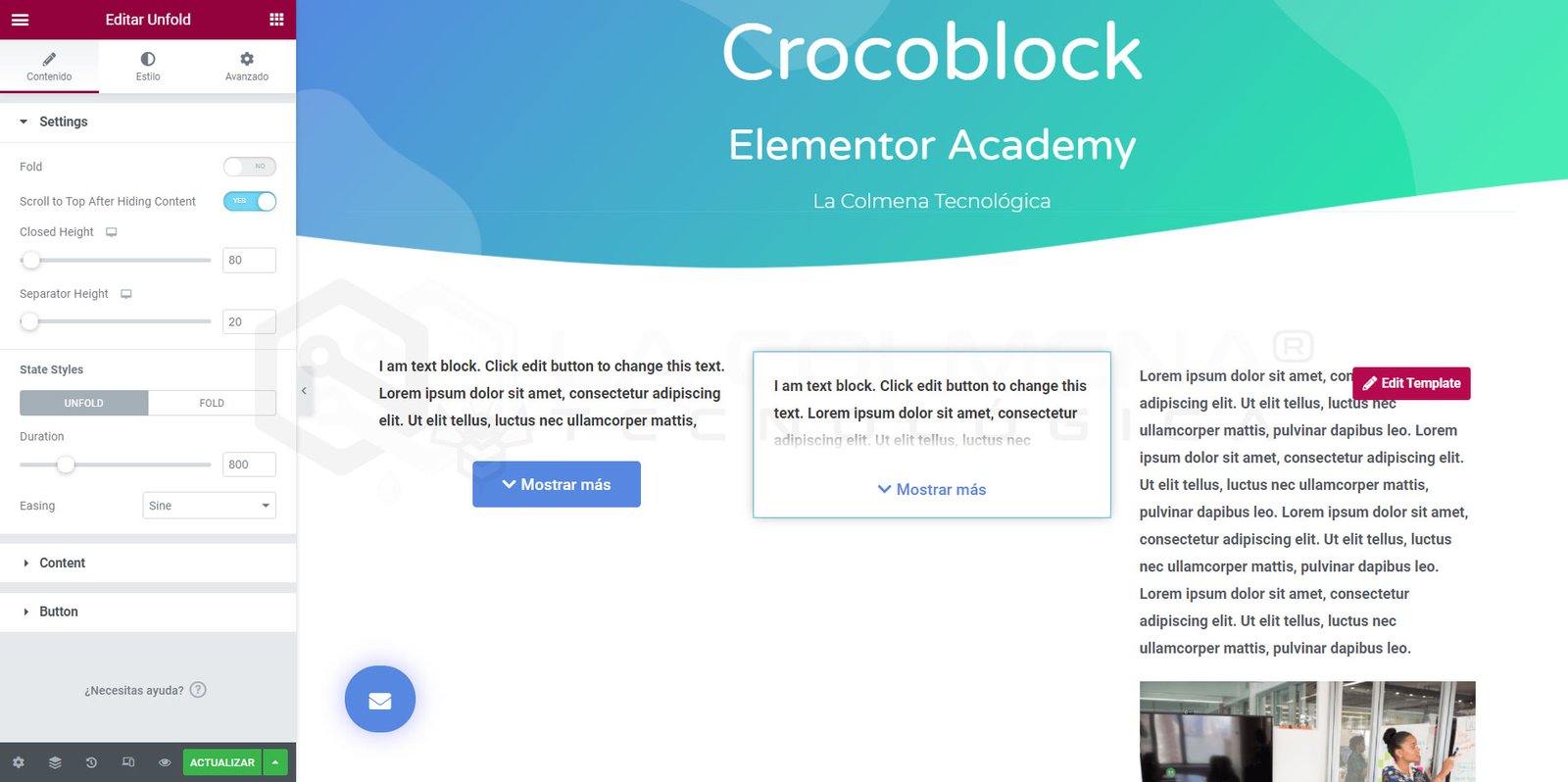
There are many design settings for each element in the Style tab. Here are some examples of what you could create with the help of the Unfold widget:
So, these simple steps are all you need to do to get an impressive unfold block on your website page.