
Step-by-step video
What is an SVG file?
Scalable Vector Graphics (SVG) is a web-friendly vector file format. Unlike pixel-based raster files such as JPEGs, vector files store images using mathematical formulas based on points and lines on a grid. This means vector files like SVG can be resized significantly without losing any quality, making them ideal for logos and complex online graphics.

SVG – Size 3 KB

PNG (1024px) – Size 85 KB

PNG (150px) – Size 13 KB
The size of an SVG file depends on how much image data it contains, but it’s generally smaller than most other file types. Complex graphics with many paths and anchor points will take up more storage space than simpler, cleaner designs.
It’s not just their scalability that makes SVGs so popular with web designers. SVGs are written in XML code, which means they store any text information as literal text rather than shapes. This allows search engines like Google to read SVG graphics for their keywords, which can potentially help a website rank higher in search results.
You can easily spot an SVG file by its .svg extension.
History of the SVG file
The history of the SVG file goes back to the late 1990s, when the World Wide Web Consortium (W3C) invited developers to submit proposals for a new type of vector graphic format. Six competing proposals were submitted and helped shape what ultimately became the W3C’s SVG format.
SVGs took a while to grow in popularity. There was relatively little support for them until 2017, when people began to see the benefits of using SVG in modern web browsers. SVG files are now widely used for 2D website images because most browsers and vector drawing applications can handle them easily.
What are SVG files used for?
Scalable vector graphics have come a long way in recent years, but what are SVGs used for in practice?
Website icons and logos.
Designers often use SVG to display website icons such as buttons, as well as company logos. This file type’s ability to scale up or down without compromising quality makes it ideal for graphics that need to appear in multiple places and in a variety of sizes.
Infographics and illustrations.
Thanks to the use of XML within SVG files, search engines like Google can read charts and graphs with lots of text, which can help with search engine optimization. Because Google can detect keywords within SVGs, it can potentially push a web page to a higher ranking in search results. Plus, to help make web pages much more engaging, SVGs also support animation.
Pros and cons of SVG files
It’s worth looking into the advantages and disadvantages of SVG before saving your images in this file format.
Advantages of SVG files
- Unlike raster files, which are made up of pixels, vector graphics like SVGs always maintain their resolution, no matter how large or small you make them. You don’t have to worry about SVG images losing quality in certain browsers or when you resize them to appear in different places.
- Basic SVG files are usually smaller than raster images, which are created from many colored pixels rather than using mathematical algorithms.
- Because SVG files treat text as text (not as design), screen readers can scan any words contained in SVG images. This is very useful for people who need help reading web pages. Search engines can also read and index SVG image text.
Disadvantages of SVG files
- SVG files are great for web graphics such as logos, illustrations, and charts. But their lack of pixels makes it difficult to display high-quality digital photos. JPEG files are generally better for detailed photographs.
- Only modern browsers can support SVG images. You may find it challenging to use SVG files with Internet Explorer 8 and other older browsers.
- The code inside SVG images can be hard to understand if you’re new to the file format.
How to add an SVG image with Elementor
There are many Elementor widgets that let us upload images or icons in SVG format. We can upload these files from the Media Library without any restrictions, but if we want to do it from the Elementor builder, we first need to enable Elementor’s ability to upload this type of file.
Allow unfiltered file uploads
This pop-up will appear when you click the Upload SVG button included in some widgets that use icons.
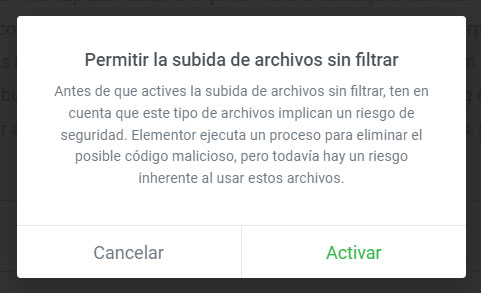
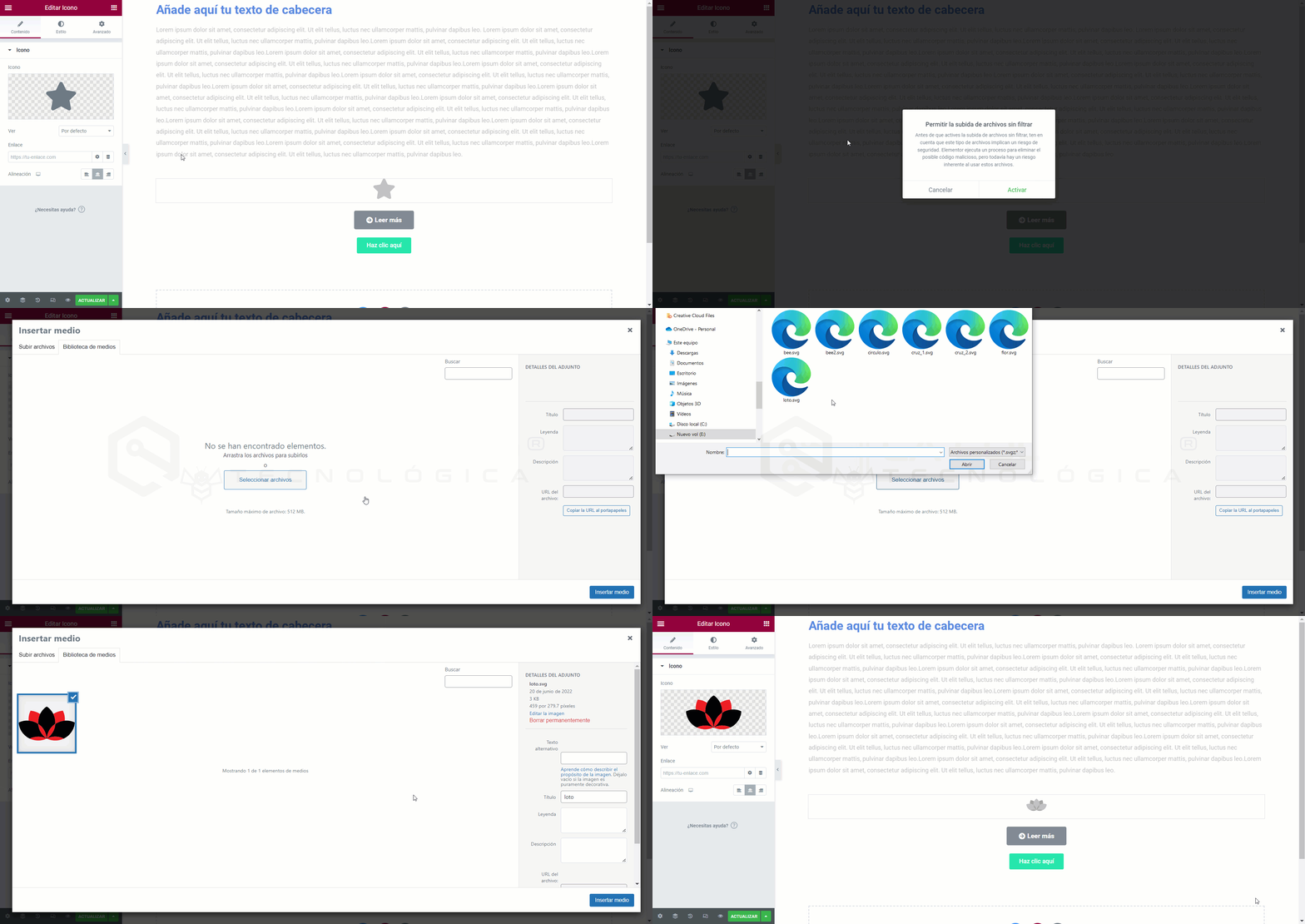
The first time you try to upload an SVG icon, you’ll see a warning message letting you know that uploading any file, including SVG files, can pose a potential security risk. If you understand the risks involved and agree to continue, click the Enable button.
This file is not allowed for security reasons
You’ll see this message when you try to upload an SVG file from the Image widget or another widget that isn’t specifically for uploading SVG icons.

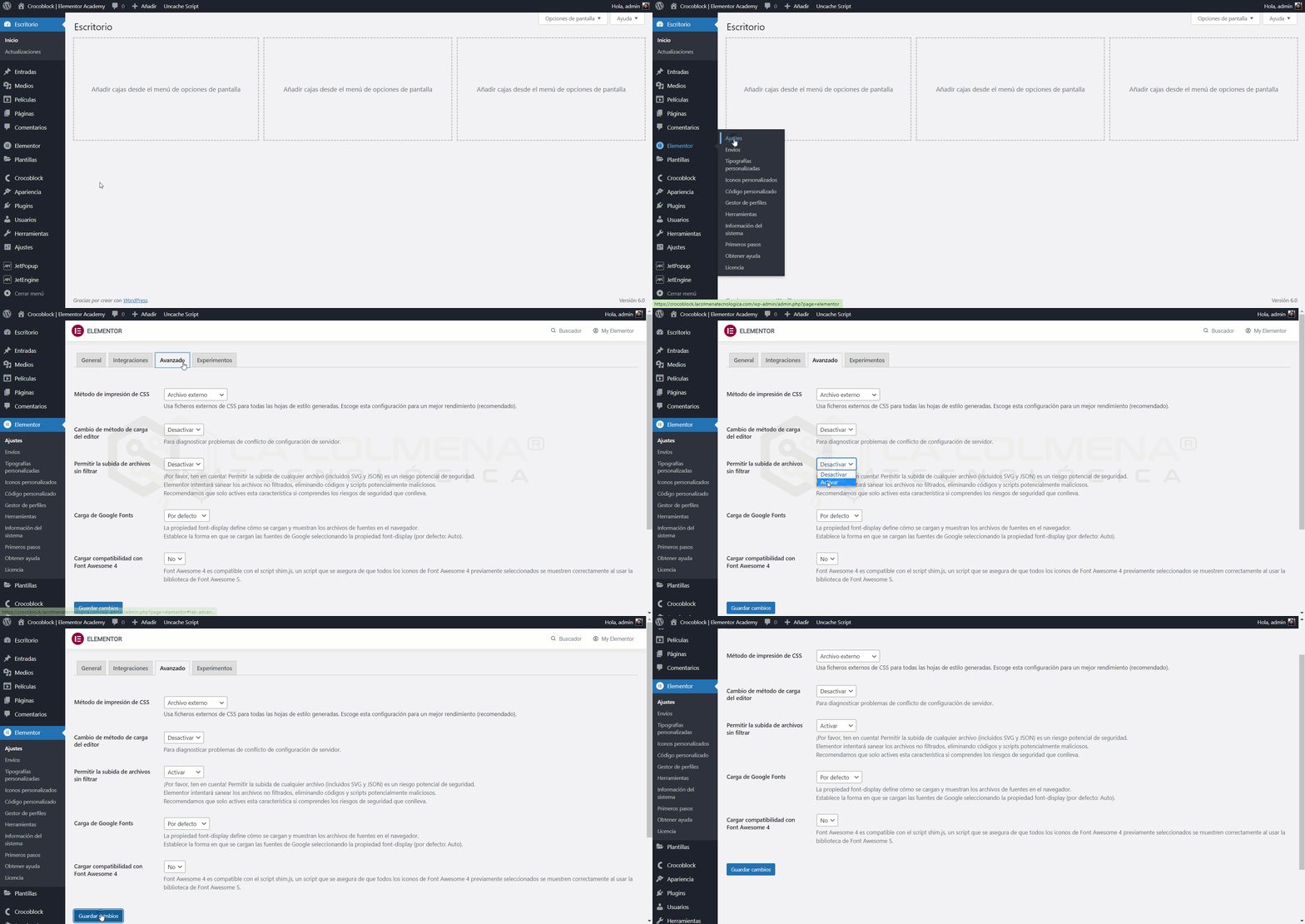
You can fix it from the Elementor > Settings page.
- Click the Advanced tab.
- Under Allow unfiltered file uploads, select Enable from the dropdown menu.
- Click the Save Changes button.
Change the color of an SVG icon
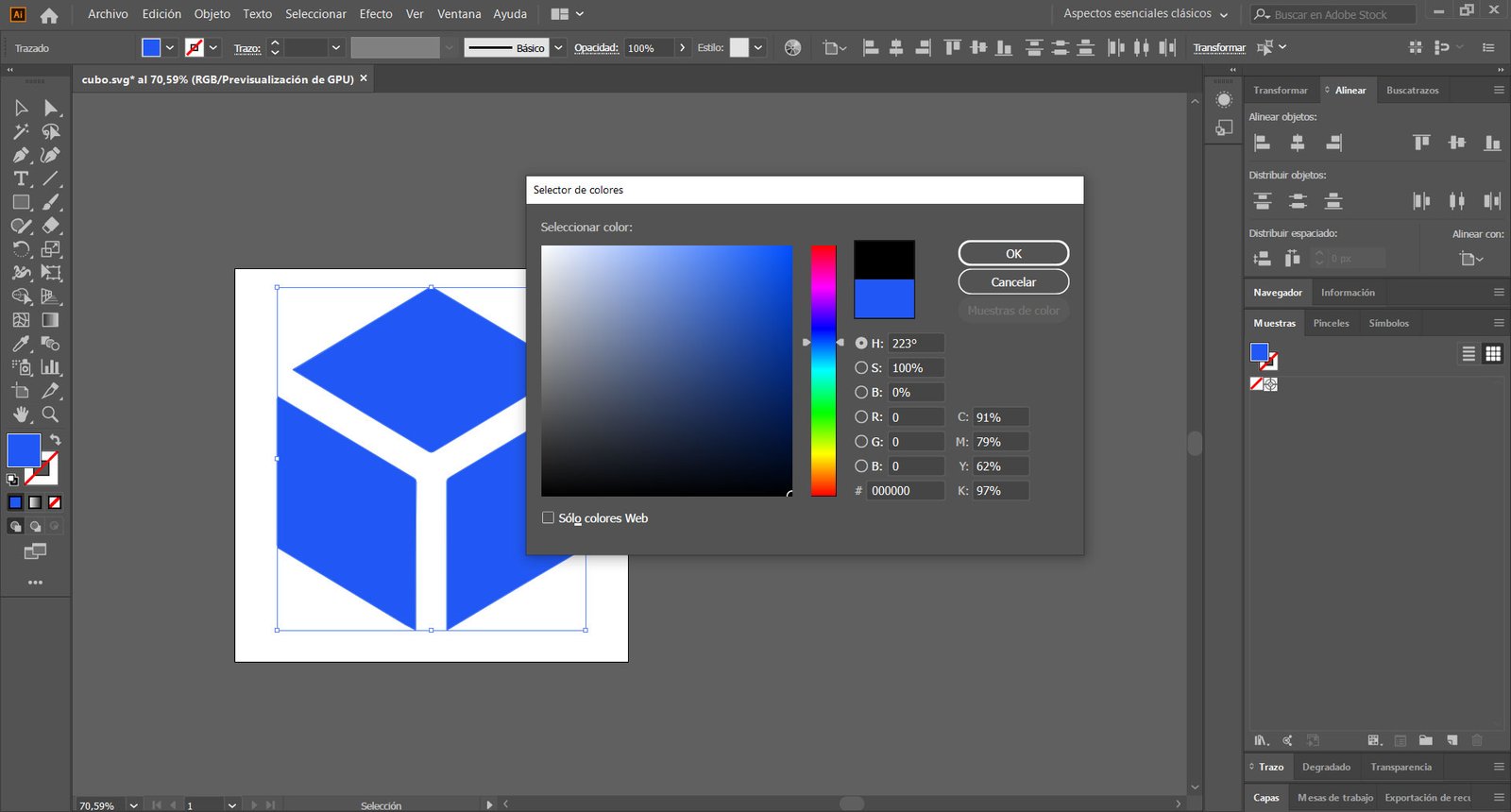
In this tutorial, I’ll use Adobe Illustrator to create or modify SVG files. To be able to change the color of an SVG icon from the Elementor builder, the following must be true:
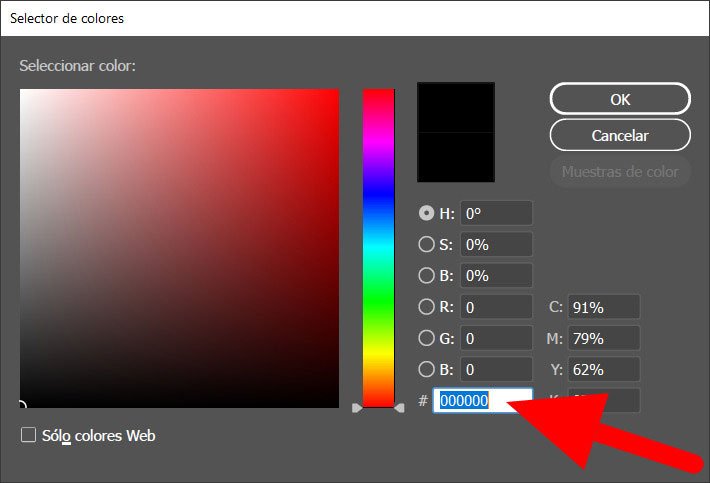
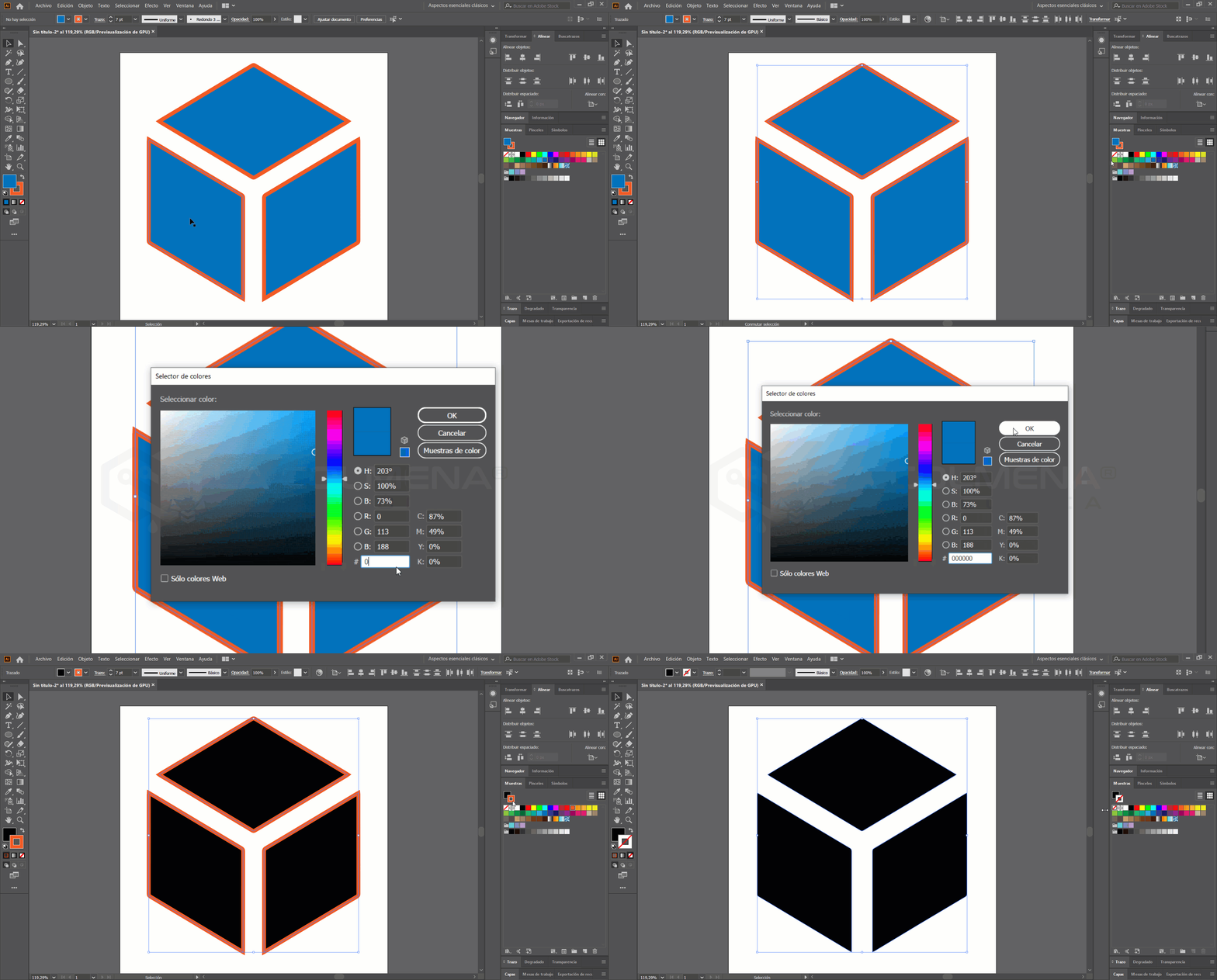
- We must fill the entire icon (or the part we want to change from the Elementor builder) with the color #000000 (black in hexadecimal format).
- In Adobe Illustrator, we can set stroke (border) color and fill color. Elementor will only change the fill color, so it’s best not to assign a stroke color to the icon and leave only the fill color.
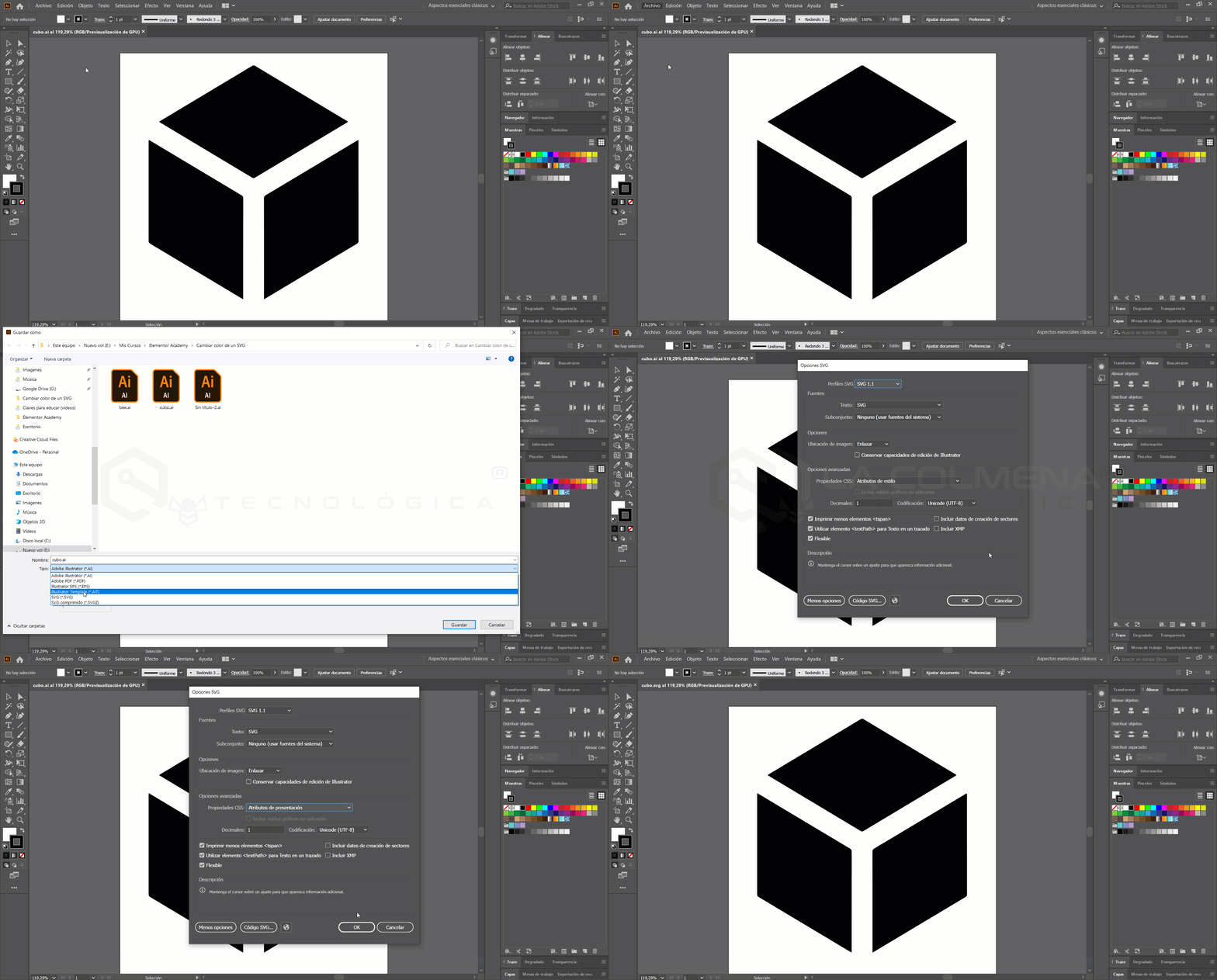
- When we save the file in SVG format, Adobe Illustrator will show an SVG options dialog. In this dialog, make sure that under Advanced Options, the CSS Properties: selector is set to Presentation Attributes.
Where to use our icon in the Elementor builder
Once we’ve created our icon following the guidelines above, we can use it in the Elementor builder in all of these widgets:
- BASIC
- Button.
- Divider.
- Icon.
- PRO
- Form.
- Nav Menu.
- Hotspot.
- Flip Box.
- Call to Action.
- Reviews.
- Table of Contents.
- Video Playlist.
- PayPal Button.
- Stripe Button.
- GENERAL
- Icon Box.
- Icon List.
- Accordion.
- Toggle.
- Social Icons.
- SINGLE
- Post Info.
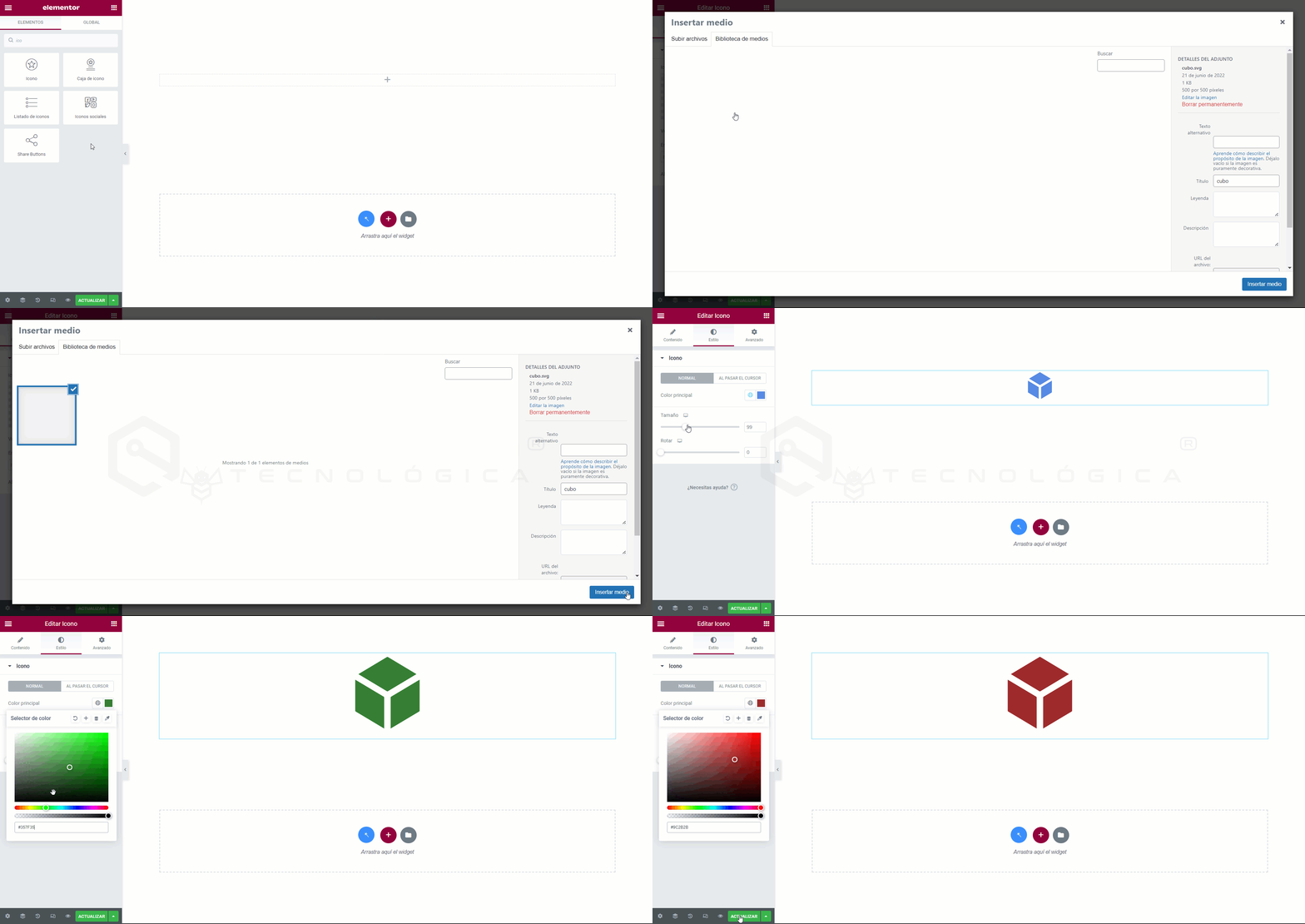
We can also use it as the Site Logo and in other widgets like Image, but without the ability to change the color from Elementor.
Useful links
- Iconfinder: https://www.iconfinder.com/ (Download icons in SVG format).
- IcoMoon: https://icomoon.io/ (Create your own icon gallery in .ico format).
- Dribbble: https://dribbble.com/ (More than 10,000 free icons).
- Iconmonstr: https://iconmonstr.com/ (Free black-and-white icons with multiple variations).
- DeviantArt: https://www.deviantart.com/ (More than 200,000 free icons).
- Fontello: https://fontello.com/ (Thousands of free monochrome icons in various sizes and formats).
- Adobe Illustrator: https://www.adobe.com/es/products/illustrator.html (Vector graphics software).
- 1000 free Downloads: https://www.1001freedownloads.com/ (More than 1,001 free downloads).
- CSS Author: https://cssauthor.com/ (Hundreds of the best free icon sets in various formats).
- GraphicBurger: https://graphicburger.com/ (Free themed icon sets).
- Flaticon: https://www.flaticon.com/ (Lets you convert icons into downloadable fonts to control them in CSS).
- Icons8: https://icons8.com/ (More than 350,000 free professional icons).
- Freepik: https://www.freepik.com/ (More than 872,000 of these resources are free icons).
- Font Awesome: https://fontawesome.com/ (Features more than 14,000 icons).
- Good Stuff No Nonsense: https://goodstuffnononsense.com/ (Free hand-drawn icons in SVG, PNG, AI, EPS, and PSD).
- The Noun Project: https://thenounproject.com/ (Most icons are available in PNG or SVG).
- Iconshock: https://www.iconshock.com/ (Extensive library of more than 2 million professional icons).
- Pixeden: https://www.pixeden.com/ (The collection of free icon sets isn’t particularly extensive).
- IconsFlow: https://iconsflow.com/ (IconsFlow constantly updates its library).
- Streamline: https://www.streamlinehq.com/ (More than 85,000 unique, professional icons designed in-house).