
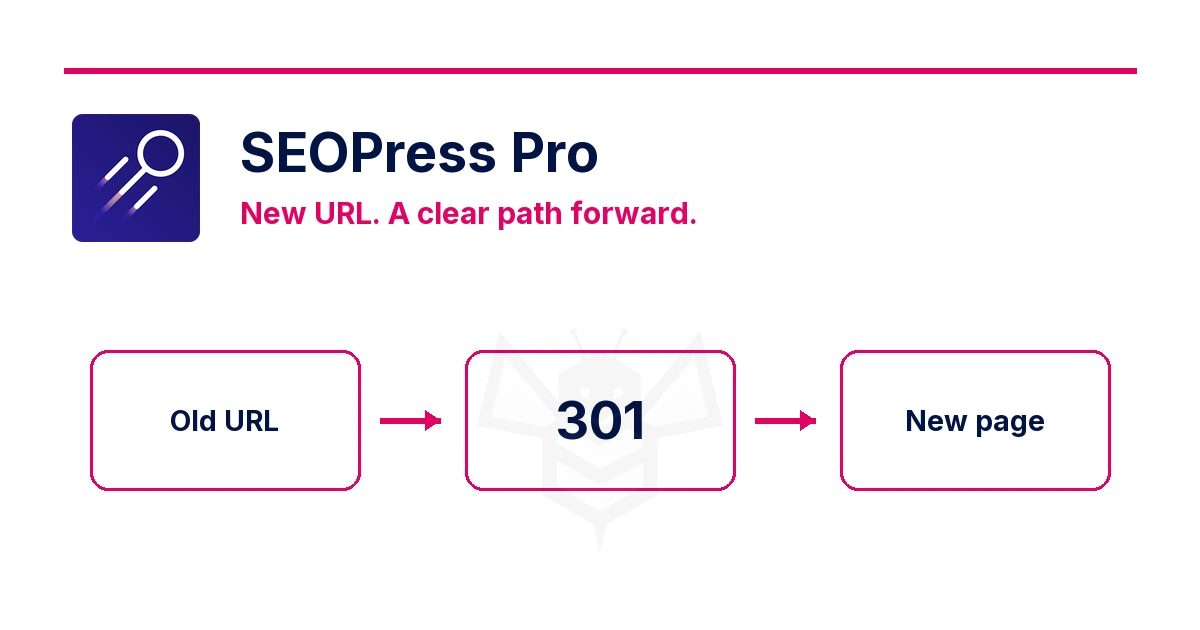
Changing a page address should not leave visitors facing an error. A 301 redirect takes them from the old URL to its replacement and signals a permanent move. This guide helps you create one precise rule, retain campaign parameters when appropriate and check the complete journey.
First, choose a useful destination
You need SEOPress and SEOPress Pro active, administrator access and a published destination page. If you have not finished the initial setup, start with the SEOPress Pro wizard.
Open the destination and check that it answers the visitor’s original need. An equivalent page is usually a sensible replacement. Sending every missing page to the homepage can confuse visitors and conceal broken links. If deleted content has no suitable replacement, do not force an unrelated redirect.
The example moves curso-de-ceramica to taller-de-ceramica. These are fictional Spanish paths, retained across the screenshots: replace them with your own. Before changing existing rules, save an export using the redirection tools available under SEO → Tools.
1. Check that the module is enabled
Go to SEO → PRO → Redirections / 404 and check that the module is Enabled. The 404 log is separate: you do not need to turn it on to create a redirect. Nor do you need weekly email notifications or a site-wide destination for every 404.
Next, open SEO → Redirections and choose Add redirection.
2. Enter the exact origin and destination
| Field | Example | Meaning |
|---|---|---|
| Origin URL | curso-de-ceramica |
Old path, without the domain or a #… fragment. Include any subdirectories. |
| Redirection type | 301 — Moved permanently |
This move is permanent. Choose a suitable temporary code for a temporary move. |
| Destination URL | /taller-de-ceramica/ |
New path on the same website. A complete URL including https:// is also accepted. |
| Enable regex matching | Off | An exact rule is enough for this single-page move. |
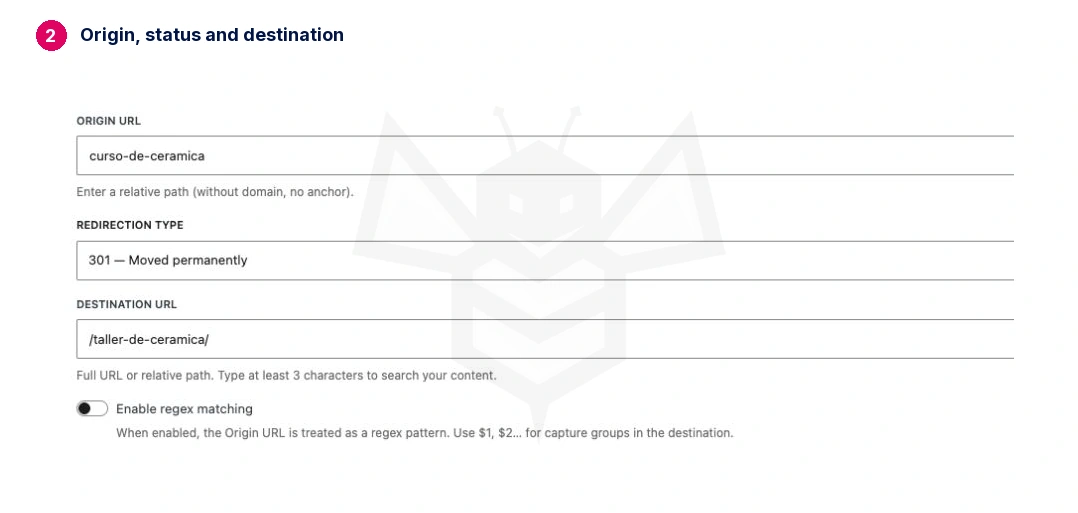
The first slash in a relative destination matters: /taller-de-ceramica/ starts at the website root. Use a complete URL for a different domain. Do not use the same origin and destination, or a destination that redirects back to the origin.
3. Choose how to handle parameters
Open Advanced options. Set Apply to → All visitors for a normal public redirect. Restricting it to logged-in users can make your own test succeed while visitors still see an error.
Parameters follow the ?, for example ?utm_source=boletin. Choose according to their purpose:
| Option | When to use it |
|---|---|
| Exactly match all parameters | The parameters identify the particular address you want to redirect. A different combination does not automatically match. |
| Exclude all parameters | All variants should reach the same destination and their parameters can be discarded. |
| Exclude all parameters and pass them to the redirection | You are changing the path while retaining information such as campaign UTM tags. |
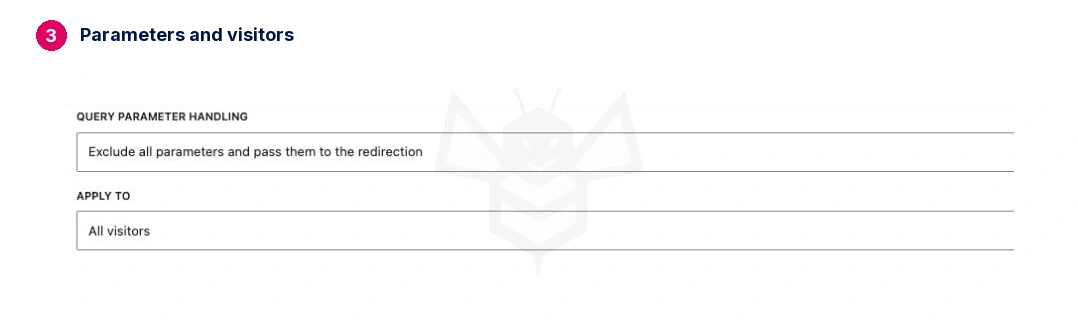
The example uses the third option: curso-de-ceramica?utm_source=boletin leads to /taller-de-ceramica/?utm_source=boletin. Do not apply this indiscriminately to search, filter or access URLs. Check what the destination expects.
Leave Enabled on and select Create redirection. When editing an existing rule, the button is Save redirection.
4. Test the rule, then the actual response
Choose Test URL, enter the old path without parameters and select Test. You should see one 301 rule pointing to the correct destination, without a chain of intermediate rules.
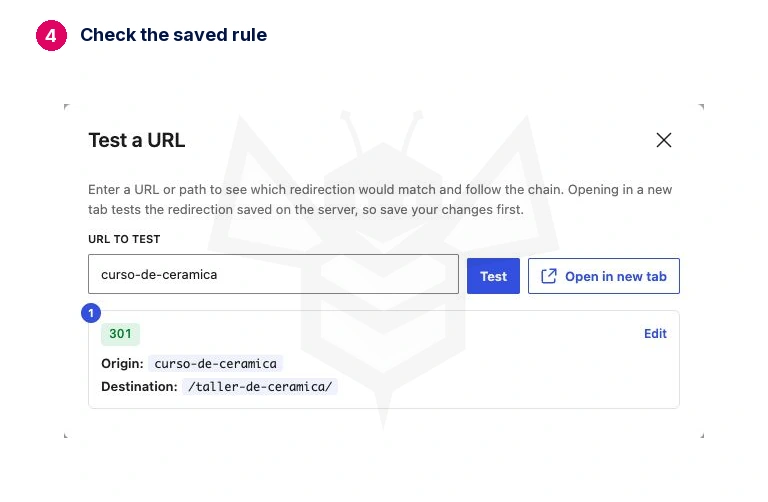
This test compares saved rules; it does not prove that the destination loads. Save your changes, then open the old URL in a private browser window without signing in to WordPress. It should take you directly to the new page and display its content.
If you use campaign parameters, repeat the visit with them and check the final address. During testing for this guide, the internal tester did not match the path with parameters even though the actual redirect worked. In that situation, check the real URL before treating “no match” as a broken redirect.
To verify response codes, open the browser’s developer tools, choose Network, enable Preserve log and load the old URL. The first document should return 301, and the final document 200. If there are several hops, point the first rule directly to the final destination where possible. Test this on your public website; a password-protected laboratory has its own access controls.
5. Update links you control
The redirect recovers visits from old links. Also update menus, buttons, articles and future campaigns to link directly to the new address. Check that the destination appears in the sitemap if it should be indexed.
A redirect does not guarantee improved rankings. Its purpose here is a coherent journey that avoids an error after a URL change.
If it does not work
- Only works with your account: check Apply to → All visitors and test while signed out.
- An old destination appears: check other rules and browser, website and hosting caches. Browsers can remember a 301.
- Works without UTM tags, but not with them: check parameter handling and visit the actual URL.
- Several hops or a loop: correct the destination instead of chaining old, intermediate and final URLs.
- The destination returns an error: check publication status and the exact address, including its language and subdirectories.
Expected result: one old URL reaches its relevant replacement through a single 301; the final page returns 200 and retains only the parameters you chose to preserve.
The official SEOPress redirection guide covers additional import and management options. Screenshots here come from a laboratory with fictional content. Interface wording may vary with the available translation.