
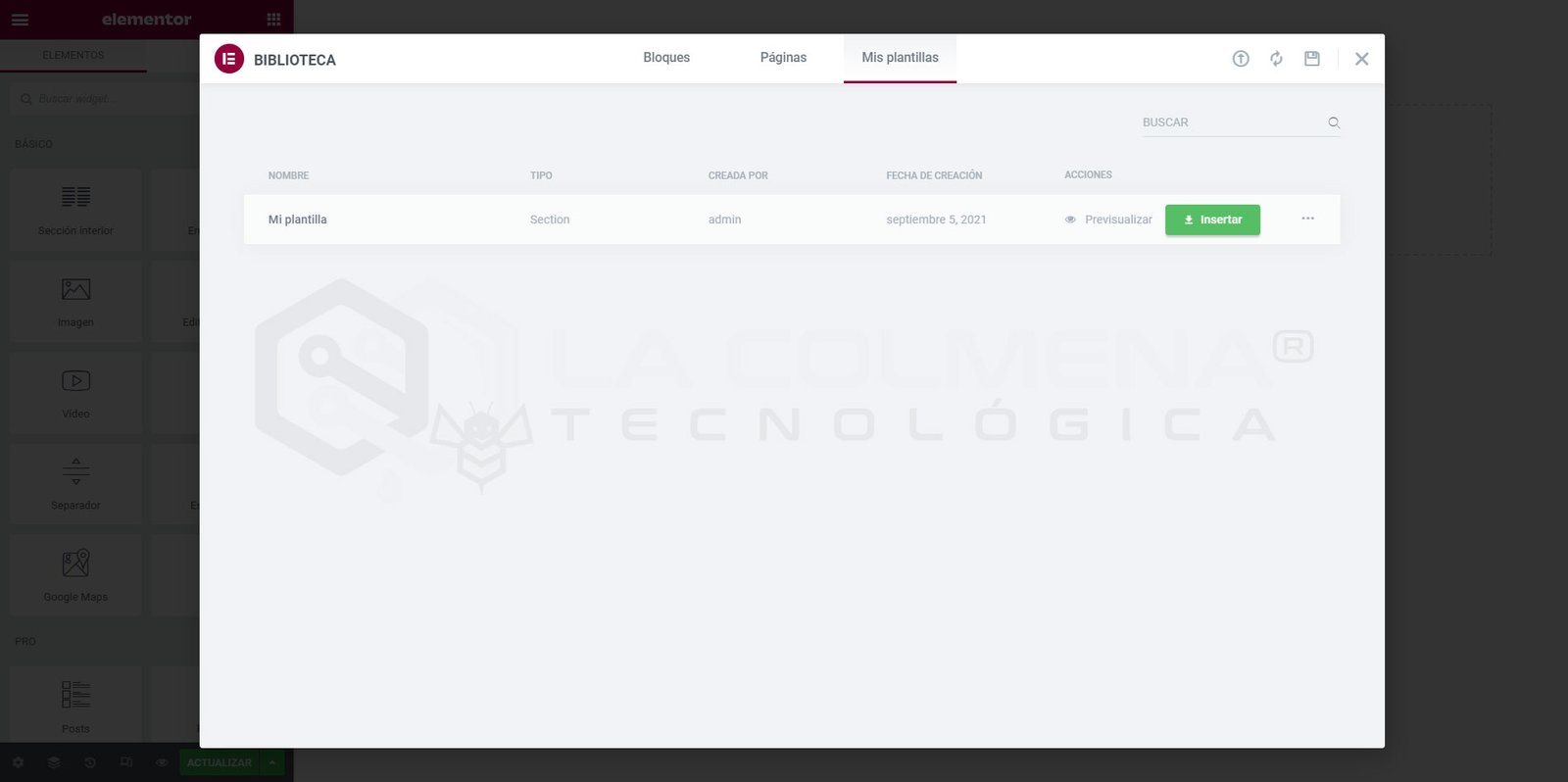
Elementor allows us to save any section as a template, which we can then use in other documents on our website as many times as we want, or export it for use in other documents. We can use these templates independently or globally. If used independently, modifying it will not affect other instances of the same template. If used globally (using the Template widget), when you modify the template, all its instances will also change.
Saving Sections as Templates
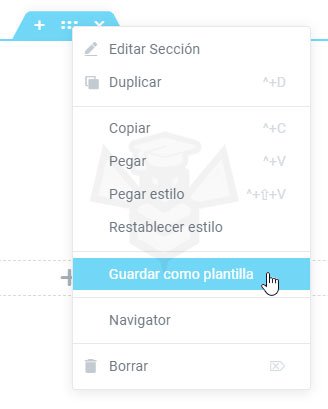
- Select the section you want to save and right-click on

- From the context menu, click Save as Template.
- Give it a name and click Save.
How to Insert a Saved Section Template into a Document
You can use the templates you have saved in any document on your website, even in posts using the template shortcode. Let’s see how.
Insert Independent Template from the Library
If we insert the template this way, it will be independent of the global template, and any changes we make to it will not affect other instances.
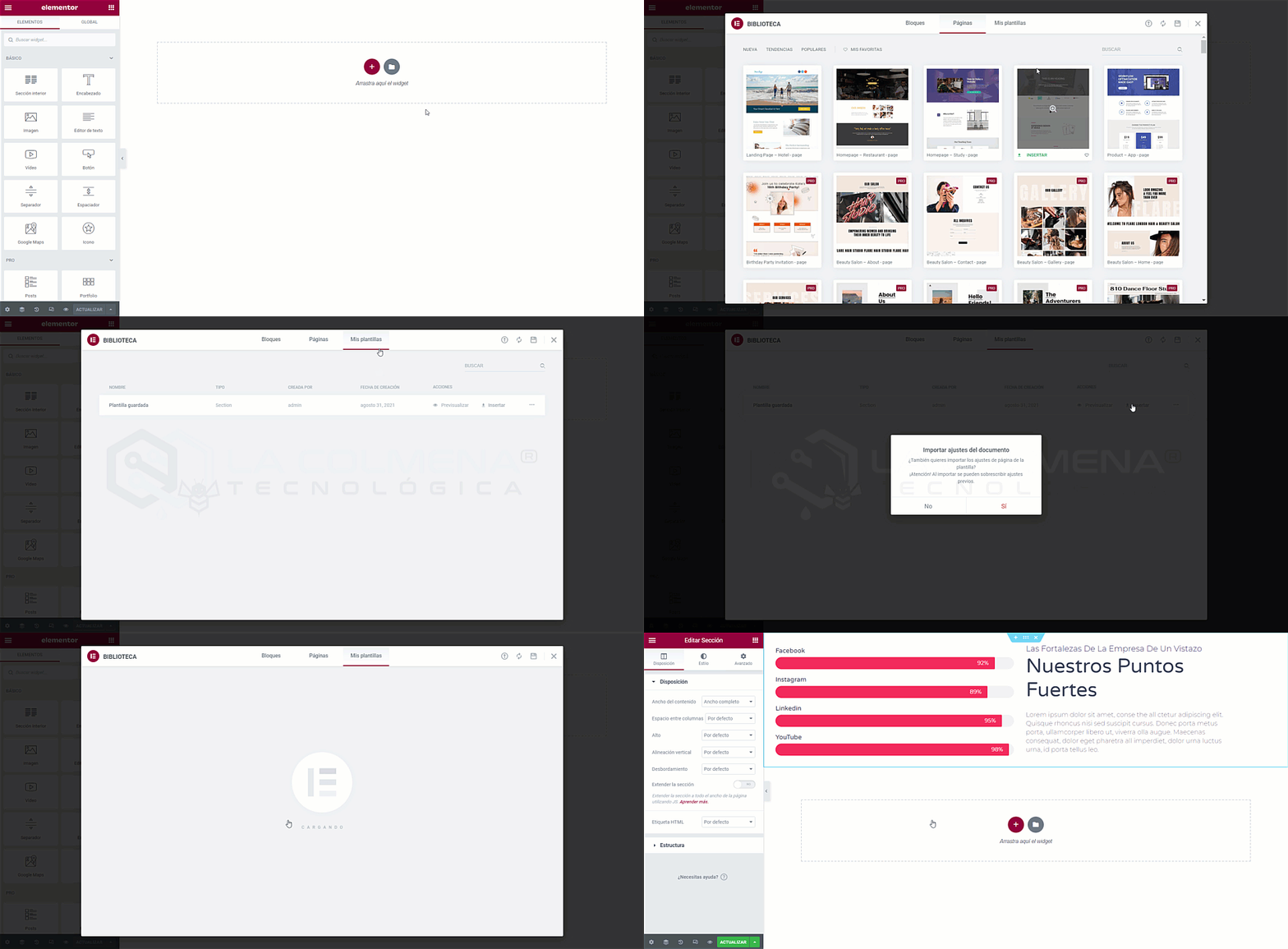
- Click the Add Template icon
 in the Elementor Editor.
 - In the pop-up window, click the My Templates tab.
- You will see a list of all the templates you have saved. Click the Insert button for the template you want to use. If you are unsure if it’s the template you need, you can click
 Preview before inserting.
 - A small pop-up window will appear: Import Document Settings. In this case, since it’s a section template, it’s best to click No.
Insert Section Template as Global
To insert a section template that we have previously saved as a global template, we will need to do so using the Template widget. You should keep in mind that since it is a section template, when inserted within another section via the Template widget, both sections will retain all their configurations.
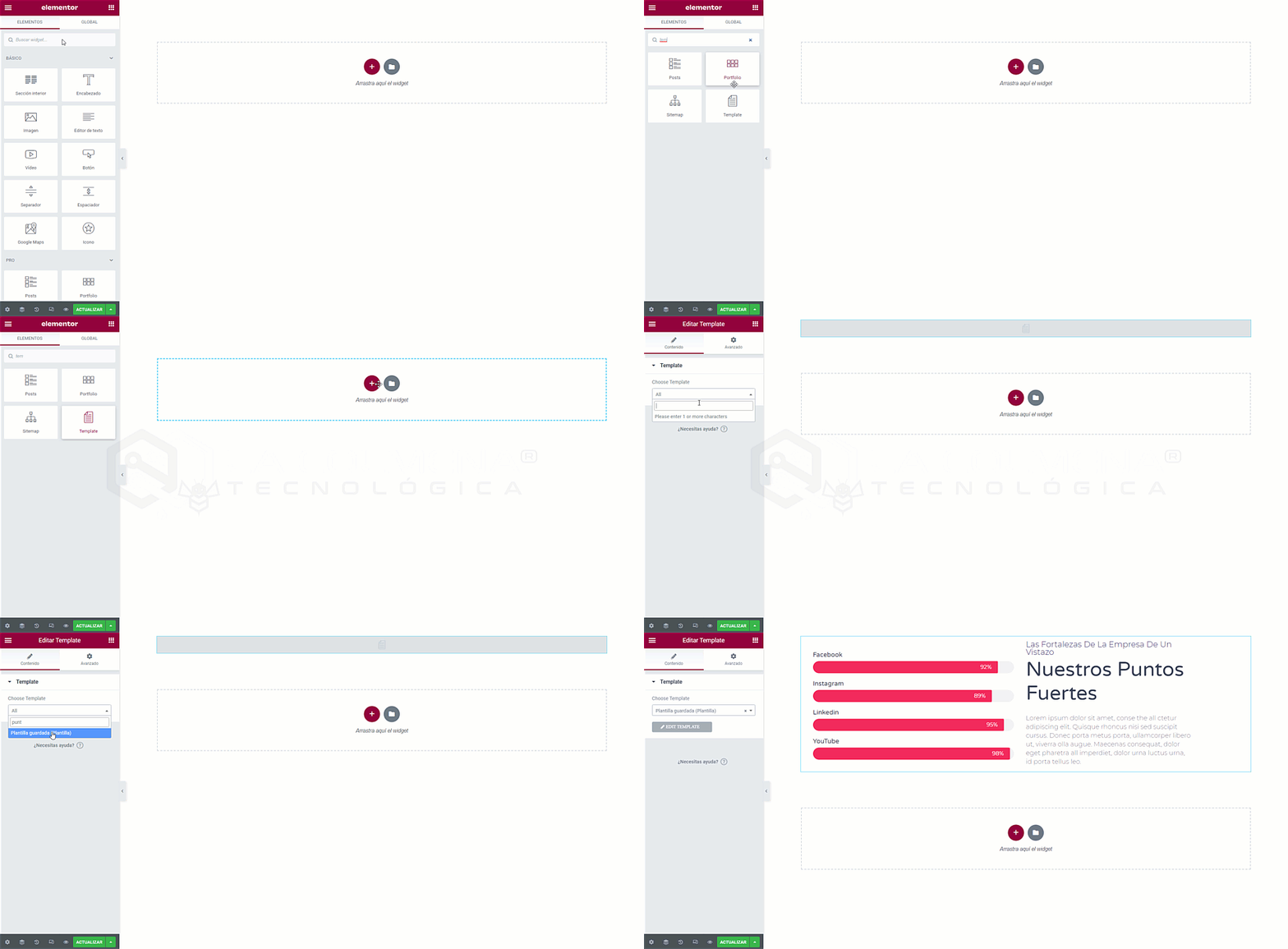
- In the Elementor Editor, search for the Template widget and drag it to a section or to the Drag widget here box.
- Click the Choose Template selector and type the name or part of the name of the template you want to insert. Once you see it in the selector, click on it.
Insert Template into a Blog Post
We can insert a section template into a blog post using the WordPress Gutenberg Block Editor, although my recommendation is not to use Elementor in blog posts. Why? Because today Elementor might be the best page builder for you, but in the future, who knows? I used WP Bakery (Visual Composer) before, and at the time, I thought it was fantastic, but now, compared to Elementor, it seems terrible.
Imagine that in the future, a new page builder emerges that surpasses Elementor, for example, Gutenberg, and you want to revamp your website with this new builder. Revamping the pages that make up your website would be a relatively manageable task, but revamping hundreds of blog posts would be unfeasible or too laborious, and those posts would already be well-positioned, so it’s not a matter of losing them. That’s why my recommendation is to only use Gutenberg for blog posts.
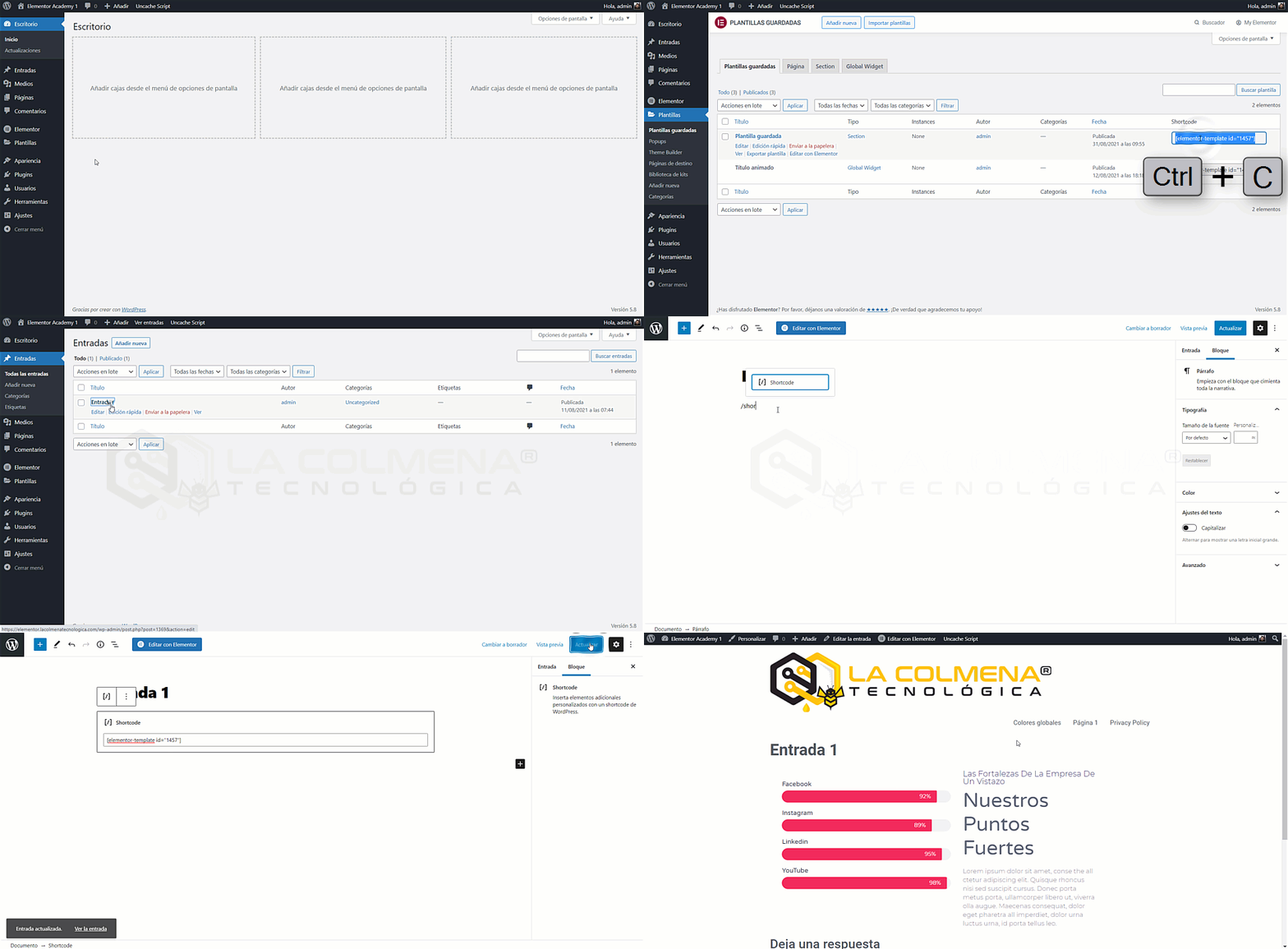
- In the WordPress Backend, select Templates > Saved Templates.
- Click on the shortcode of the template you want to use, then copy this code with CTRL + C (Windows) | CMD + C (Mac) or Right-click > Copy (Windows) | CMD + click > Copy (Mac).
- Now open the post where you want to insert the template.
- Use Gutenberg’s Shortcode block and paste the code you previously copied there.
Modify Section Template
From the Elementor Editor
All changes you make to a template will be reflected in all its instances.
- Click on the template block you want to edit.
- Now, in the Content tab of the settings column, click the button

From the Templates Menu
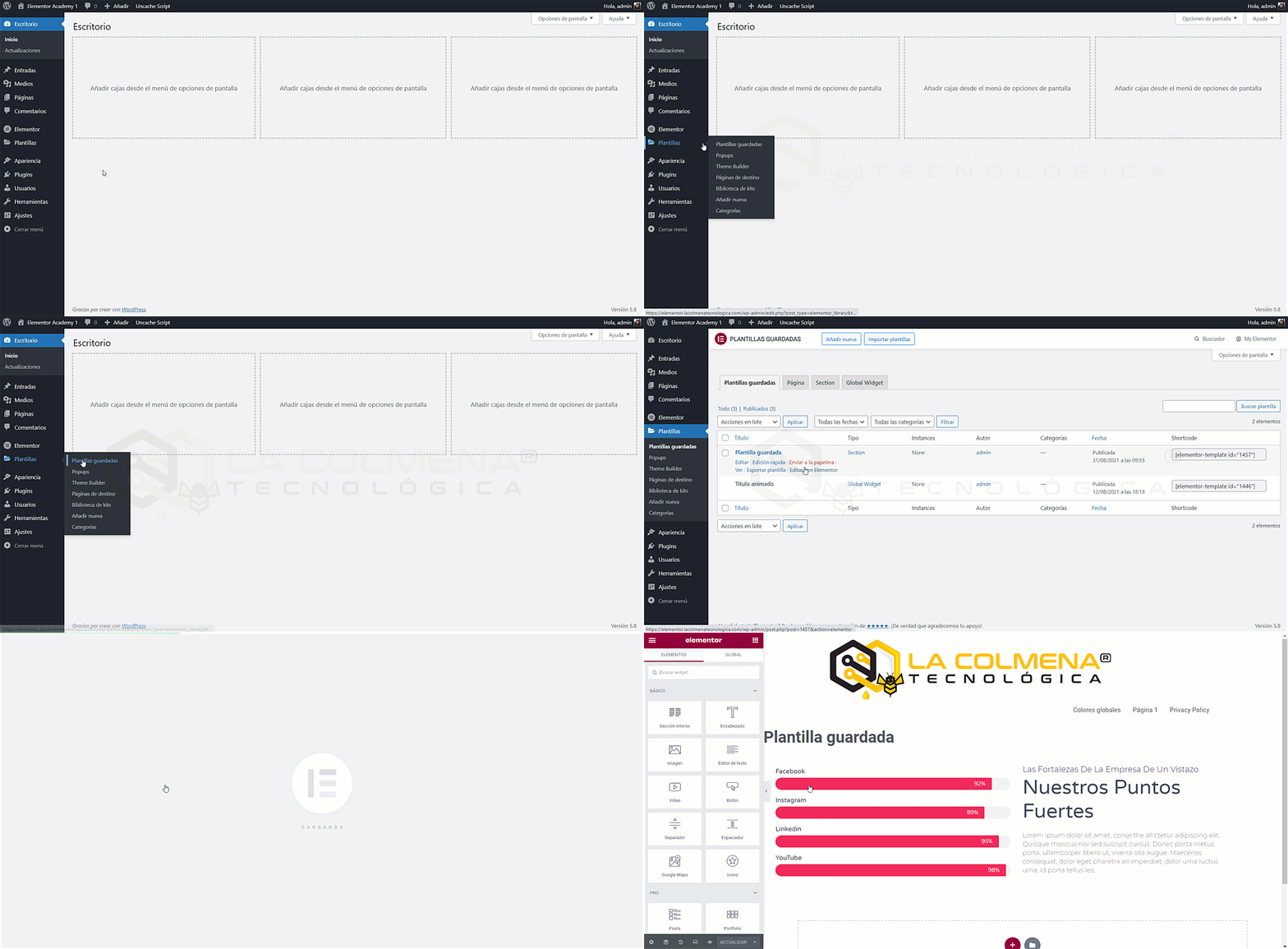
- In the WordPress Backend, select Templates > Saved Templates.
- Hover over the template you want to edit and click Edit with Elementor.
How to Export a Template
We can export templates (to use them in another web project) in .json format with all their components, including images and other media library elements. However, it’s important to note that these media are not embedded in the .json file (a lightweight file composed only of XML-like code); they are only referenced in its code via a URL. When the template is imported, that’s when this file (image, video, etc.) is stored in our media library. This means that if the exported media is deleted from the source, it cannot be imported.
Export Template from Saved Templates
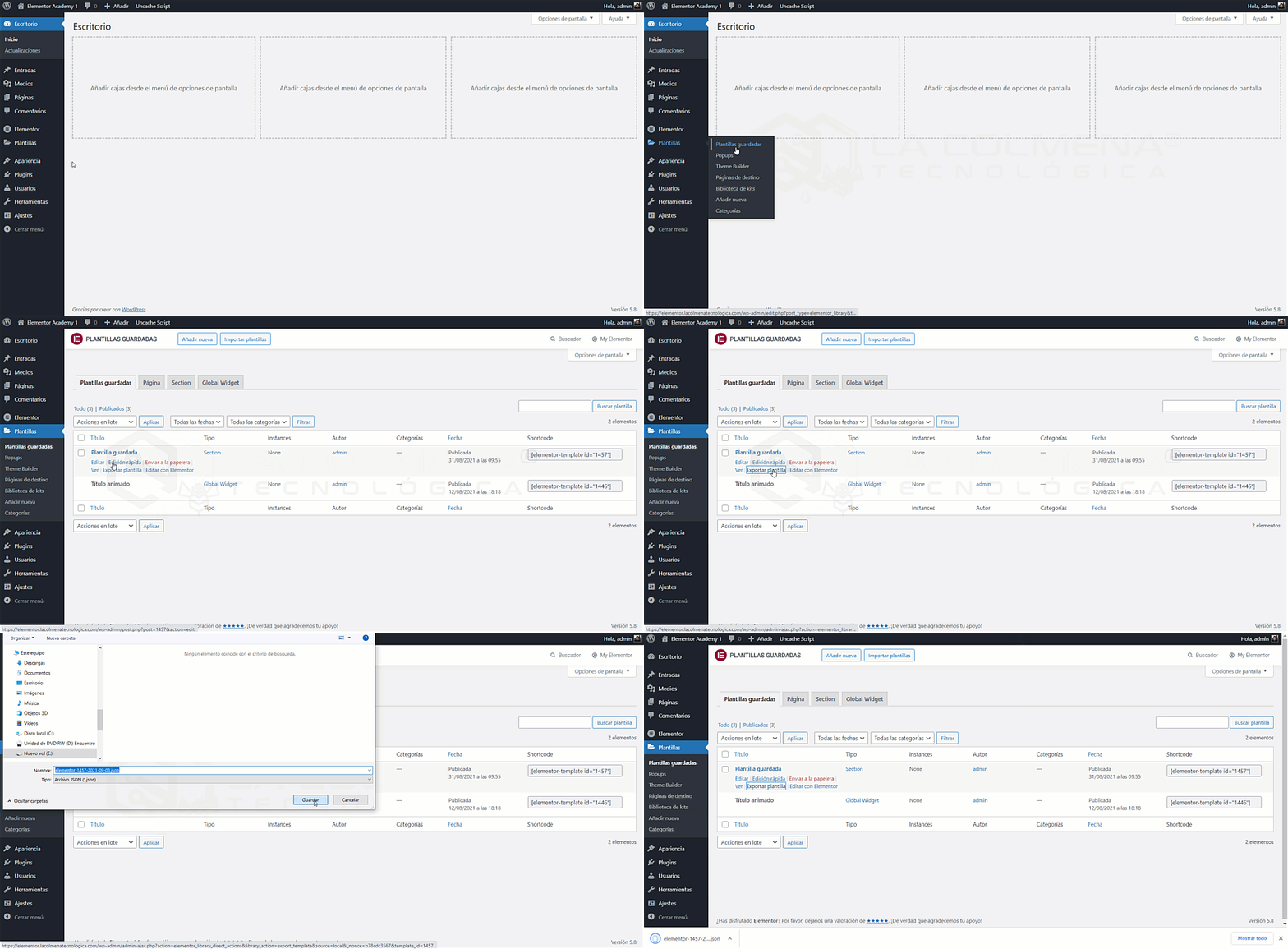
- In the WordPress Backend, select Templates > Saved Templates.
- Hover over the template you want to edit and click Export Template.
- In the Save As pop-up window, choose the location and click the Save button.
Export Templates from the Elementor Editor
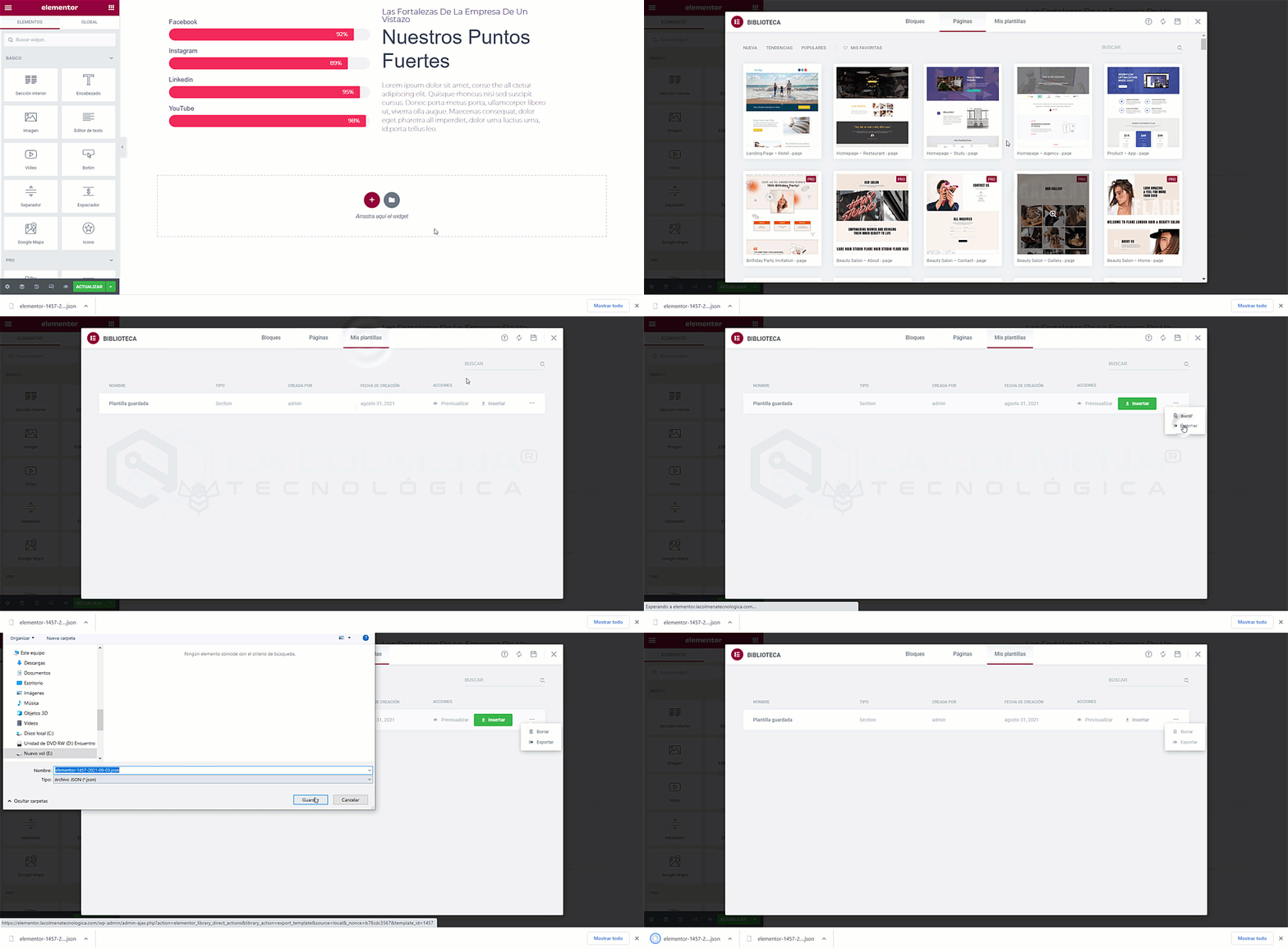
- Click the Add Template icon in the Elementor Editor.
- In the pop-up window, click the My Templates tab.
- You will see a list of all the templates you have saved. Click the Insert button for the template you want to use. If you are unsure if it’s the template you need, you can click Preview before inserting.
How to Import a Template
We can import templates into our project; these must be in .json format. When we import a template that contains media files such as images, videos, PDF files, etc., these files are uploaded to our own WordPress Media Library. Below you can see an example of the code from a real .json file; it’s a very simple section with one column and a widget with an image. I have highlighted the URL or link to the image in bold.
{"content":[{"id":"63358d39","settings":[],"elements":[{"id":"78eb379f","settings":{"_column_size":100,"_inline_size":null},"elements":[{"id":"13d2289b","settings":{"image":{"url":"https://elementor.lacolmenatecnologica.com/wp-content/uploads/2021/07/la-colmena-tecnologica-logo.png","id":974,"alt":"","source":"library"}},"elements":[],"isInner":false,"widgetType":"image","elType":"widget"}],"isInner":false,"elType":"column"}],"isInner":false,"elType":"section"}],"page_settings":[],"version":"0.4","title":"Plantilla la Colmena","type":"section"}As you can see, the .json file does not store media (images, videos, …); it stores links to their location in the source project from which they were exported. If that image is deleted from the source project, when we import this template into another project, the image will not be imported.
Import a Template from Saved Templates
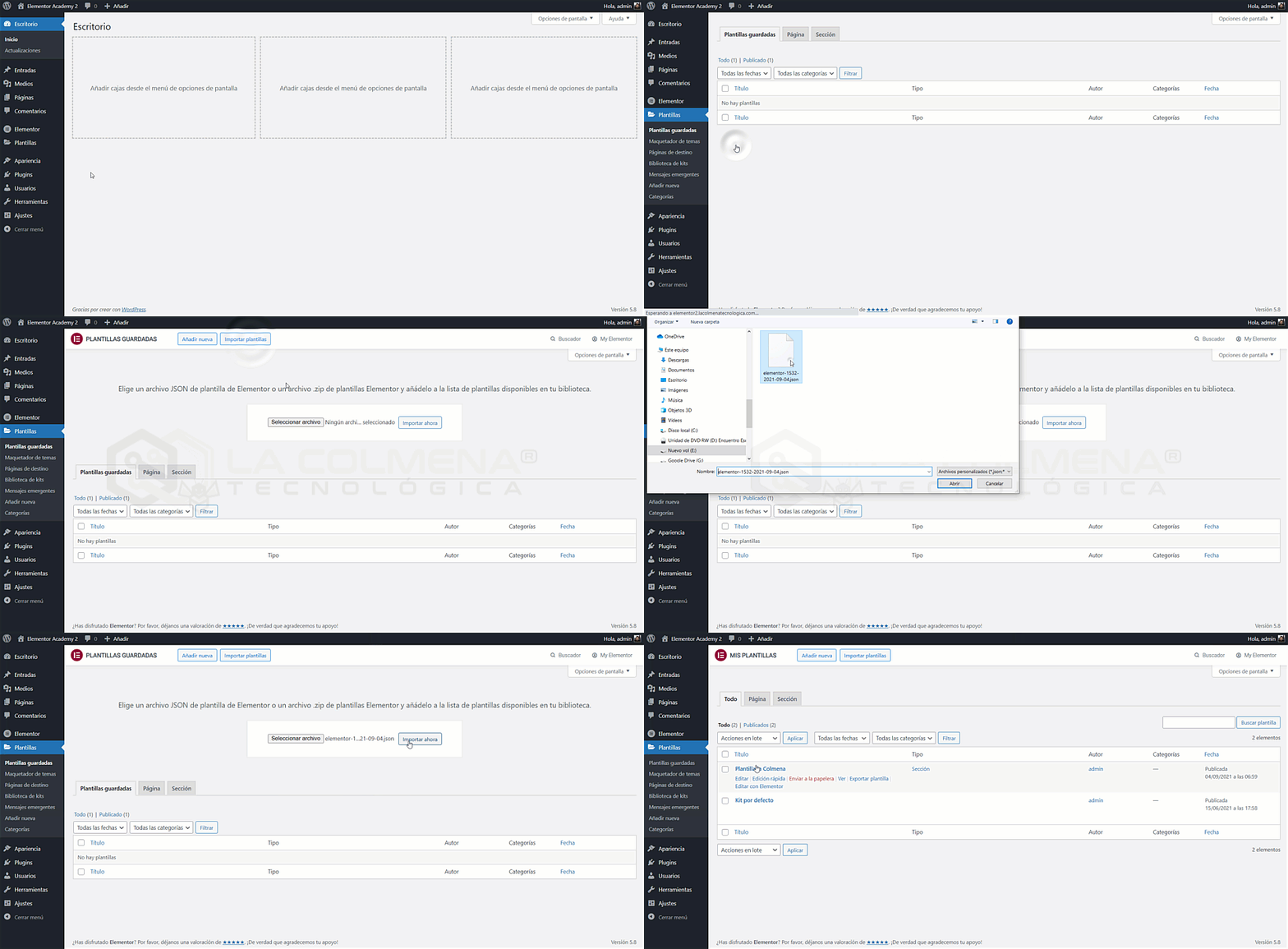
- In the WordPress Backend, select Templates > Saved Templates.
- At the top, click the Import Templates button.
- Click the Choose File button, and in the Open pop-up window, select the .json file you want to import and click the Open button.
- Now click the Import Now button.
Import Template from the Elementor Editor
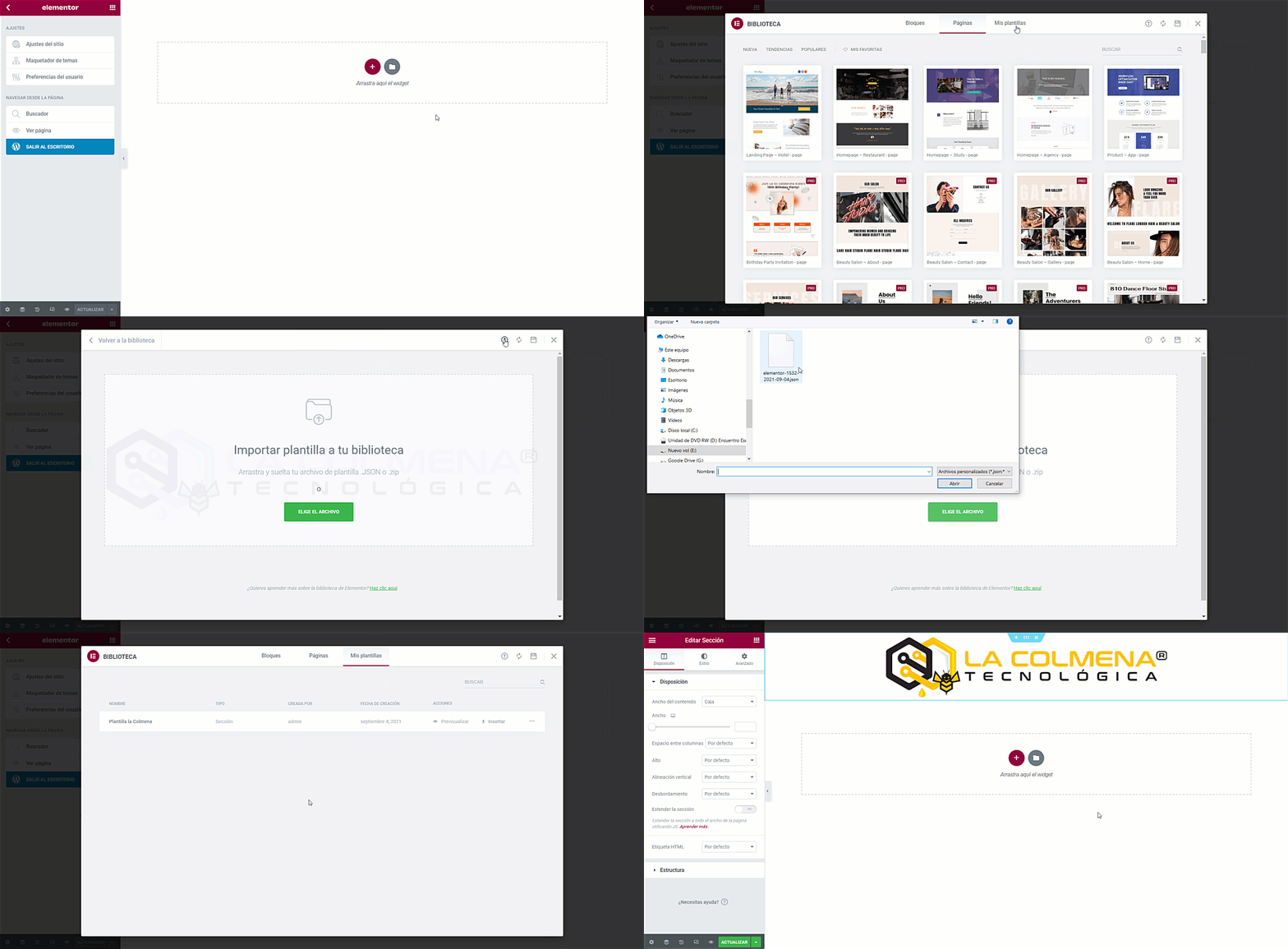
- Click the Add Template icon in the Elementor Editor.
- In the pop-up window, click the My Templates tab.
- At the top, click the
 Import Template icon.
 - Click the CHOOSE FILE button, and in the Open pop-up window, select the .json file you want to import and click the Open button.
- You should now see this new template in the list along with all other templates. Click the Insert button for the template to insert it.