
Notion Web Clipper allows you to save any web page from the internet to your workspace so you can read or edit it later. You can add this web content to any workspace or page you choose, making it easy to create a reading list, collect research references, and more.
[mepr-show rules=”7898″ unauth=”message”]
[/mepr-show]
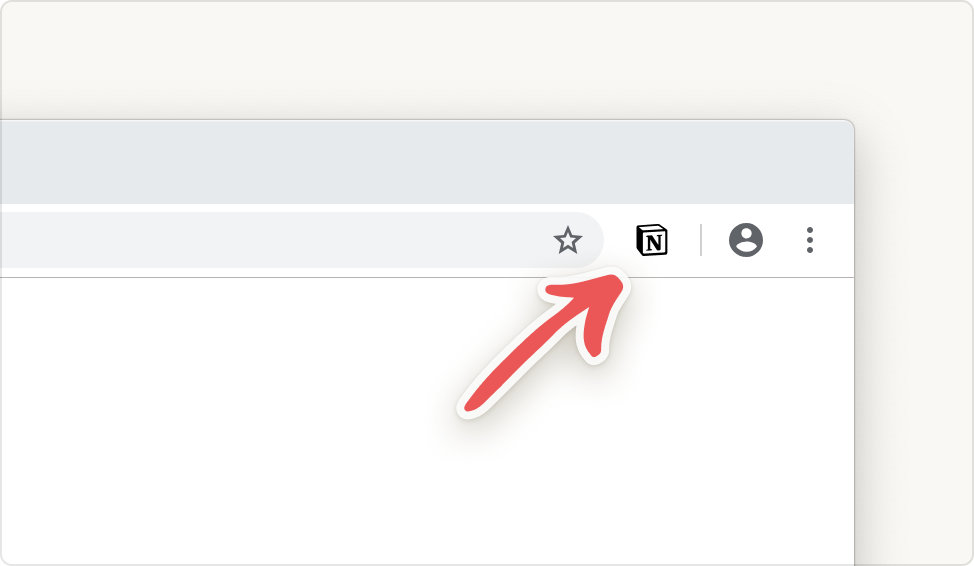
Web Clipper is a browser extension available for Chrome and Firefox.
Install the Extension
[mepr-show rules=”7898″ unauth=”message”]
[/mepr-show]
On Mobile
Mobile Web Clipper uses the native share sheet functionality on both iOS and Android.
You will need iOS version 11.0 or higher to use Web Clipper on iPhone or iPad. For Android, you will need version 5.0 or higher.
Web Clipper on iOS
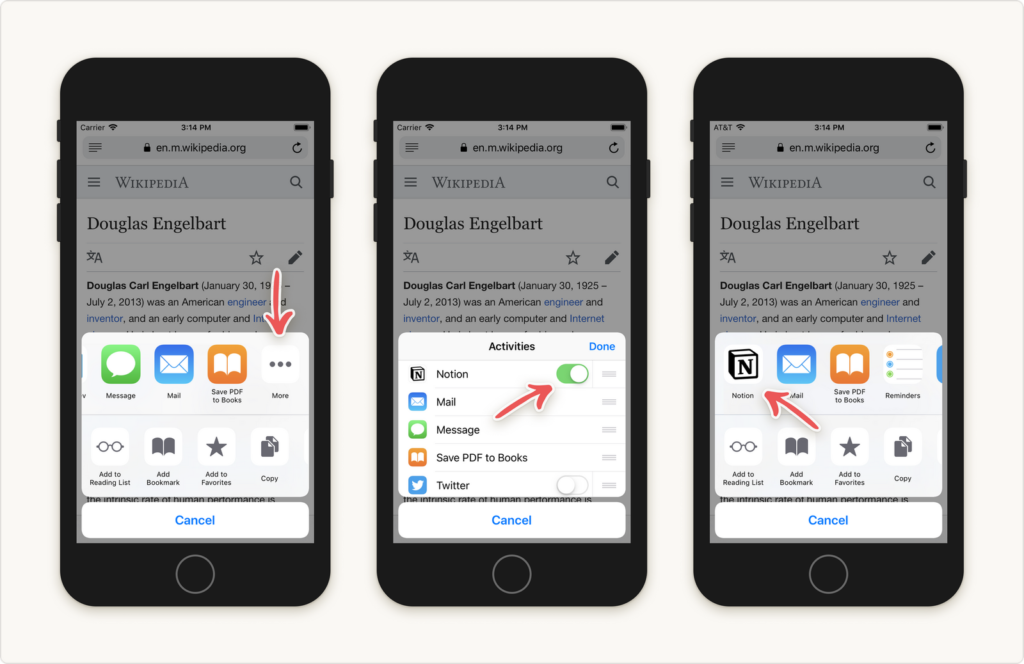
- Open Safari or Chrome on your device and tap the
Compartiricon on any page you want to save. (It looks like a box with an upward arrow in the center). - This will open your device’s mobile share sheet. Scroll through the apps that appear to select
••• Más. - From that menu, enable access to Notion.
- From now on, Notion will appear in your mobile share sheet.
- Tap the Notion icon, enter the title of the page you are saving, choose the workspace and page you want to add it to, and tap
Guardar. - Go to the page to view it, comment on it, add properties, etc.!
[mepr-show rules=”7898″ unauth=”message”]
[/mepr-show]
Web Clipper on Android
On Android, Notion will be automatically added to your browser’s sharing options—no extra steps required!
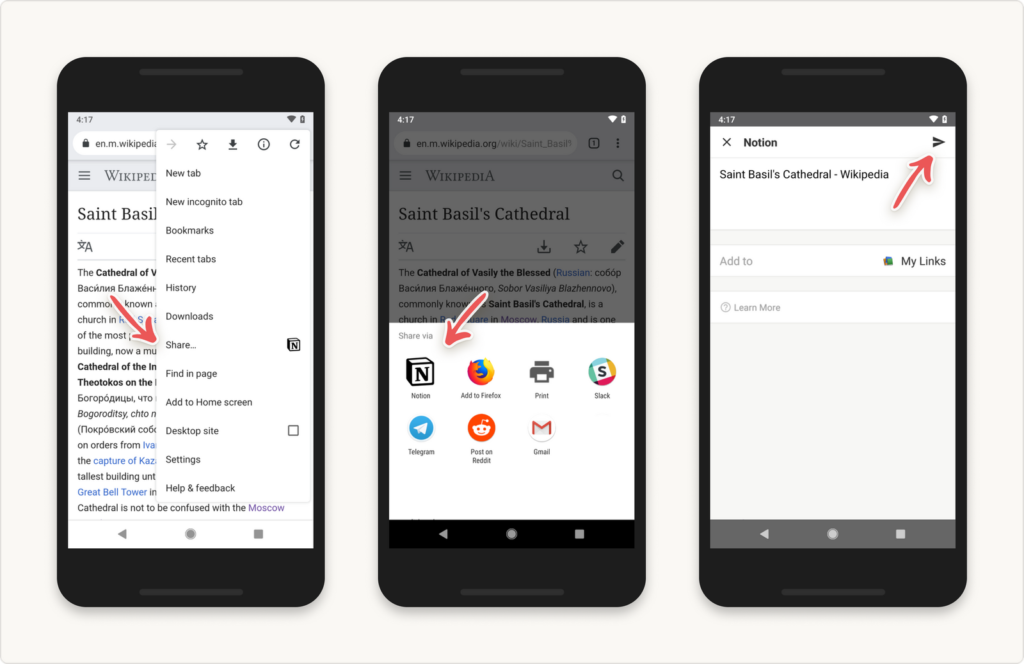
- Open Chrome and, on any page you want to save, click the share icon.
- This will open the mobile share sheet, which will already include Notion.
- Tap the Notion icon, enter the title of the page you are saving, choose the workspace and the page/database you want to add it to, and tap
Guardar. - Go to the page to view it, comment on it, add properties, etc.!
[mepr-show rules=”7898″ unauth=”message”]
[/mepr-show]
Add Local Images and Files from Your Phone to Notion
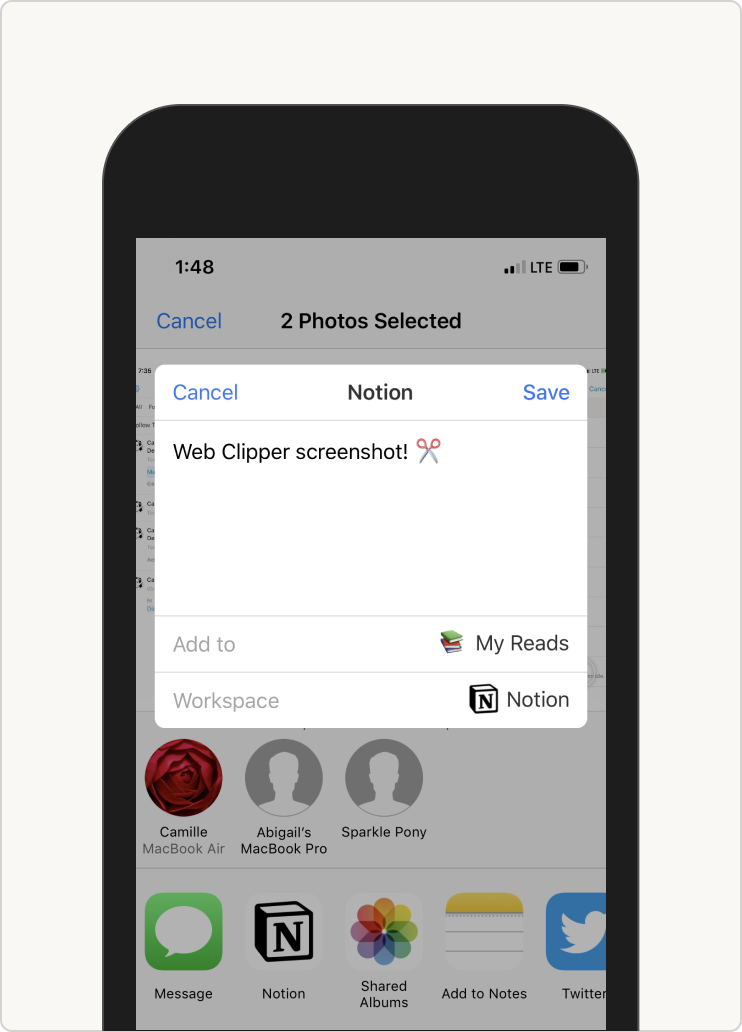
Want to add photos you take with your phone to your Notion workspace? You can do it in just a few steps:
- Select the photos you want to copy to Notion.
- Tap the
Compartiricon at the bottom of the screen. - Tap “Notion” if it is already an option in the share menu that appears. (Or, on iPhone, scroll to tap
••• Másand enable Notion as an option). - Create a title for the image, select the desired Notion workspace, and tap
Agregar ato choose the exact page/database where you want to add the image. - When you add local files to a database, no URL will be added.
Websites are built in many ways, so not all can be parsed in the same way. Formatting in Notion will vary. Notion has worked to ensure that clips from top sites like Pinterest, Netflix, Wikipedia, etc., are captured well, and they are gradually improving! However, some sites may fail to be stored correctly.
Practical Examples of Web Clipper in Tables
[mepr-show rules=”7898″ unauth=”message”]
[/mepr-show]
Frequently Asked Questions
Unfortunately, Notion Web Clipper only works for pages from your web browser or photos from your gallery. It is not yet compatible with other apps, such as the Twitter app or the iOS Notes app. This will be possible in the future!
Send the URL to the Notion team at team@makenotion.com; they will inform their engineering team so they can modify the Web Clipper and fix it.
Not at the moment. However, you will need to open the page stored in a Notion database to add and edit tags or other database properties.