Step-by-Step Video
Introduction
A global widget allows you to display the same widget, configured with your chosen content and styles, in multiple locations on your website. The advantage is that when you make a modification to this global widget, it will instantly update in all its instances throughout your website.
For example, let’s say you’ve edited and designed a testimonial widget on one page and now you want to add it to many other pages on your site. Simply save it as a global widget and then drag your new widget to any page. You can then edit them all at once by editing the global widget.
You can make any Elementor widget global.
How to Create a Global Widget?
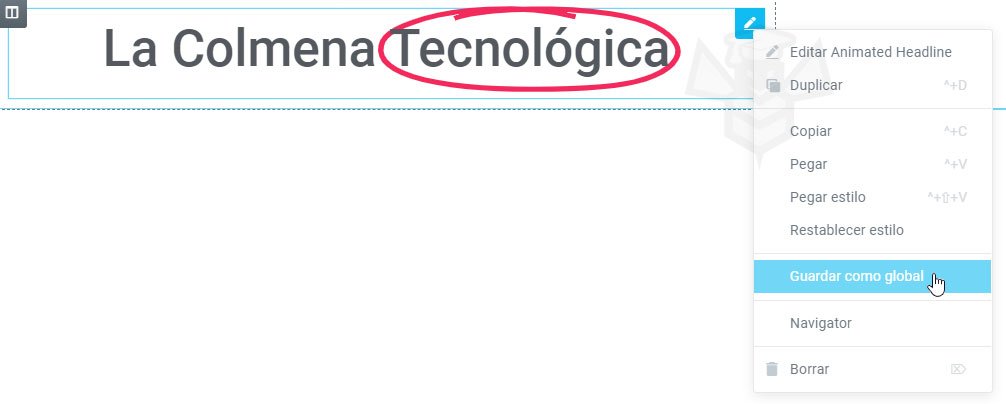
- Right-click on the widget handle
 and click Save as Global.
 - Name your new global template and click the Save button.
Editing a Global Widget
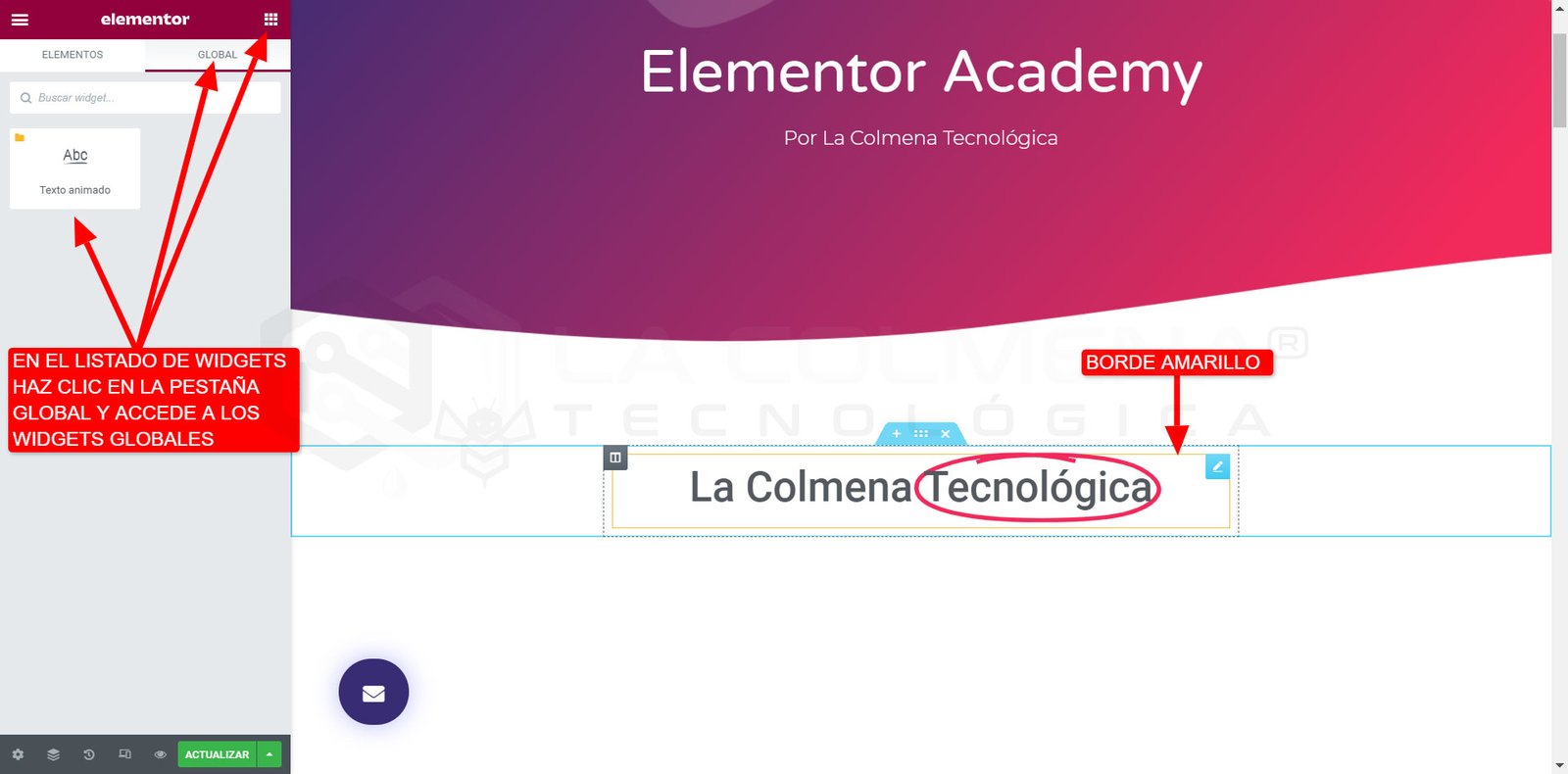
Once the widget is saved as a global widget, it is instantly surrounded by a yellow border instead of the standard blue border. Additionally, in the panel, all saved global widgets are displayed as a two-column widget list.
To edit the global widget, right-click on the widget handle .
You will see the message “Your Widget is Now Locked”
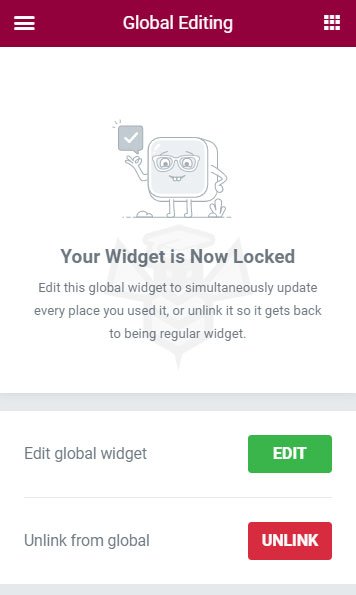
- Clicking Edit global widget allows you to edit the global widget. Any changes made here will instantly update all places where the global widget is placed on the site.
- Clicking Unlink from global will unlink the widget from the rest of the global widgets and allow you to edit only the specific widget, without affecting all other global widgets.
Inserting a Global Widget
There are several ways to insert a global widget elsewhere on your site:
Elementor Panel:
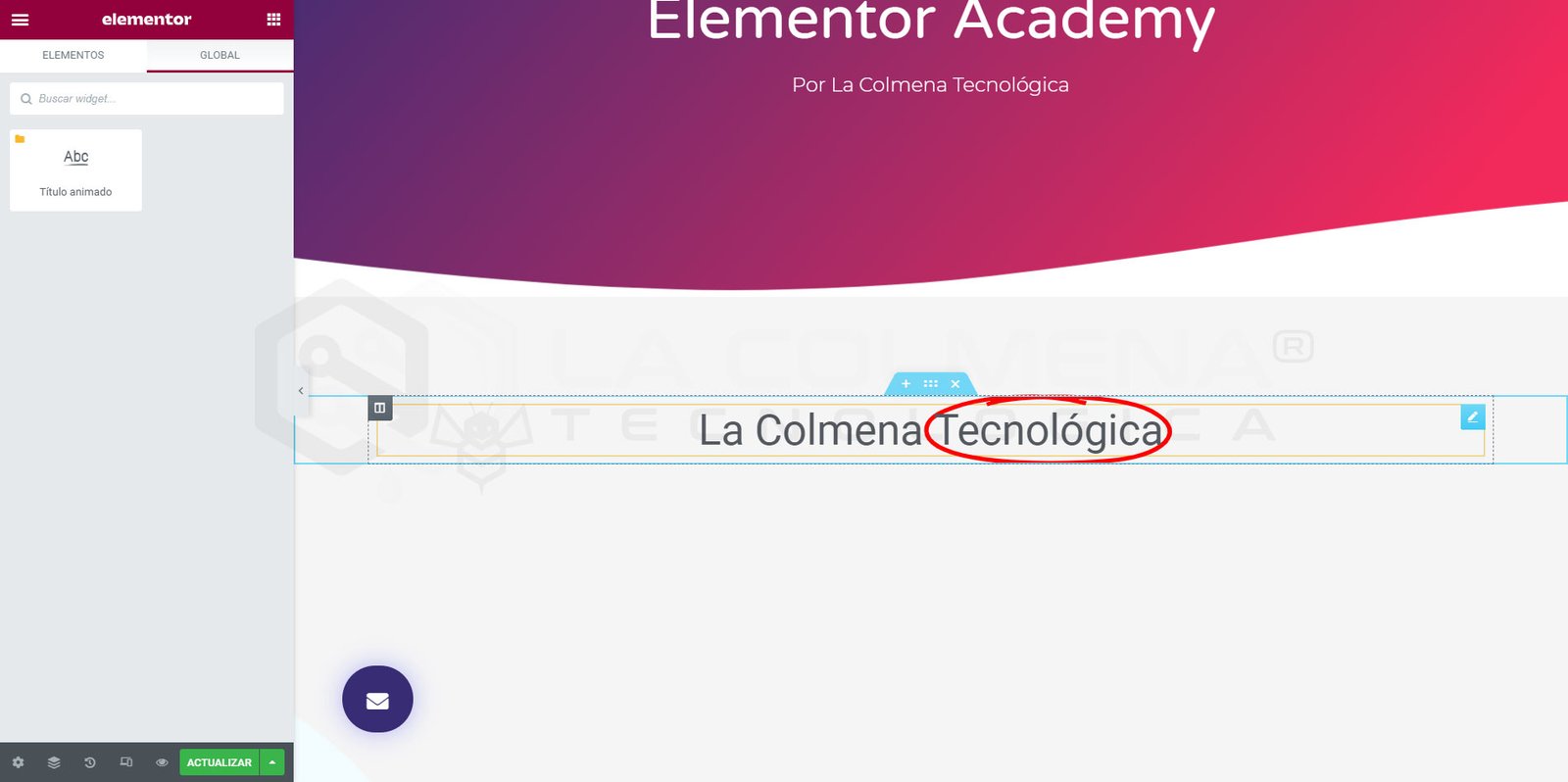
- On the new page, click Global and drag a global widget to your page.
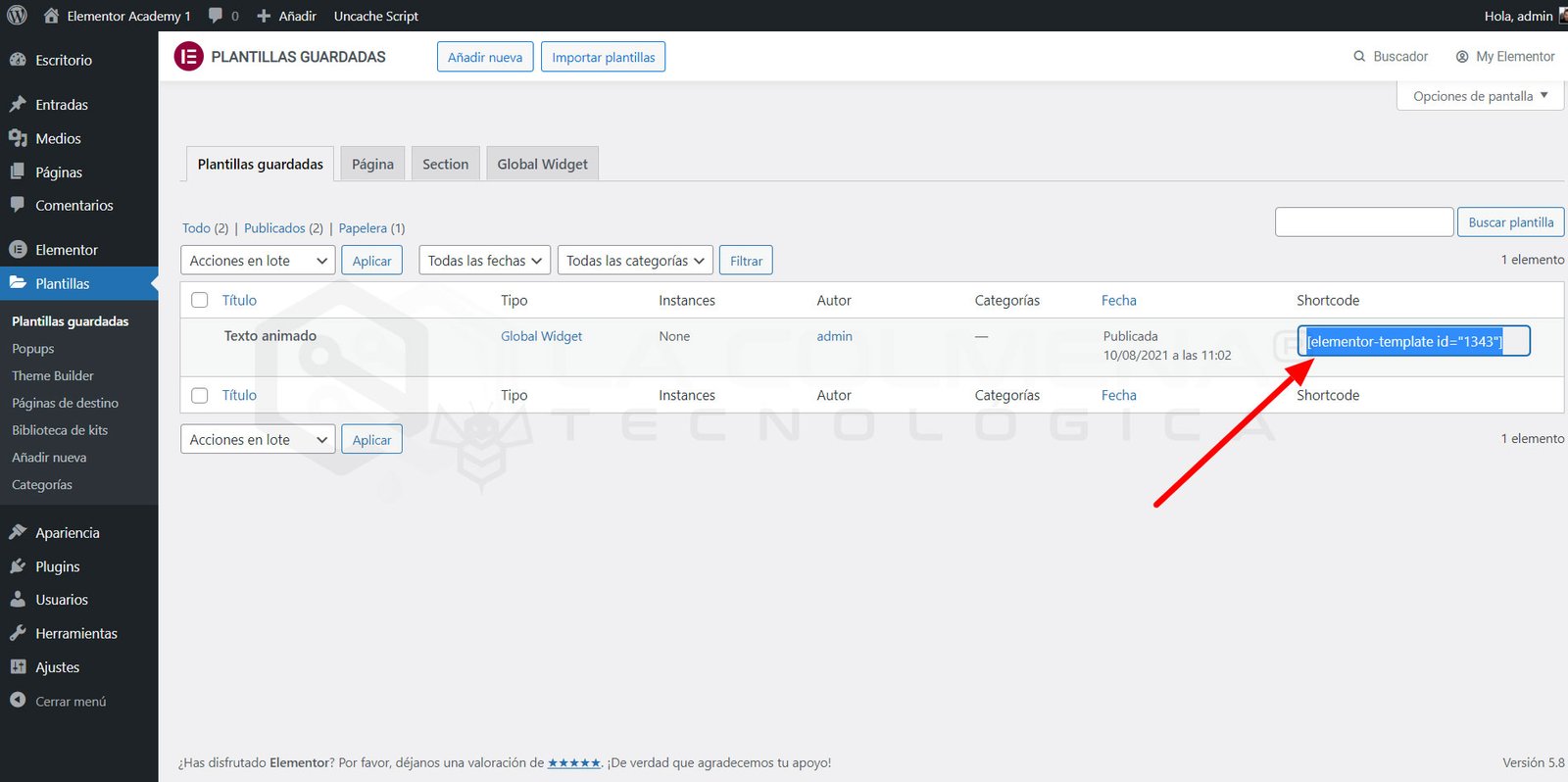
Shortcode
- Go to Templates > Saved Templates > Global Widget.
- Copy the Shortcode.
- Paste it into any area that supports Shortcodes.
How to Delete the Global Widget
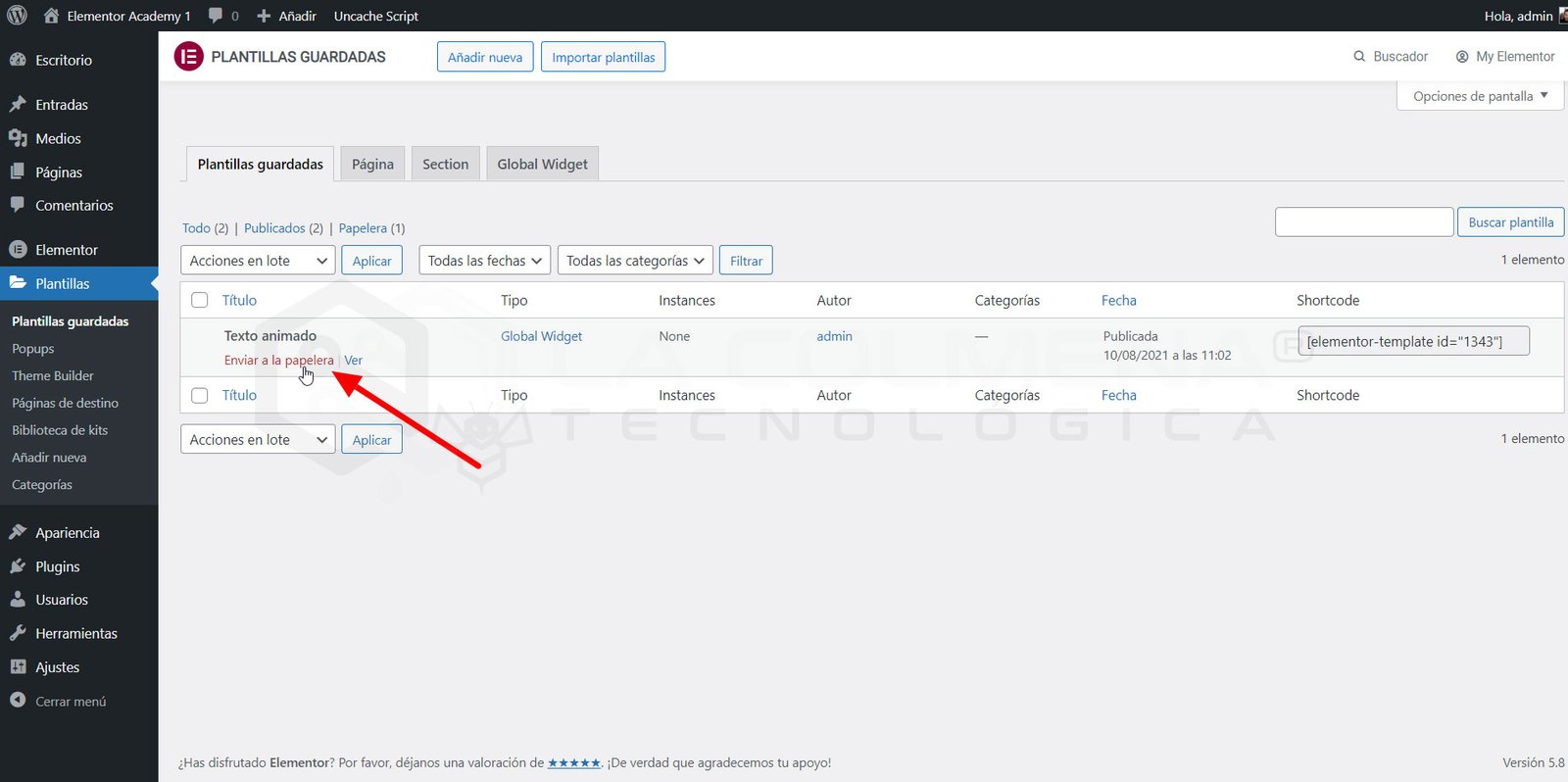
Go to Templates> Saved Templates and delete the widget.