
Display conditions
In another post we saw how to set up or modify display conditions; in this post we’ll explain what they are and how we can use them. Starting with Elementor 2.0, Elementor added global templates such as the Header and the Footer. These templates will be displayed across your entire site or on any combination of pages you choose.
What are display conditions?
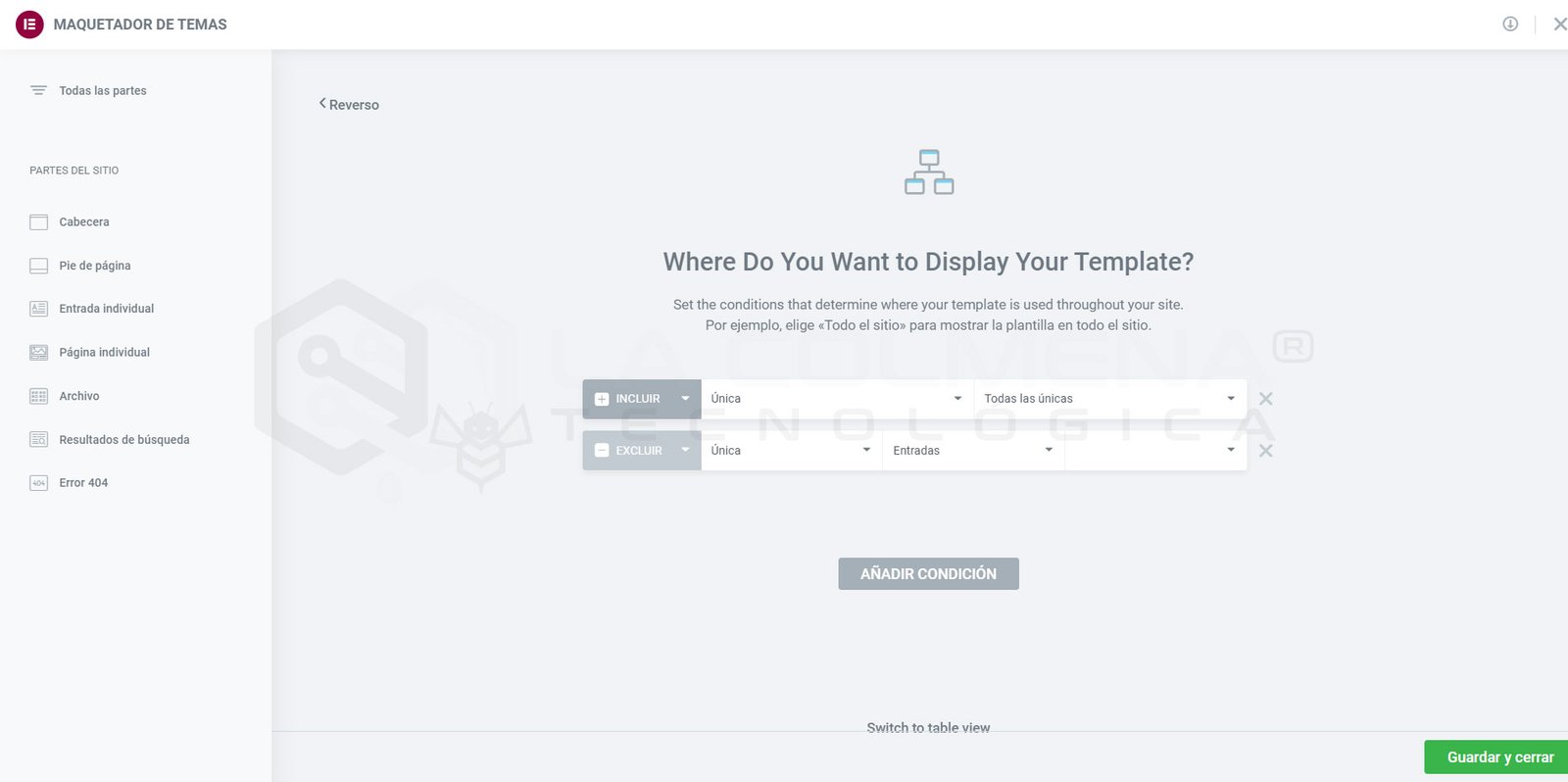
With Display Conditions, we can set exactly where each template will be displayed—across the entire site, on all pages, on all posts, in a specific category, taxonomy, or on a specific page. Each condition setting lets you include or exclude a condition.
For example, we have a Header template with the condition Include Entire Site. We can add a second Exclude condition for a specific page—let’s use the Front Page. This way, this Header will appear across the entire website except on the Front Page.
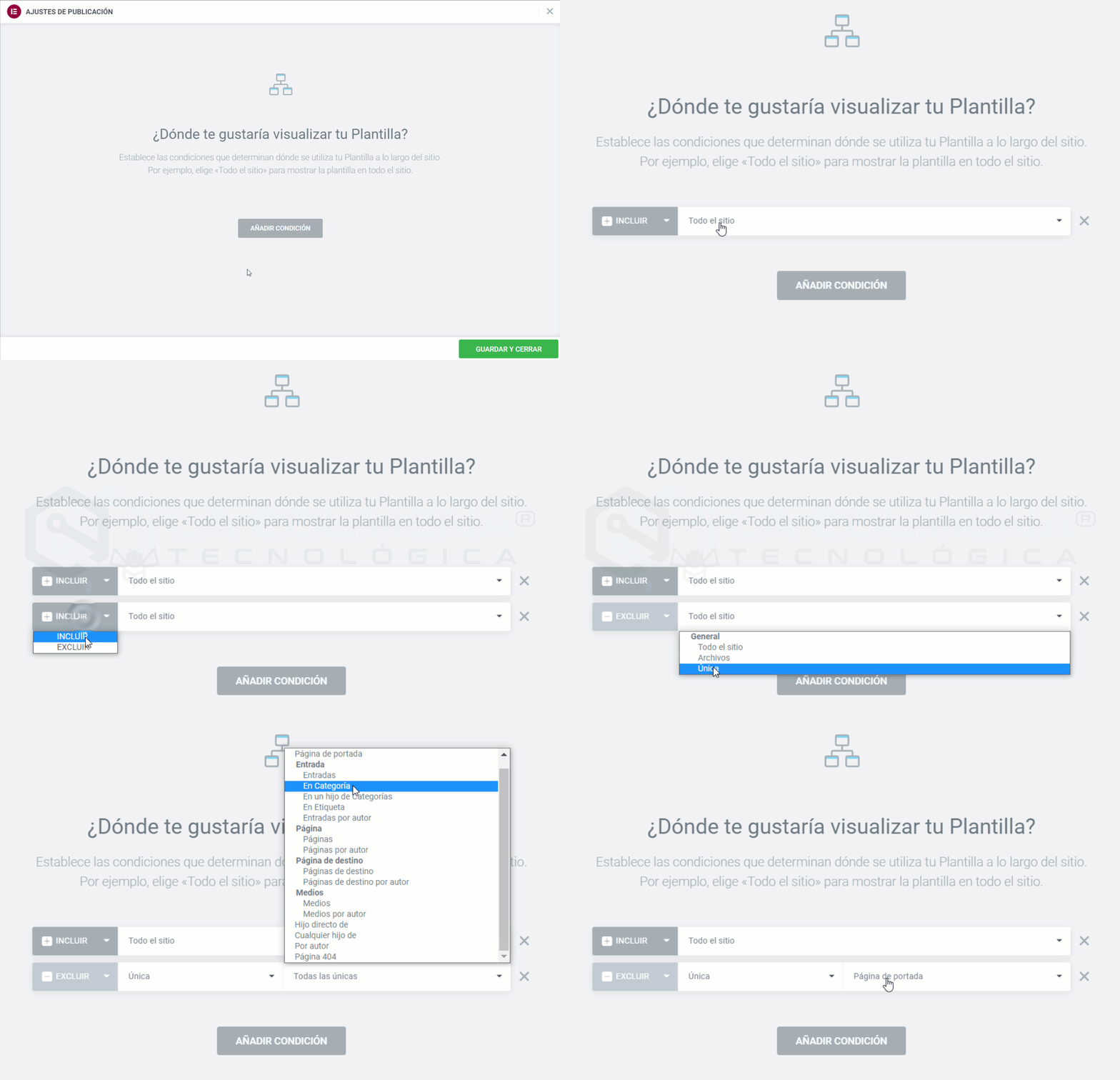
Note: display conditions can only be used in Theme Builder templates. You can create more than one header and assign it to different areas of your site.
Display conditions schema
Depending on whether we select INCLUDE or EXCLUDE, these conditions will make a global template from the Theme Builder display (INCLUDE) or not display (EXCLUDE).
What is an Archive in WordPress? Archives are all the post listings that have something in common. For example, the posts archive is a list of all published posts. You can list an archive based on a publication date, content type, author, or taxonomy.
- General
- Entire Site (displays across the entire site)
- Archives
- All Archives
- Author Archive
- All (in any author archive)
- Allows you to select an existing author (only in the selected author’s archive)
- Date Archive (for example, when you list posts from January 2022 – https://dominio.com/2022/07/)
- Search Results (in the archive shown when we search by keyword)
- Posts Archive
- Posts Archive
- Categories
- All (all category archives)
- Allows you to select an existing category (only in archives for the selected category – https://dominio.com/category/noticias/)
- Direct Child Category Of (archives of direct child subcategories of a category, but not the child subcategories of those subcategories)
- All (archives of all subcategories of any category, but not the child subcategories of those subcategories)
- Allows you to select an existing category (only in subcategory archives of the selected category, but not the child subcategories of those subcategories)
- Any Child Category Of
- All (archives of all subcategories of any category, and also their child subcategories)
- Allows you to select an existing category (only in subcategory archives of the selected category, and also the child subcategories of those subcategories)
- Tags
- All (any tag archive)
- Allows you to select an existing tag (only archives for the selected tag – https://dominio.com/tag/oferta/)
- Singular (Singular refers to individual pages or individual posts—i.e., a single item such as a post or a page)
- All Singular (all individual pages, posts, and also Custom Post Types, if you have them)
- Front Page (refers to the page you selected as the homepage in Settings > Reading)
- Post
- Posts
- All (all posts)
- Allows you to select an existing post (will only display on the selected post)
- In Category
- All (will display on all posts that have at least one category assigned)
- Allows you to select an existing category (only posts assigned to the selected category will be displayed)
- In a Child of Categories
- All (posts assigned to any subcategory)
- Allows you to select an existing category (only posts assigned to any child subcategory—direct or not—of the selected category will be displayed)
- In Tag
- All (posts assigned to any tag)
- Allows you to select an existing category (only posts assigned to the selected tag will be displayed)
- Posts by author
- All (posts by any author)
- Allows you to select an existing author (only posts by the selected author will be displayed)
- Posts
- Page
- Pages
- All (all pages)
- Allows you to select an existing page (will only display on the selected page)
- Pages by author
- All (pages by any author)
- Allows you to select an existing author (only pages by the selected author will be displayed)
- Pages
- Landing Pages
- All (all landing pages)
- Allows you to select an existing landing page (will only display on the selected landing page)
- Media
- Media
- All (in all media items)
- Allows you to select an existing media item (will only display on the selected media item)
- Media by author
- All (in media items by any author)
- Allows you to select an existing author (only the selected author’s media items will be displayed)
- Media
- Direct Child Of
- All (on all pages and hierarchical CPTs, if any, that are direct children of another)
- Allows you to select a page or CPT (pages or CPTs that are direct children of the selected page or CPT)
- Any Child Of
- All (on all pages or CPTs that are children, grandchildren, …)
- Allows you to select a page or CPT (pages or CPTs that are children, grandchildren, … of the selected page or CPT)
- By author
- All (in all items by any author)
- Allows you to select an author (on the page, post, media item, CPT, … by the selected author)
- 404 Page (only on the default 404 page shown when the URL you’re trying to access doesn’t exist)
Examples of display conditions
Set a Header or Footer for our entire website

All the assignments we can make in Singular, for example Singular > Posts > All, Singular > Pages > All, … take precedence over Entire Site. That is, if we create a Header or Footer and assign it to Singular > Posts > All, it takes precedence over the Header or Footer we assign to Entire Site, and all Posts will have a different Header or Footer than the rest of the website.
Set a Header or Footer for our entire website except the homepage

With this setup, we should create another, different Header or Footer and assign it to the Front Page.
Set a different Header or Footer for blog posts.

If we do this, we should already have a Header or Footer assigned for the rest of the website, i.e., Entire Site.
Set a Header or Footer for a specific page.

In this case, we assign this Header or Footer to a page titled “Page 1”.
Set a Header or Footer for posts assigned to the “News” category.

As you can see, there are very specific configurations that will let you customize your site to the fullest.