
Step-by-step video
Introduction
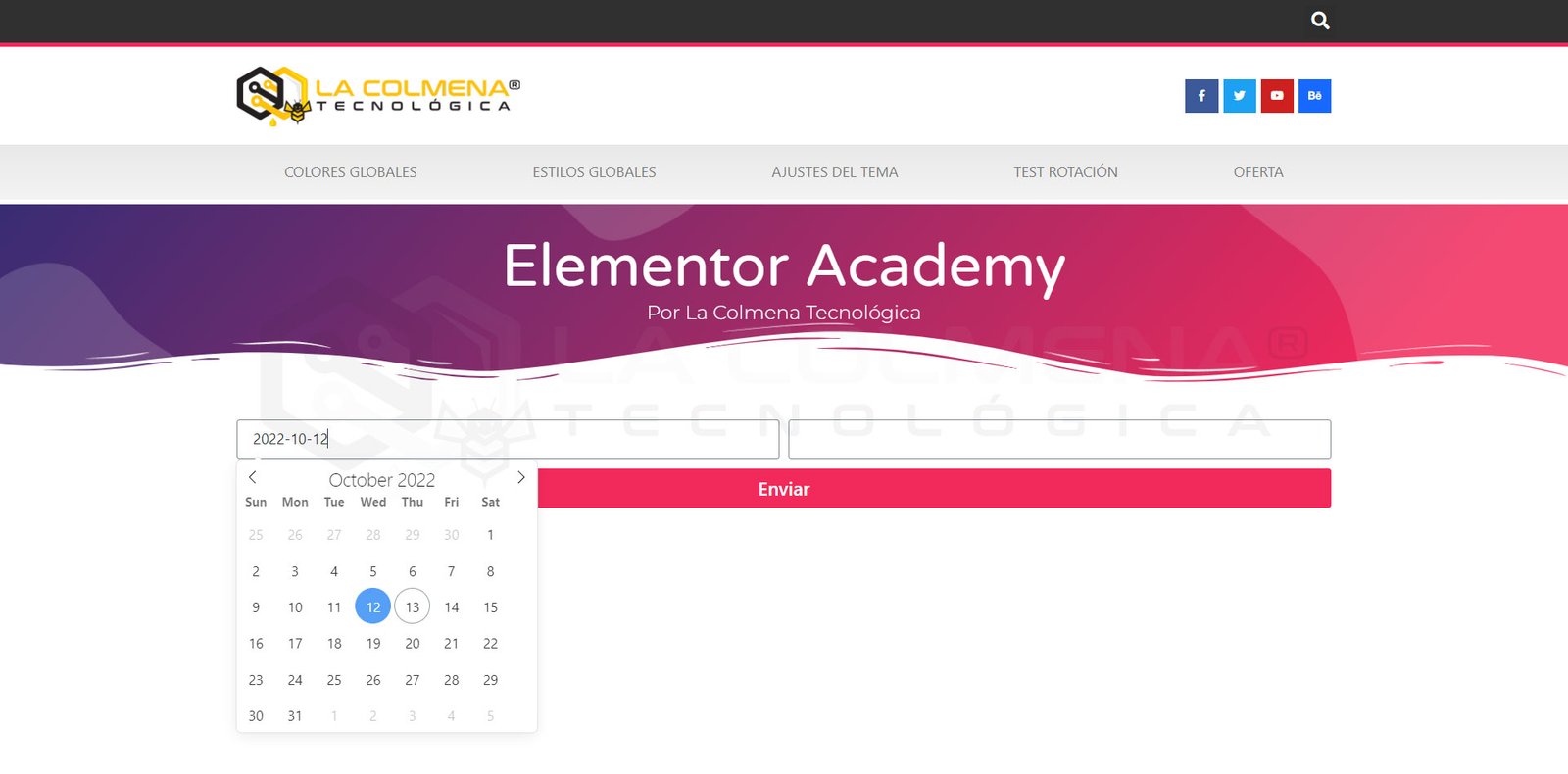
In this topic, we are going to look at how to use JavaScript code to fix the issue with the calendar displayed in the date field of the Elementor Pro Form widget.
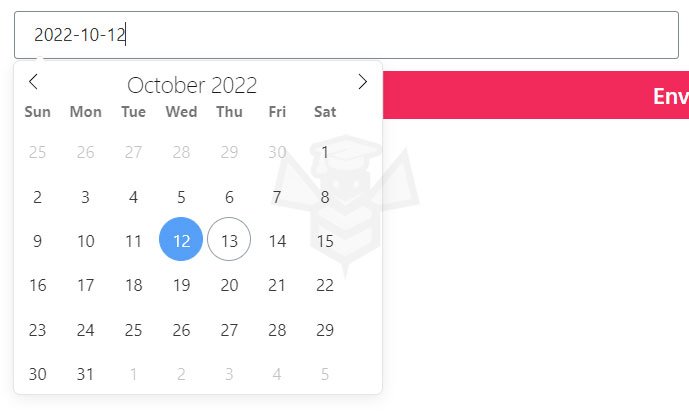
- The first issue arises because North American calendars continue to use Sunday as the first day of the week, whereas European calendars consider Monday to be the first day.
- The second issue is that in this calendar, the months and days of the week are in English.
- And the third issue is that when we select a date in the calendar, it returns it in American date format Y-m-d (Year-month-day).
Elementor Pro uses the Flatpickr JavaScript library to implement a datepicker that makes it easier for us to select dates via a calendar; by default, this library is in English, sets Sunday as the first day of the week, and returns the date in American format.
What is a datepicker?
Datepickers are elements that help the user easily select a date through a visual calendar.
What is Flatpickr?
Flatpickr is a library dedicated to creating datepickers that does not depend on jQuery UI Datepicker; it is lighter and is what Elementor Pro uses to improve date selection in the date-type fields of the Form widget.
Solution
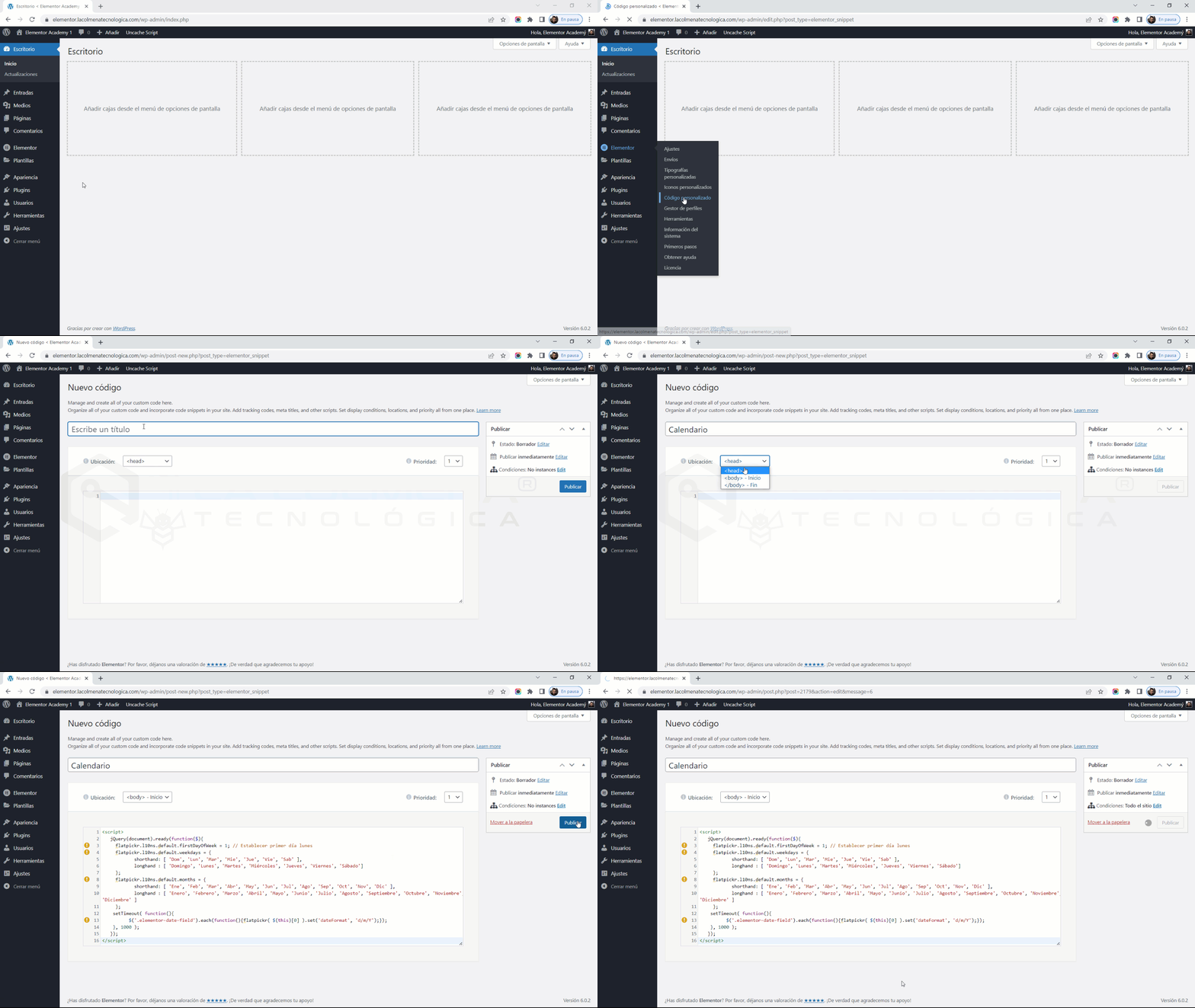
Let’s see how to insert the code into our website.
<script>
   jQuery(document).ready(function($){
     flatpickr.l10ns.default.firstDayOfWeek = 1; // Establecer primer día lunes
		 flatpickr.l10ns.default.weekdays = {
            shorthand: [ 'Dom', 'Lun', 'Mar', 'Mie', 'Jue', 'Vie', 'Sab' ],
            longhand : [ 'Domingo', 'Lunes', 'Martes', 'Miércoles', 'Jueves', 'Viernes', 'Sábado']
     };
		 flatpickr.l10ns.default.months = {
            shorthand: [ 'Ene', 'Feb', 'Mar', 'Abr', 'May', 'Jun', 'Jul', 'Ago', 'Sep', 'Oct', 'Nov', 'Dic' ],
            longhand : [ 'Enero', 'Febrero', 'Marzo', 'Abril', 'Mayo', 'Junio', 'Julio', 'Agosto', 'Septiembre', 'Octubre', 'Noviembre', 'Diciembre' ]
     };
		setTimeout( function(){
			    $('.elementor-date-field').each(function(){flatpickr( $(this)[0] ).set('dateFormat', 'd/m/Y');});
		}, 1000 );
   });
</script>- Select and copy the code above.
- In the WordPress admin panel, navigate to Elementor > Custom Code.
- Click the Add New button.
- Enter a title and paste the code into the box below using CTRL+V (Windows) or CMD+V (Mac). You can also right-click and select Paste.
- Click the Publish button.
- In the pop-up window, set the display conditions, which default to Entire Site.
- Click Save & Close.
Now the Date field calendar will display correctly.