
Step-by-step video
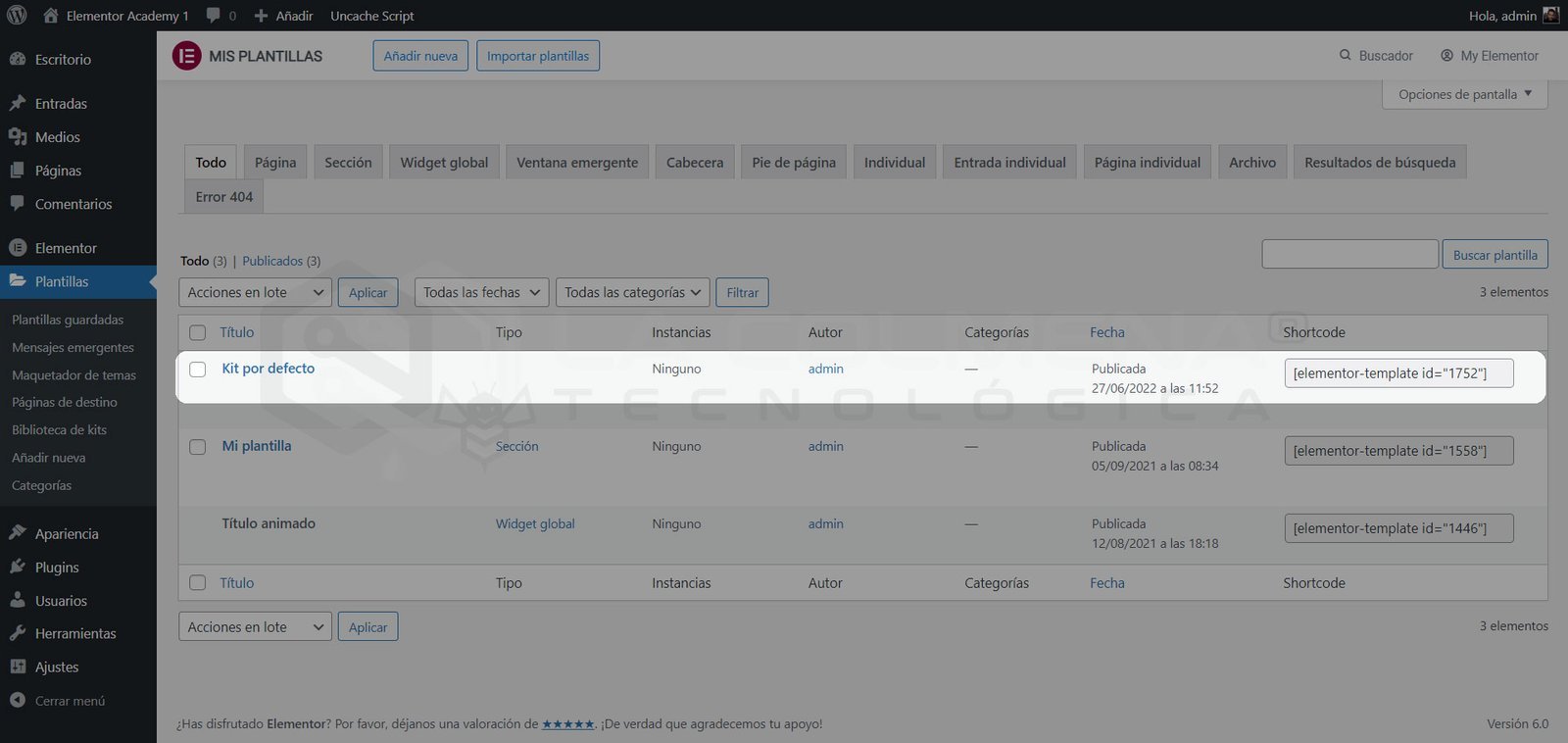
What is the Elementor Default Kit?
Elementor uses a template called Default Kit found in the Templates library, which it uses to store all the website’s global style values. All preferences for fonts, colors, forms, buttons, and many other settings are located in this template and can be changed from the Site Settings.
This kit is necessary for Elementor styles to function correctly.
By default, these style settings will only apply to non-Elementor elements—for example, WooCommerce checkout fields, Contact Form 7 labels, third-party headers, and more—but we can configure Elementor to override the theme’s style settings and take their place, allowing you to use Elementor to set styles for elements created by Elementor.
Setting theme styles through Elementor
Colors and font styles are set by the theme you have installed by default. Depending on the theme you are using, these settings can be changed from the Appearance > Customize menu and, in other cases, from Appearance > Theme Options.
In some themes, such as Elementor’s own Hello Elementor (which you can find for free in the WordPress repository), these configuration options are not included, so Elementor uses a default color and font configuration.
If we want to take control and be able to change this global website configuration from the Elementor builder itself instead of using the one set by the theme or the one that comes by default in Elementor, we must disable the default colors and fonts by following these steps:
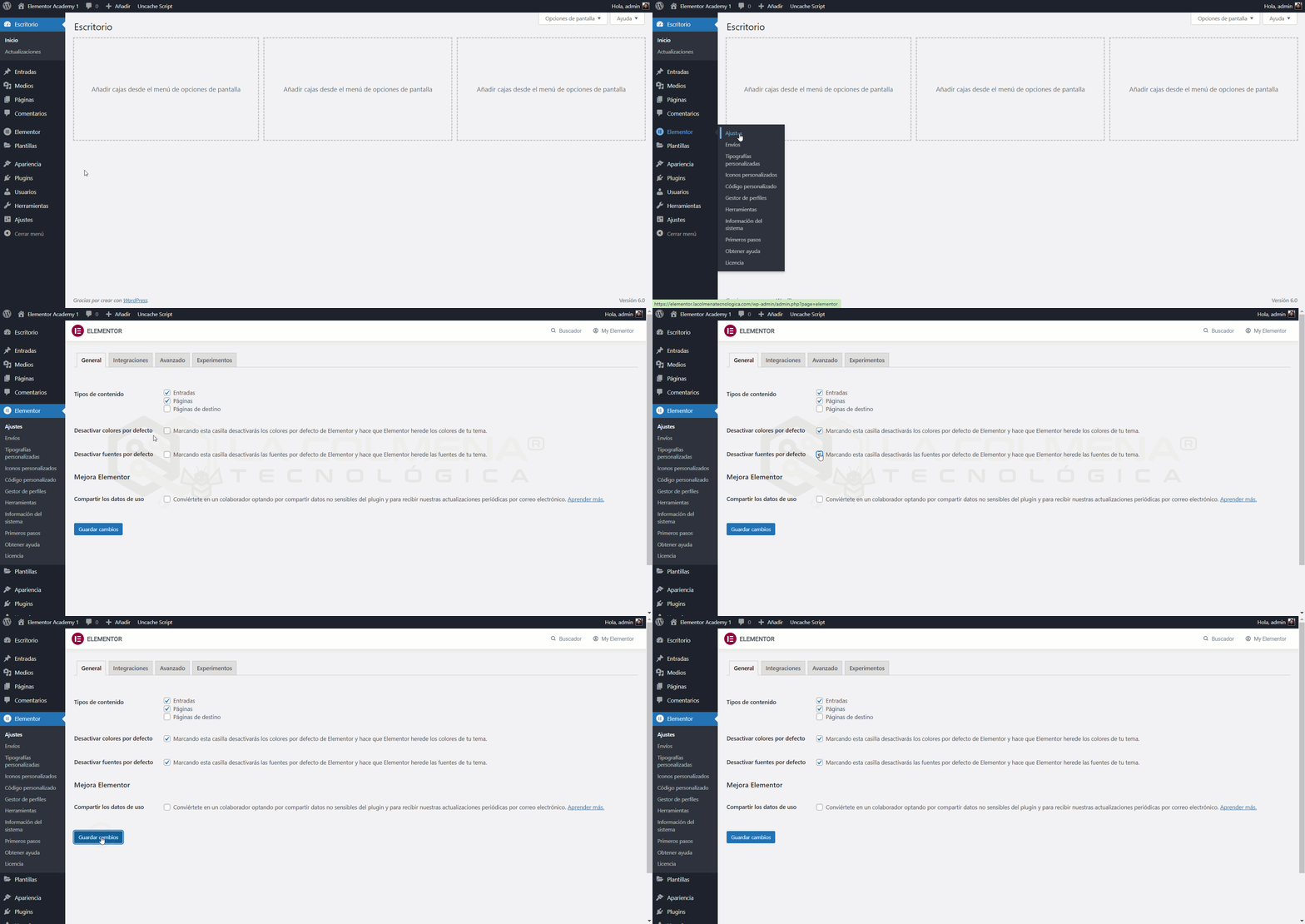
- Go to Elementor > Settings
- In the General tab, check these two boxes
- Disable default colors
- Disable default fonts
- Finally, click the Save Changes button
How to set theme styles
Once we have disabled the default colors and fonts, we can create our own configuration for our entire website from Site Settings. All this information is saved in a template called Default Kit; we can access this configuration from any page by entering the Elementor builder and following these steps:
From the Elementor builder
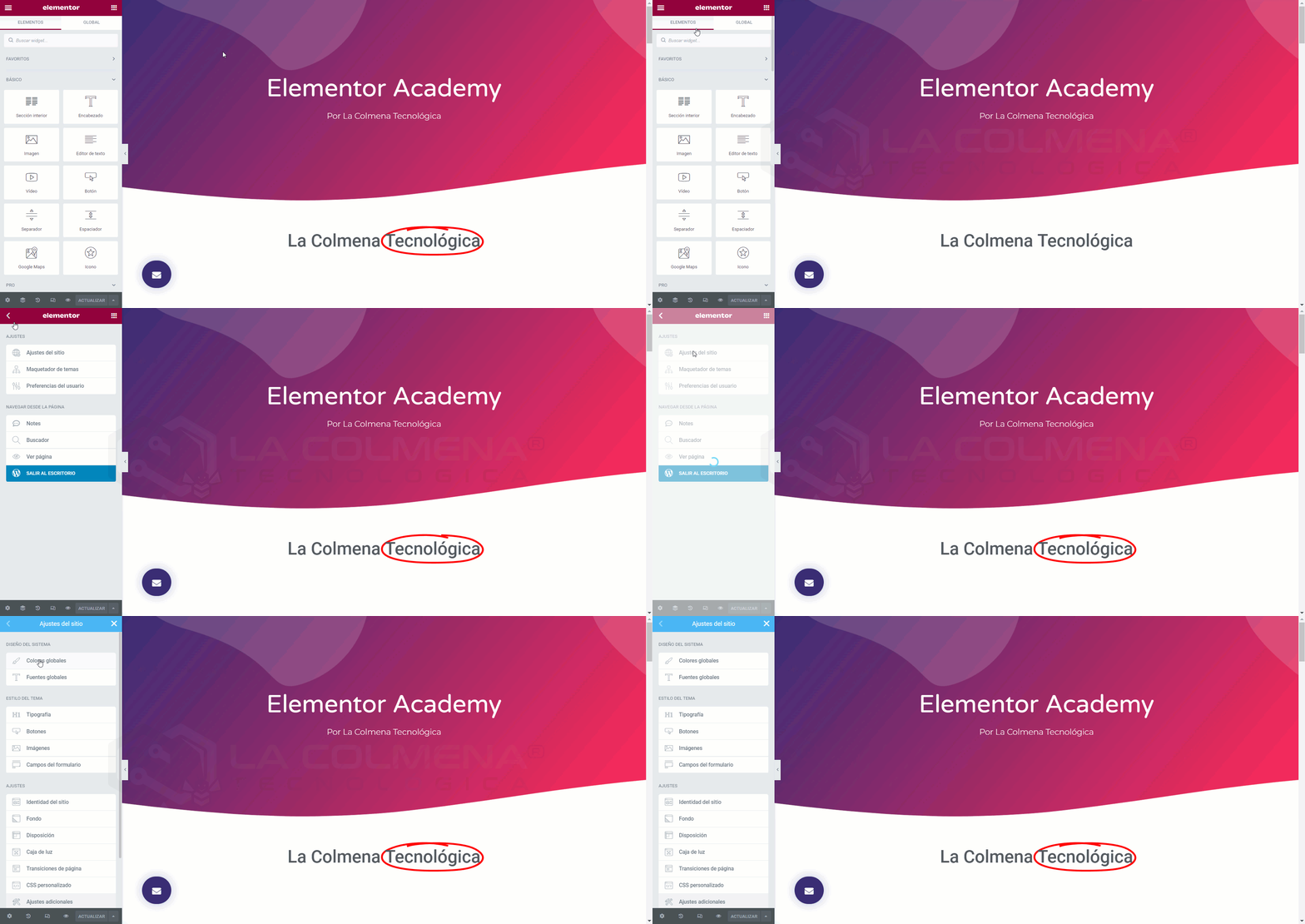
- Launch the Elementor builder by entering any page.
- Click on the Hamburger menu
 in the top left corner.
 - Then click on Site Settings.
Theme Style consists of four tabs: Typography, Buttons, Images, and Form Fields.
Editing “Default Kit” template
In both the previous case and this one, the configuration we set will be saved in the template called Default Kit. But in this case, we will see how editing this template takes us directly to the Site Settings.
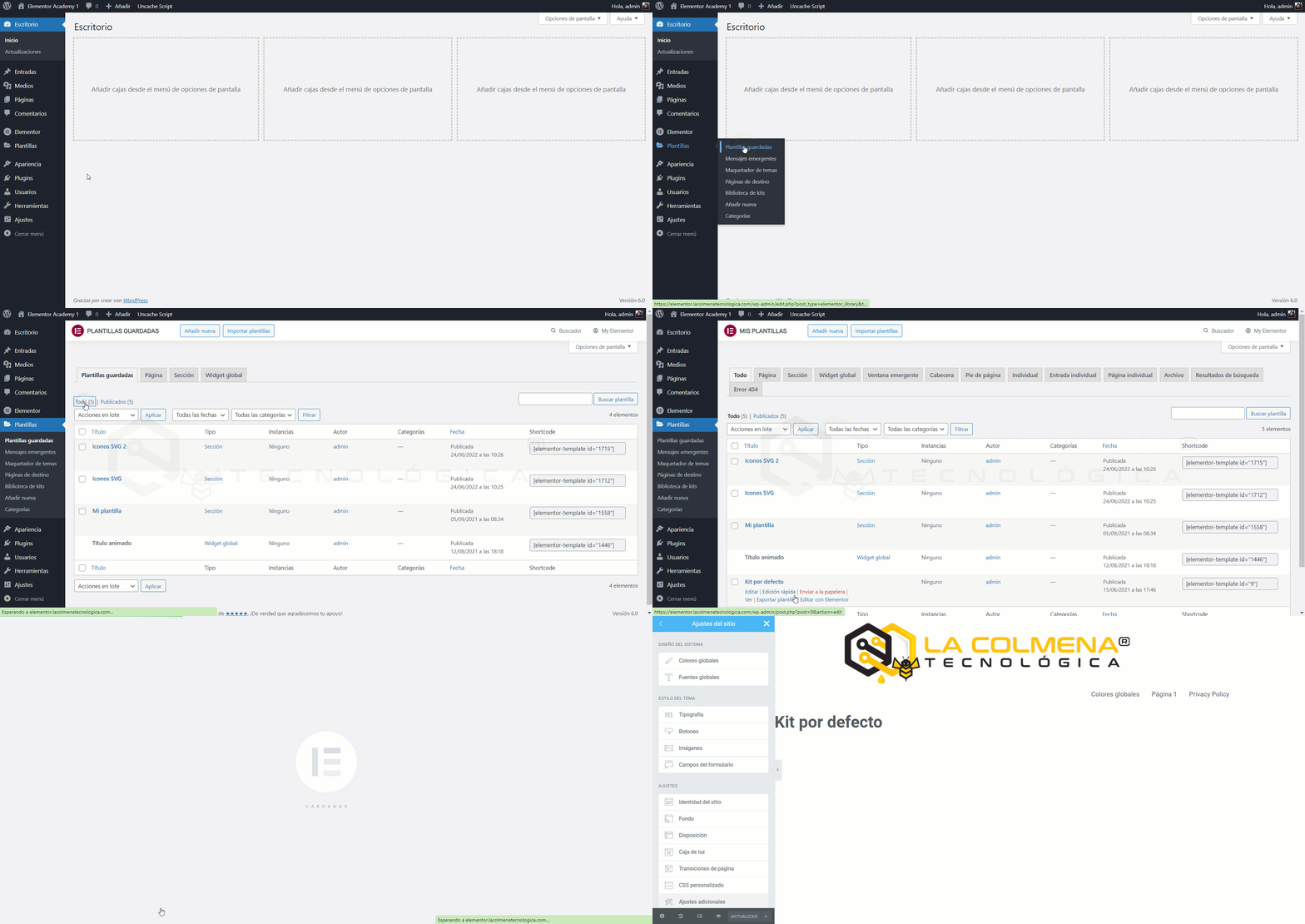
- In the WordPress menu, click on Templates > Saved Templates
- The Default Kit template is not shown; to see it in the list, we must click on All.
- Once we see it in the list, hover the cursor over it and click Edit with Elementor.
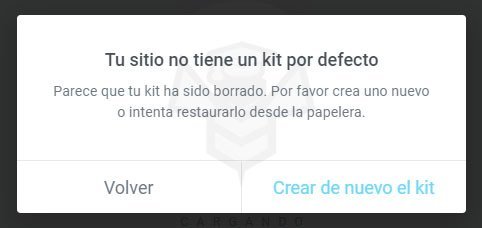
Error: Your site doesn’t have a default kit
After installing a brand new site with Elementor Core / Pro, you may experience the error Your site doesn’t have a default kit. This will also happen if the default kit is deleted from your template library.
The solution
To regenerate the Default Kit, follow these steps:
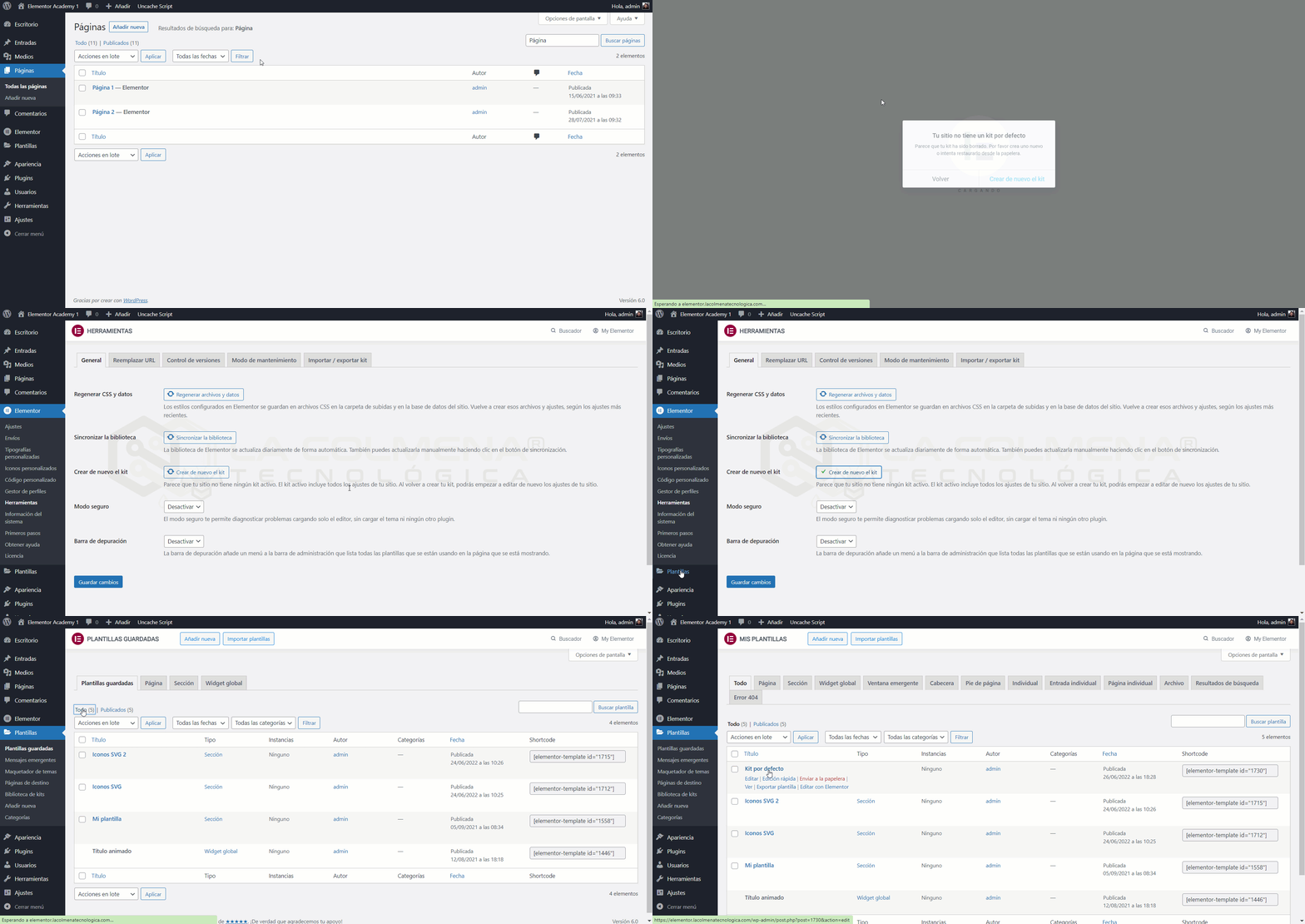
- Click on Recreate Kit or navigate through the WordPress menu to Elementor > Tools > General.
- Click the Recreate Kit button.
- Click Save Changes.
Once the Default Kit is created, the Recreate Kit button will disappear.