Social media section design in a web editor. Easily customize styles and content.
Table of contents
Step-by-step video
What is Elementor Navigator?
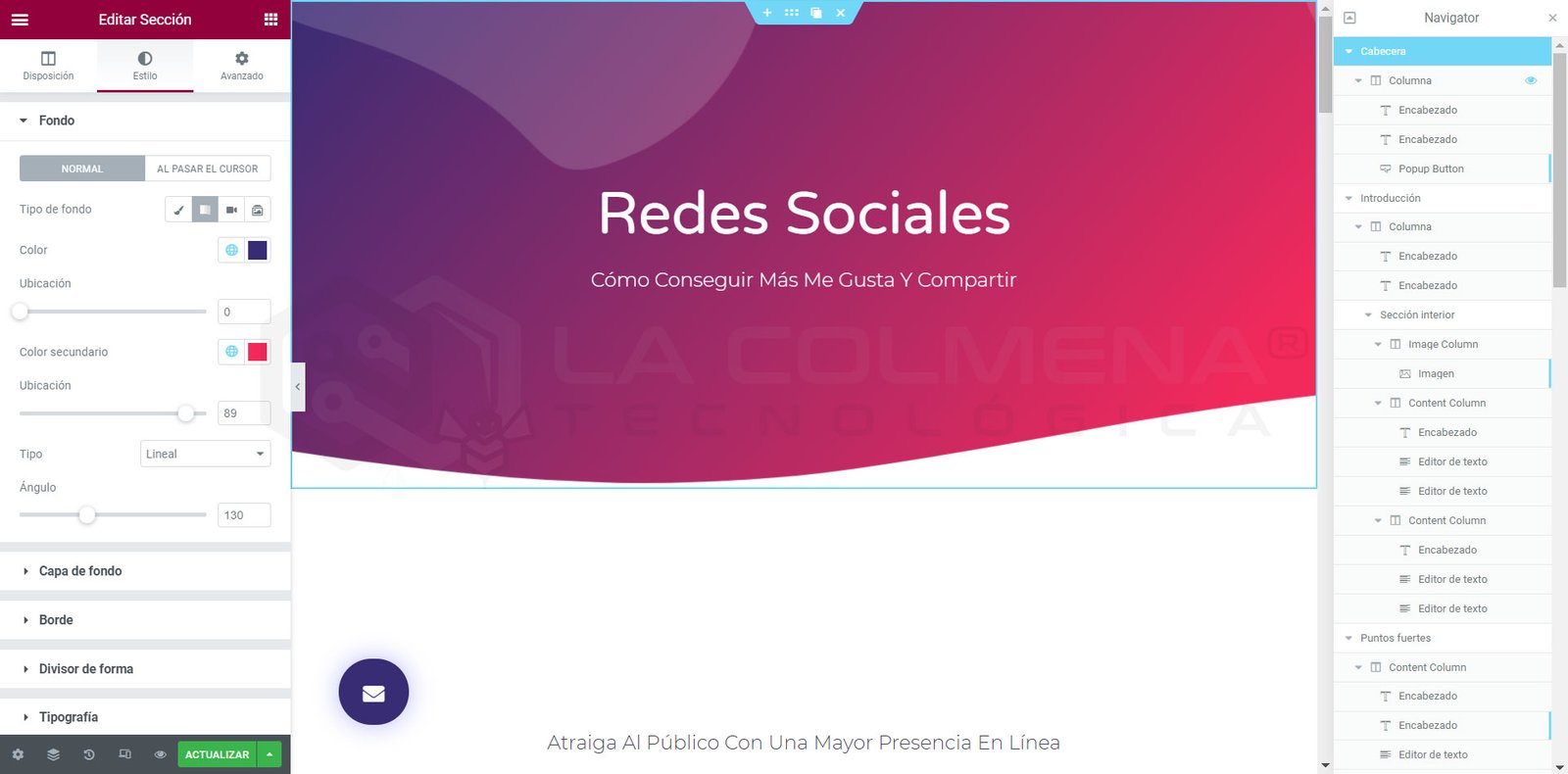
Elementor’s Navigator, or Navigator (as it’s called in Elementor since it hasn’t been translated yet), is a panel that displays a hierarchical navigation tree with all the elements (sections, columns, and widgets) that make up the active document, providing easy one-click access to all of them.
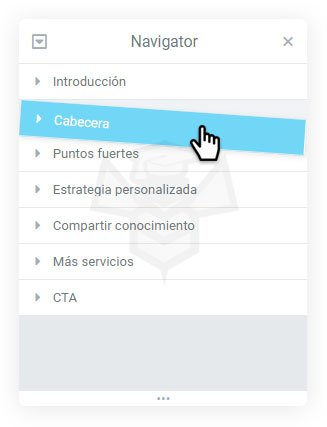
The Navigator lets the user drag and drop elements to change their position, duplicate them, select them for editing, delete them, hide them, and rename how they appear in the Navigator list—all quickly and easily.
Navigator is particularly useful for long pages or pages with complex, multi-layered layouts, and for elements that use Z-index, negative margin, absolute positioning, etc., since it lets you access element identifiers that may be placed behind other elements.
Show Elementor Navigator
You can access Navigator in one of three simple ways:
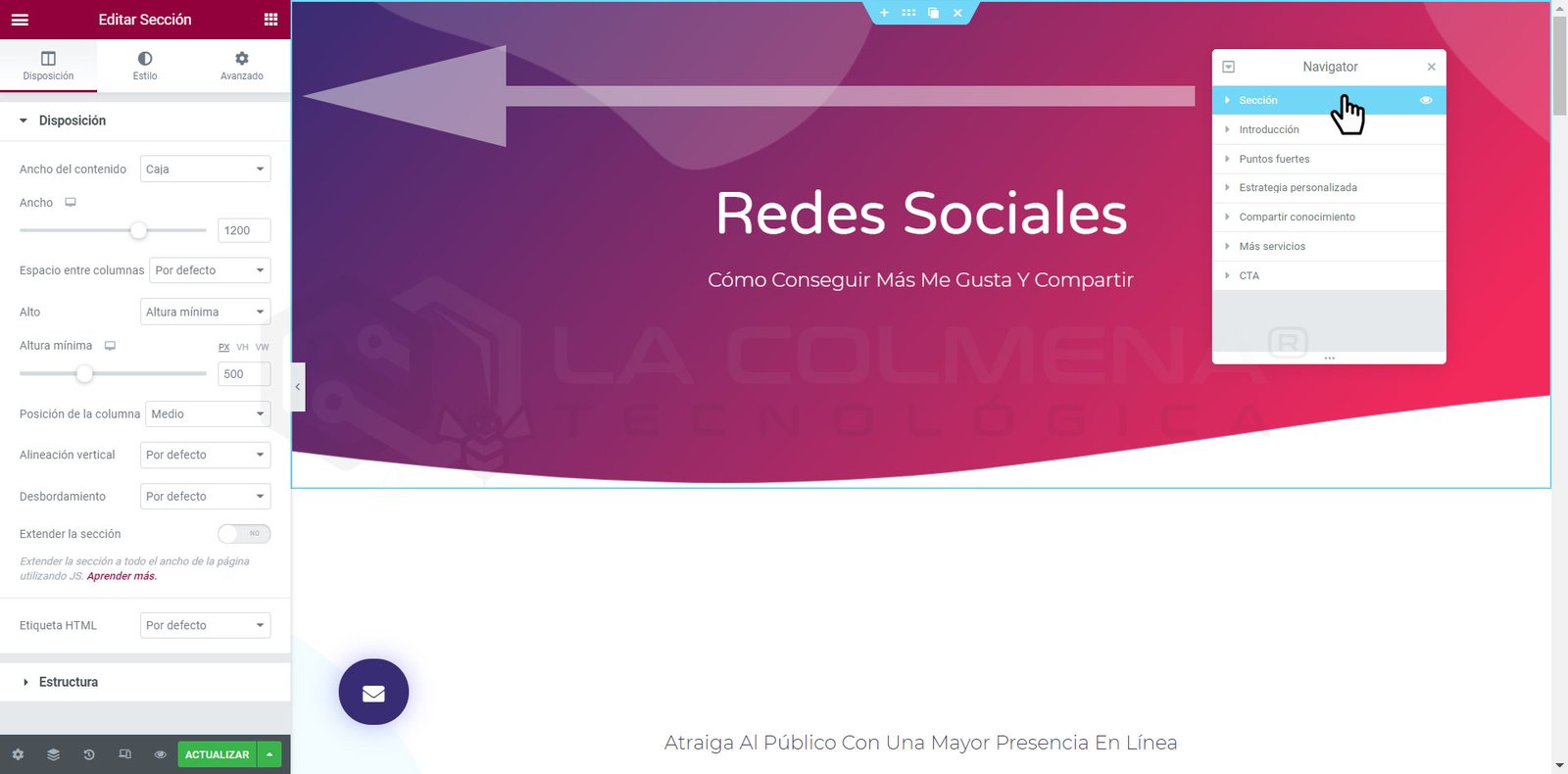
Right-click any element, then click Navigator. This will automatically take you to that specific element in the navigation tree.
Click the Elements button in the panel footer.
Use the keyboard shortcut Cmd / Ctrl + i
Choose an element to edit
Click any element once to jump straight to its Edit panel.
Reorder elements
Drag any element up or down and drop it before or after any other element.
Right-click options
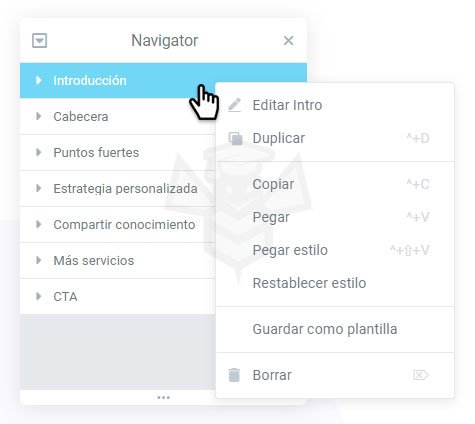
Right-click an element to enable all the usual context menu options, such as Edit, Duplicate, Copy, Paste, etc.
Hide / Show elements
Click the element’s View button to show or hide the element, helping you focus on the design.
Note: this will not affect your website’s interface.
Rename elements
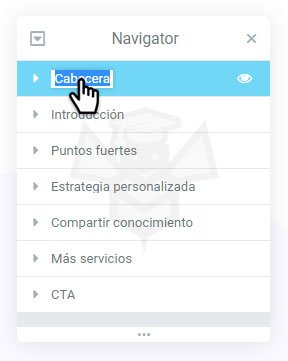
Double-click the element name. The area will turn blue, indicating you’re in insert/edit mode.
Type a custom name to help you easily identify the element later.
Collapse / expand an element
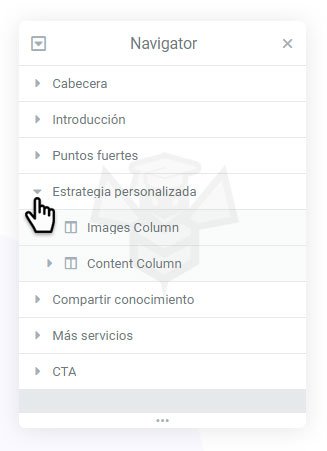
Click an individual element’s arrow button to expand or collapse that element.
Collapse / expand all elements
Click the down arrow button or up arrow at the top left of the Navigator panel to expand or collapse all elements at once.
Position the navigation panel
Floating
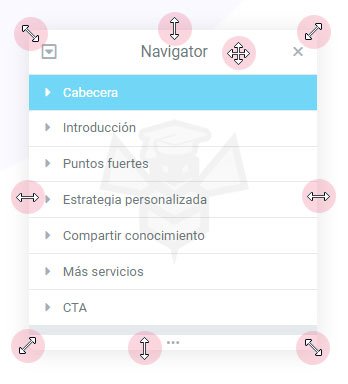
Drag the Navigator panel anywhere on the page. Resize the Navigator by moving the pointer to the edges.
Docked
Dock the Navigator panel to the side of the screen by placing it within the vertical blue docking area that appears when the panel is dragged near the right side of the screen.


 to show or hide the element, helping you focus on the design.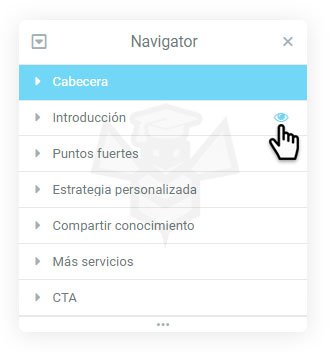
 or up arrow
  at the top left of the Navigator panel to expand or collapse all elements at once.